8. ADVANCED SETTINGS
The trail camera comes with preset manufacturer settings. You
can change the settings to meet your requirements. Once the
camera screen is on, press MENU key to enter/exit the menu.
Press the UP/DOWN key to move the marker, Press the
LEFT/RIGHT key to change the setting, and press the OK
key to confirm the change. Always remember to press the OK
to save the change. Otherwise, you will lose your new setting.
Also you can program your camera in the app.
Note: All camera settings programmed through the app will not
take effect until the next "Cellular Transfer" cycle. After the
setting takes effect, the orange bar on the left of the modified
settings will disappear. Considering cellular network
transmission speed and power saving, the app will limit
photo quality and size, video quality and length.
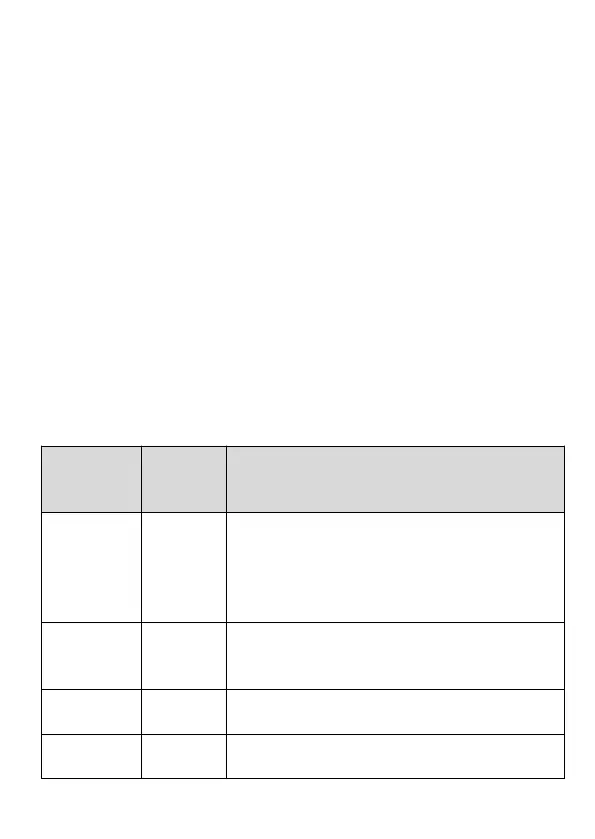
Selecting On to enable cellular, you can
use the app to connect the cellular
network. Selecting Off to disable cellular,
the camera will operate in stand-alone
mode and save battery power.
Only can be programmed in the camera.
Reserved for future use. Please don’t
change it.
It is used for activating the camera. Scan it
in the app during the setup.
Details of cellular modem and network,
such as Adapter, IMEI, Configure, Status,


 To Next Page