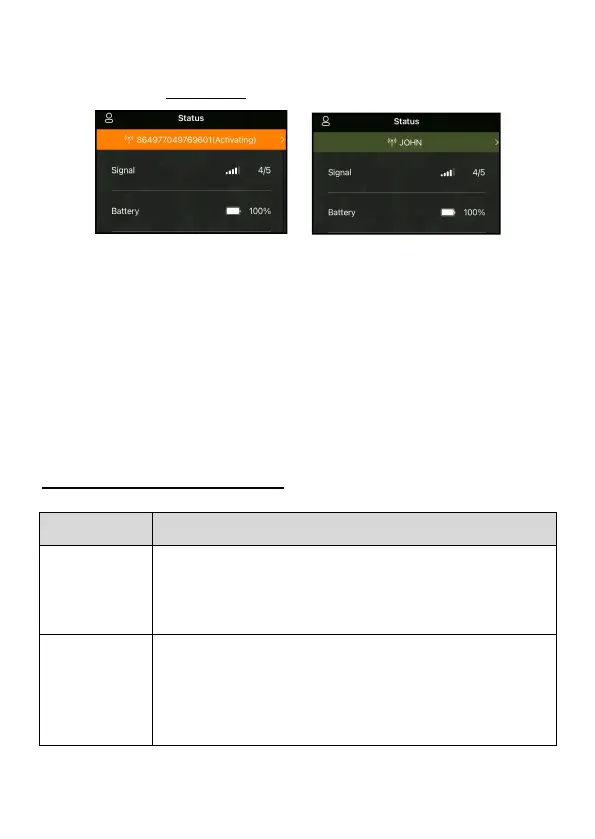
In the app, once device is activated, the orange bar on the app
will turn into a green bar (Figure 10- 11).
Figure 10: Activating Figure 11: Activated
The ID "864977049769601" (cellular ID, just for example) will
turn into your camera name (e.g. you have programmed your
camera name as "JOHN"). Please note this ID may vary from
different camera and its SIM card.
7.5. App Navigation
Once the camera is fully activated, you can navigate the app.
The app supplies 4 main tabs: Plan, Status, Settings and
Gallery (Table 2). To get more detailed guide, please visit:
www.zopudt.com/support/cell
Table 2 - App Navigation
List status of your current data plan, e.g. total
remaining effective days and remaining the amount
of data plan for this cycle. You can order a new plan
or order HD photos and Videos on demand.
Camera status, including battery level, memory
card capacity and used size, internal temperature of
the camera, number of pictures and videos stored on
the memory card, modem ID, camera model,
firmware version number, etc.


 To Next Page