EasyManua.ls Logo

Garmin EDGE EXPLORE 2 - Page 69

Garmin EDGE EXPLORE 2
87 pages
Print Icon
To Next Page IconTo Next Page
To Previous Page IconTo Previous Page
Loading...
You
can
swipe
down
from
the
top
of
the
data
screens
to
view
the
widgets.
6 If
necessary,
tap
the
screen
to
view
status
overlay
data
(including
battery
life)
or
return
to
the
home
screen.
7
Press
I
to
stop
the
activity
timer.
8
Select
Save.
9
Select
.
Viewing
Widgets
Your
device
is
preloaded
with
several
widgets,
and
more
are
available
when
you
pair
your
device
with
a
phone
or
other
compatible
device.
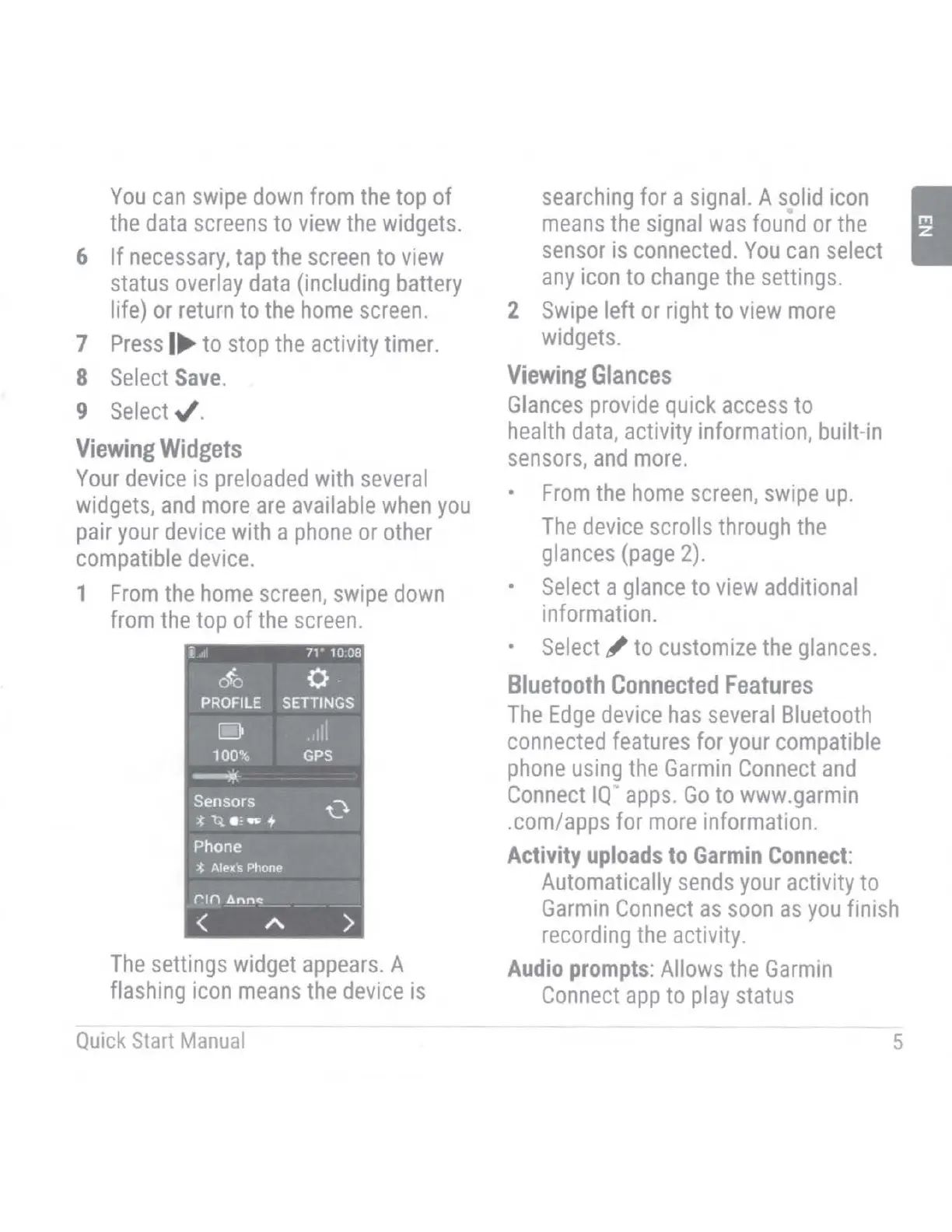
1
From
the
home
screen,
swipe
down
from
the
top of
the
screen.
1
71
"
10
08
0
ofo
PROFILE
SETTINGS
o,
100%
~-
Sensors
*
~-=-
+
Phone
t
Alex's
Phone
r.1n
l!.nnc
<
A
. ti
11
GPS
>
The
settings
widget
appears.
A
flashing
icon
means
the
device
is
- -
Quick
Start
Manual
searching
for a
signal.
A
solid
icon
I
means
the
signal
was
found
or
the
sensor
is
connected.
You
can
select
any
icon
to
change
the
settings.
2
Swipe
left
or
right
to
view
more
widgets.
Viewing
Glances
Glances
provide
quick
access
to
health
data,
activity information,
built-in
sensors,
and
more.
From
the
home
screen,
swipe
up.
The
device
scrolls
through
the
glances
(page
2).
Select
a
glance
to
view
additional
information.
Select
~
to
customize
the
glances.
Bluetooth
Connected
Features
The
Edge
device
has
several
Bluetooth
connected
features
for
your
compatible
phone
using
the
Garmin
Connect
and
Connect
IQ·
apps.
Go
to
www.garmin
.com/apps for
more
information.
Activity
uploads
to
Garmin
Connect:
Automatically
sends
your
activity
to
Garmin
Connect
as
soon
as
you
finish
recording
the
activity.
Audio
prompts:
Allows
the
Garmin
Connect
app
to
play
status
5

Table of Contents

Other manuals for Garmin EDGE EXPLORE 2

Related product manuals