GNS 430(A) Pilot’s Guide and Reference
190-00140-00 Rev. P
5-10
SECTION 5
FLIGHT PLANS
The data elds for DTK and DIS are user-selectable and
may be changed to display cumulative distance (CUM) to
each waypoint, estimated time of arrival (ETA), estimated
time enroute (ETE), or enroute safe altitude (ESA).
To change a data field on the Active Flight
Plan Page:
1) With the Active Flight Plan Page displayed,
press the MENU Key to display the Active Flight
Plan Page Menu.
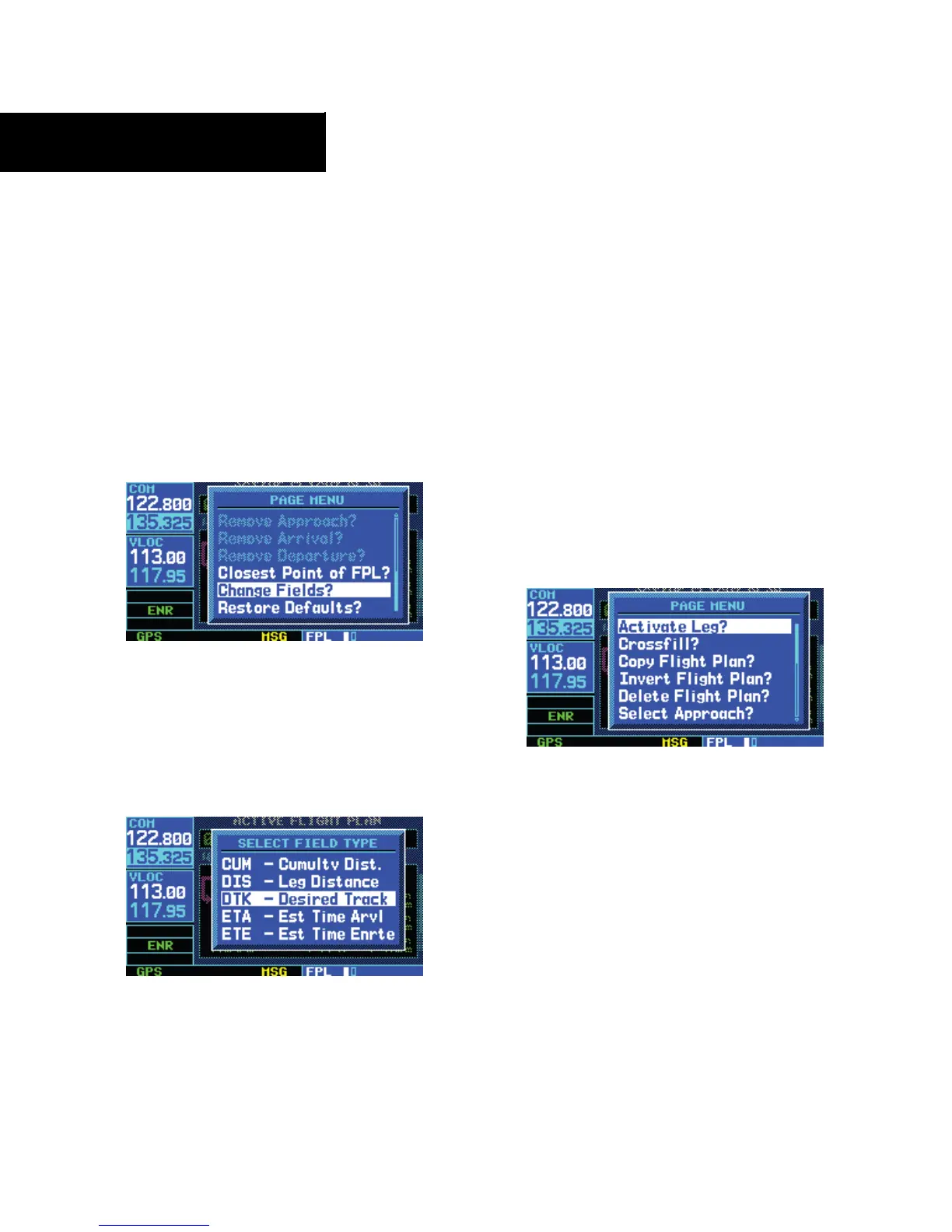
2) Turn the large right knob to highlight ‘Change
Fields?’ (Figure 5-21) and press the ENT Key.
Figure 5-21 Active Flight Plan Page Menu
3) Turn the large right knob to highlight the field
to be changed.
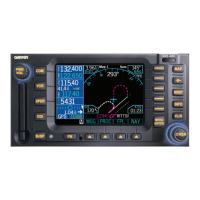
4) Turn the small right knob to select the desired
data item (Figure 5-22) and press the ENT
Key.
Figure 5-22 Select Field Type Window
5) Press the small right knob to remove the
cursor.
To restore factory default settings for data
fields on the Active Flight Plan Page:
1) With the Active Flight Plan Page displayed,
press the MENU Key to display the Active Flight
Plan Page Menu.
2) Turn the large right knob to highlight ‘Restore
Defaults?’ and press the ENT Key.
To activate a flight plan along a specific
leg:
1) Press the small right knob to activate the
cursor and turn the large right knob to
highlight the desired destination waypoint.
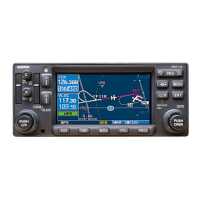
2) Press the MENU Key, and select the ‘Activate
Leg?’ option from the Active Flight Plan Page
Menu (Figure 5-23) and press the ENT Key.
Figure 5-23 Active Flight Plan Page Menu
3) A confirmation window appears. With
‘Activate?’ highlighted, press the ENT Key.



 To Next Page