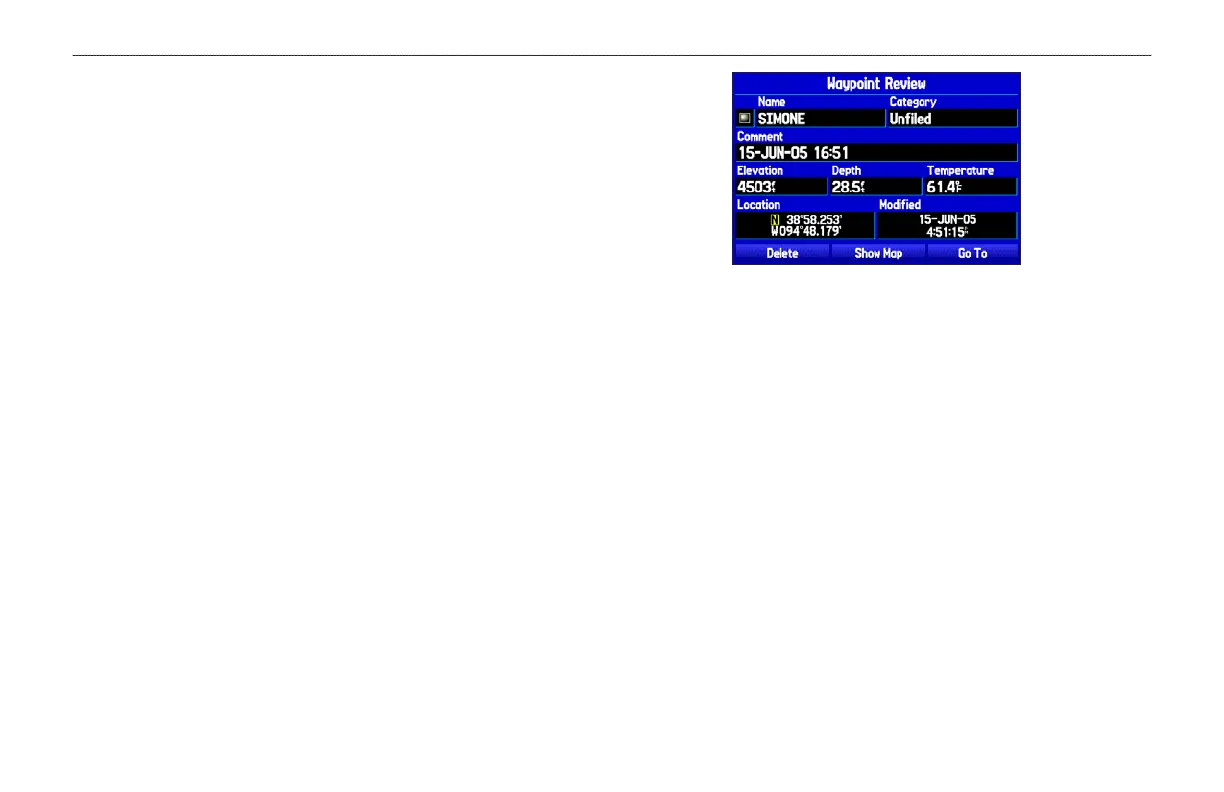
Creating a Waypoint by Entering Coordinates
You can manually enter location coordinates to create a waypoint.
This method can be useful for creating a waypoint at a specific
latitude/longitude location from a chart. You can manually change
the location coordinates in the New Waypoint Page to create a new
waypoint or use the Create Waypoint selection in the User Points
sub tab options menu.
To create a
new waypoint by entering location
coordinates:
1. Press ENTER/MARK to create a waypoint (or use your
favorite method discussed in previous sections). The new
waypoint is created with the next available waypoint number
and the receiver’s last known location as the default location.
2. On the New Waypoint Page, use the ROCKER to highlight
the Location field, and press ENTER. Use ROCKER to enter
the location coordinates, and press ENTER when finished.
3. To change any of the other information, highlight the
appropriate field, and press ENTER. Use ROCKER to enter
the new information.
4. After entering your changes, highlight OK, and press
ENTER.
To change the location of a waypoint, highlight the character you want to
change in the Location field. Press up or down on ROCKER to change the
character. Repeat until the new location is entered.
60 GPSMAP 296 Pilot’s Guide
BASIC OPERATION IN AUTOMOTIVE MODE > CREATING WAYPOINTS





 To Next Page