Adding a Waypoint to a Route
Append to Route adds the selected waypoint to the end of a route.
This option appears when you are not navigating. When you are
navigating to a destination, Add to Current Route appears. The
selected waypoint is added to the current route before the route
destination.
To
add a waypoint to the end of the route:
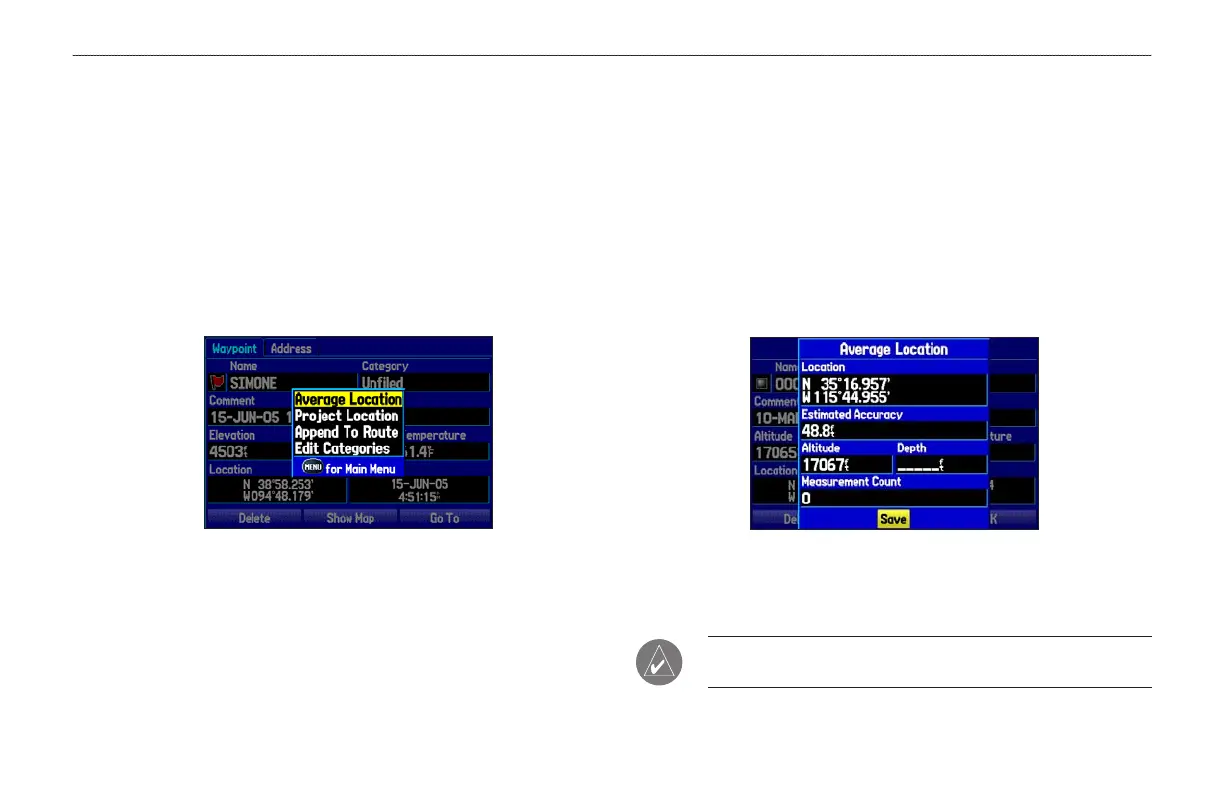
1. Open the Waypoint Page, and press MENU to open the
options menu.
Waypoint Options Menu
2. Select Append To Route from the options menu. The Select
Route window appears.
3. Highlight the route or select New Route, and press ENTER.
4. With OK highlighted, press ENTER to save the waypoint.
Averaging the Waypoint’s Location
Average Location makes the unit take several sample location
measurements for the waypoint and recalculate for a more accurate
location reading.
To calculate the average location:
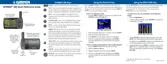
1. Open the Waypoint Page, and press MENU to open the
options menu.
2. Select Average Location from the menu, and press ENTER.
The Average Location window appears.
Average Location
3. Watch the fields change as the unit calculates the average
location of the waypoint. Press ENTER to save the location.
NOTE: You must have a GPS satellite fix before you can average
a waypoint’s location.
GPSMAP 296 Pilot’s Guide 75
AUTOMOTIVE MODE PAGES AND FEATURES > EDITING AND MANAGING WAYPOINTS






 To Next Page