- 18 -
Connecting Cameras.
Connecting Cameras.Connecting Cameras.
Connecting Cameras.
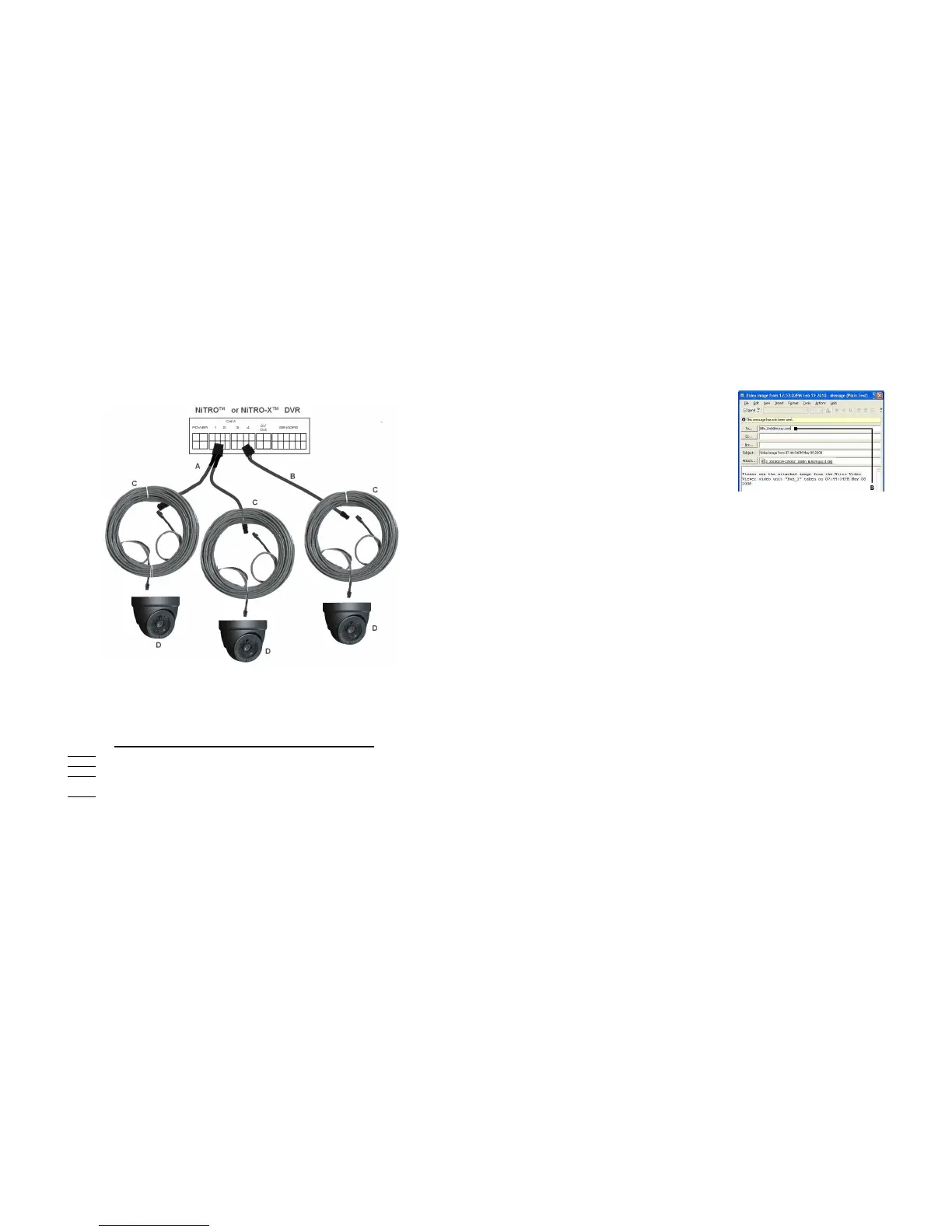
Three Camera Cabling Configuration.
Three Camera Cabling Configuration.Three Camera Cabling Configuration.
Three Camera Cabling Configuration.
A
S-Series Camera :
CABLE P/N
CABLE P/NCABLE P/N
CABLE P/N
DESCRIPTION
DESCRIPTIONDESCRIPTION
DESCRIPTION
CAMERA PORT
CAMERA PORTCAMERA PORT
CAMERA PORT
1 CAM
1 CAM1 CAM
1 CAM
CAB000209 1 CAM ADAPTER 1 / 2
2 CAM
2 CAM2 CAM
2 CAM
CAB000202 2 CAM ADAPTER 1 / 2
3 CAM
3 CAM3 CAM
3 CAM
CAB000202
CAB000209
2 CAM ADAPTER
1 CAM ADAPTER
1 / 2
3 / 4
4 CAM
4 CAM4 CAM
4 CAM
CAB000202
CAB000202
2 CAM ADAPTER
2 CAM ADAPTER
1 / 2
3 / 4
Table 3: Camera Connection Configuration.
- 51 -
The process to send a captured video clip is very
similar, mark your clip in MaxVIEW 400 first and
then choose Video Clip. This process can take several
minutes depending upon your system and its settings,
etc.
**Please note your email client, e.g. Outlook, Outlook
Express, Thunderbird, etc. may have a different layout
to that as shown.



 To Next Page