- 38 -
numbers and once completed highlight the OK button and then press OK on
the remote control.
Default Value:
Default Value:Default Value:
Default Value: 100 Mile/Hr
100 Mile/Hr 100 Mile/Hr
100 Mile/Hr
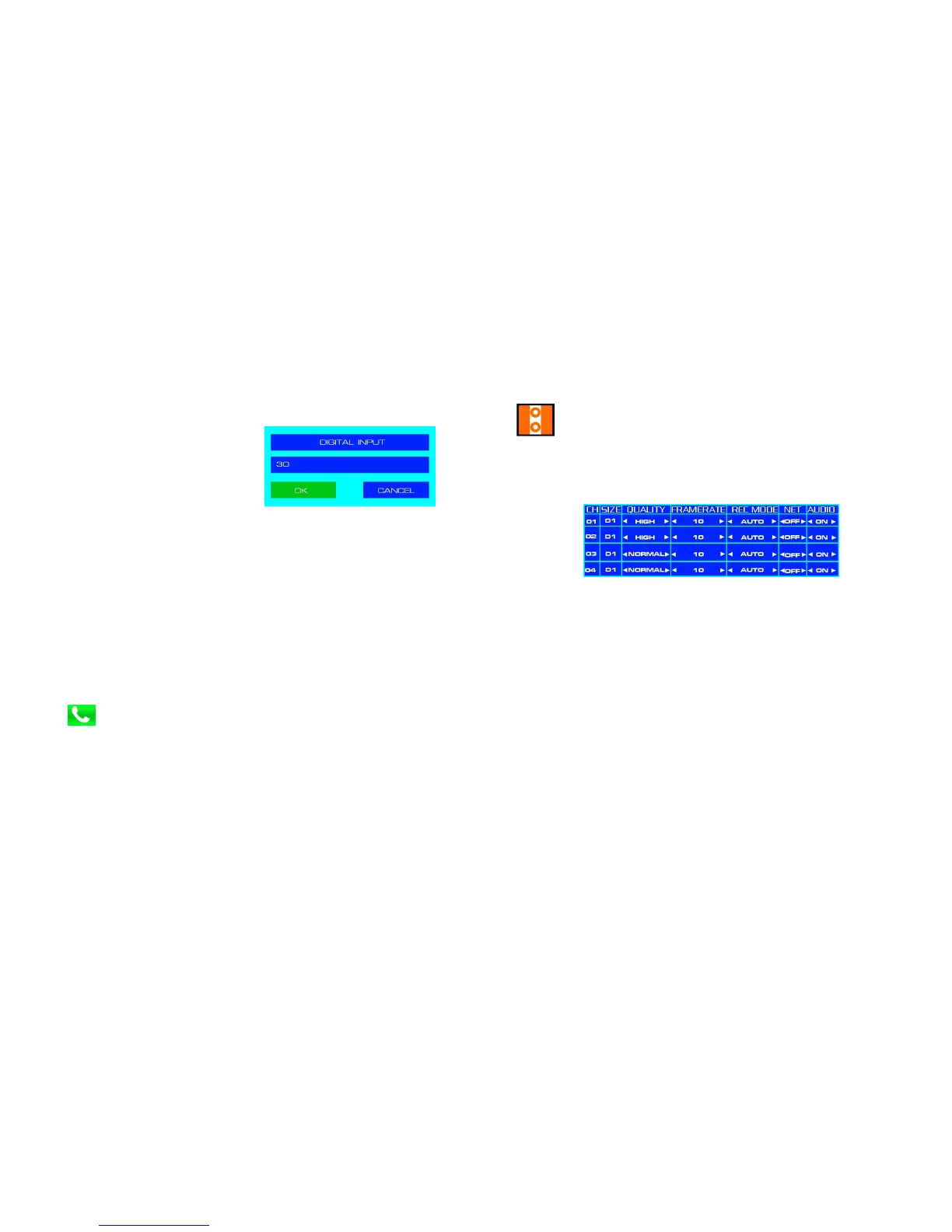
Figure 17 : Digital Input Dialog Box.
Speed Check
Speed CheckSpeed Check
Speed Check
Verifies the speed of the vehicle.
Options From Sensor / From GPS / Off
Default Value:
Default Value:Default Value:
Default Value: Off
Off Off
Off
Pulses
PulsesPulses
Pulses
Used to manually input how many pulses there are in one distance unit, e.g.
25/mile
Up to twenty digits can be entered for Pulses. To access press the Menu key
on the remote control. A Digital Input dialog window will appear, see figure
17, use the keys on the remote control to enter the required numbers and
once completed highlight the OK button and then press OK on the remote
control. Currently not supported.
Default Value:
Default Value:Default Value:
Default Value: 11152/Mile
11152/Mile 11152/Mile
11152/Mile
Pulses Unit
Pulses UnitPulses Unit
Pulses Unit
Sets the default unit of measure for Pulses.
Options
km / mile
Default Value:
Default Value:Default Value:
Default Value: Mile
Mile Mile
Mile
Peripheral
PeripheralPeripheral
Peripheral.
..
.
Items in the Peripheral menu screen are device specific.
GPS Device
GPS DeviceGPS Device
GPS Device
Displays the type of GPS device currently connected to the NiTRO 400 or
NiTRO-X 400 series digital video recorder. This item is not user
configurable.
GPS Burnin
GPS BurninGPS Burnin
GPS Burnin
Determines if the GPS data will appear on the OSD and in the recorder video
files.
Options Off / On / Demo
Default Value:
Default Value:Default Value:
Default Value: On
On On
On
GPS Time
GPS Time GPS Time
GPS Time
Sync
SyncSync
Sync
Global Positioning Systems (GPS) are used to provide a precise time
reference for the embedded clock of the NiTRO 400 series or NiTRO-X
400 series ensuring time synchronization even across great distances.
- 31 -
Record.
Record.Record.
Record.
The Record menu is divided into six sections.
Record Settings
Record SettingsRecord Settings
Record Settings
Record settings can be set for individual cameras. The NiTRO 400 series and
NiTRO-X 400 series are capable of recording at D1 resolution. Use the Right
and Left navigation keys to highlight an option and the Menu key to cycle
through the available options for that item. As values are changed, the
information window at the bottom of the screen will update with an estimate of
record hours based on the size of card currently installed (Figure 12).
Figure 11 : Default Record Settings.
Size Directly related to the Quality setting and cannot be changed manually.
Quality Sets the amount of compression. Normal will allow for longer record times, but
poorer quality video. High will give a higher quality video capture but shorter
record time.
Options Normal, Basic, Good, High.
Def
DefDef
Default Value:
ault Value:ault Value:
ault Value:
HIGH
HIGHHIGH
HIGH
Default Value: Channel 1 / 2
Default Value: Channel 1 / 2 Default Value: Channel 1 / 2
Default Value: Channel 1 / 2 HIGH
HIGHHIGH
HIGH; Channel 3/ 4
; Channel 3/ 4 ; Channel 3/ 4
; Channel 3/ 4 Normal
NormalNormal
Normal.
..
.
Framerate Sets the FPS, frames per second, in relation to the quality selected.
Options 30, 15, 10, 7, 6, 5, 4, 2, 1.
Default Value:
Default Value:Default Value:
Default Value: 1
1 1
10
00
0
REC Mode Rec Mode sets the state of the recorder upon power up. It is recommended that
this be set to AUTO for all required channels.
Options Auto; Manual and Off.
Default Value:
Default Value:Default Value:
Default Value: Auto
Auto Auto
Auto
NET This option is currently reserved.
Options On or Off.
Default Value:
Default Value:Default Value:
Default Value: OFF
OFF OFF
OFF
Audio Determines if the selected video channel will also record audio. Each audio
channel is recorded separately and synchronized with the corresponding Video
channel.
Options On or Off.
Default Value:
Default Value:Default Value:
Default Value: ON
ON ON
ON



 To Next Page