- 26 -
POWER Extend). Ignition is OFF and
NiTRO or NiTRO-X is
recording. The DVR will
power down when Power Off
Delay (Record Extend) is
reached.
Flashing Off
NiTRO or NiTRO-X is OFF,
does not respond to ignition
signal. Do Not
Do NotDo Not
Do Not use the
Remote Control to turn the
NiTRO or NiTRO-X Off
Table 5: NiTRO-X Power and Run LED Definition.
ALARM INDICATOR (3)
ALARM INDICATOR (3)ALARM INDICATOR (3)
ALARM INDICATOR (3)
DEF
DEFDEF
DEFINITION
INITIONINITION
INITION
On Alarm has been triggered. Note: Alarms are configured in
Alarm Menu (Please see manual for detailed information)
Off No Alarm detected.
Table 6: NiTRO-X Alarm LED Definition.
SD CARD PRESENT
SD CARD PRESENT SD CARD PRESENT
SD CARD PRESENT
INDICATOR (4)
INDICATOR (4)INDICATOR (4)
INDICATOR (4)
DEFINITION
DEFINITIONDEFINITION
DEFINITION
Flashing Indicates SD card is present and is being accessed, e.g.
writing of video file.
Off No SD Card present
Table 7: NiTRO-X SD Card LED Definition.
SYSTEM STATUS INDICATOR
SYSTEM STATUS INDICATOR SYSTEM STATUS INDICATOR
SYSTEM STATUS INDICATOR
(5)
(5)(5)
(5)
DEFINITION
DEFINITIONDEFINITION
DEFINITION
On Indicates that the system is active. Do Not Remove the SD
card while this LED is illuminated as doing so will cause
damage to the video file(s) on the SD Card. Press the STOP
button (6) once and wait until the System Status Indicator
LED turns off if the is a need to remove the SD card while
the System is active.
Off
The NiTRO or NiTRO-X is not in record mode and it is
safe to remove the SD Card.
Off with SD Card Present
Solid; Power Indicator Solid;
Run Indicator Flashing
Unit is initializing after Ignition Signal applied.
Table 8: NiTRO-X System Status LED Definition.
- 43 -
MaxVIEW
MaxVIEWMaxVIEW
MaxVIEW
400 Operation.
400 Operation. 400 Operation.
400 Operation.
Opening a File.
Opening a File.Opening a File.
Opening a File.
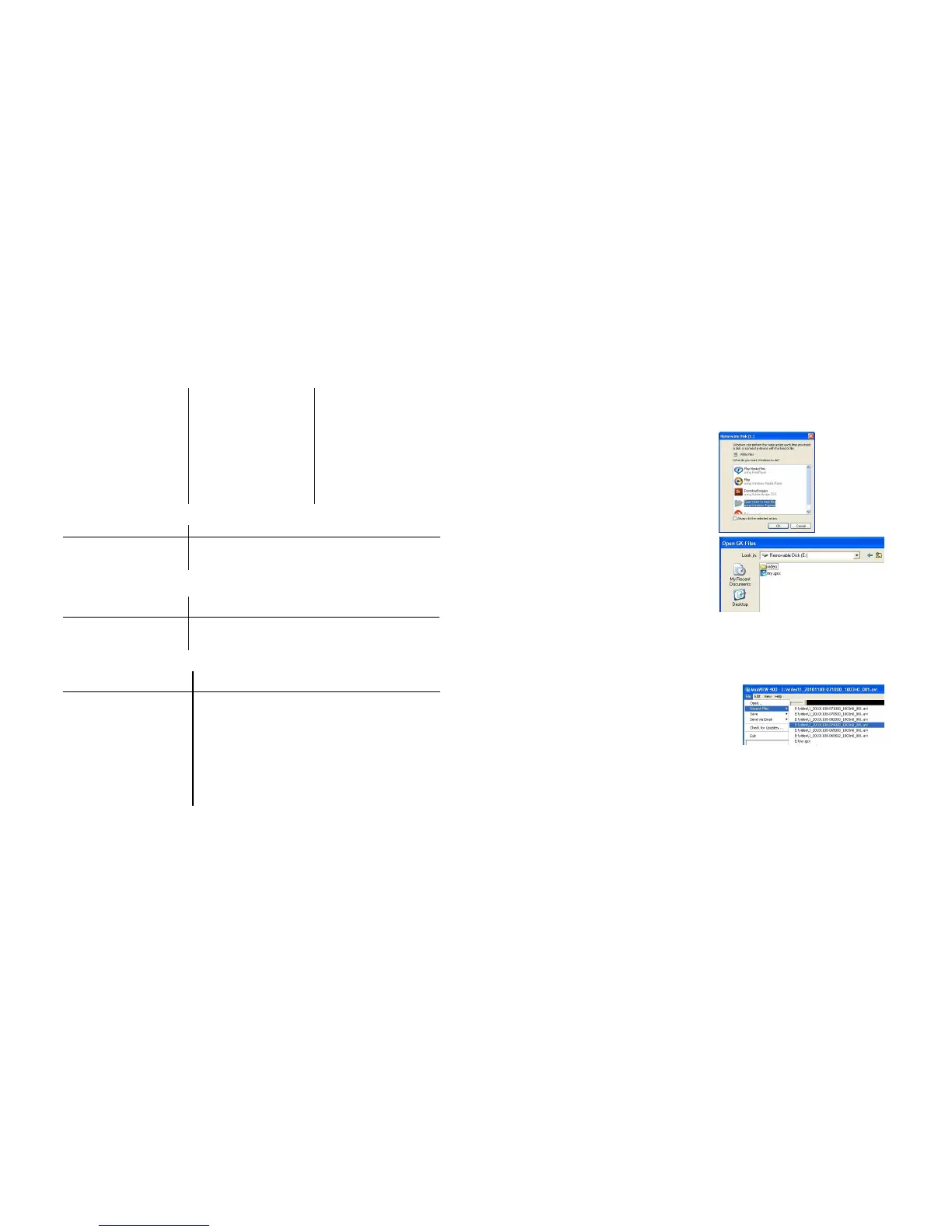
When viewing files directly from an SD Card
reader when the card reader is inserted into the
host computer a standard Windows dialog
window will appear, select Open To View Files
and click OK.
To view captured and saved video files within
MaxVIEW 400 open all of the files on the SD
Card double-click on my.gsx, Figure 23. This will
produce a list of available files which can be
viewed either by Calendar View Figure 33, or by
Video Clips Figure 35.
Using Calendar view a specific date and time can
be zoned in on and a reported incident quickly
appraised.
Figure 23 : Open File.
Open Recent Files.
Open Recent Files.Open Recent Files.
Open Recent Files.
MaxVIEW 400 has a feature which “remembers” recently opened and viewed files. This
makes the viewing of frequently accessed files an easier task to accomplish. MaxVIEW 400
will recall up to nine most recently opened files.
From the File menu choose Recent Files. A Pop-
Out side window will appear, move the cursor
over the files and they will highlight individually,
Figure 24. Once the required video file has been
located, single left click and this will open the file
in MaxVIEW for review.



 To Next Page