- 34 -
warranty and vise-versa.
Options Update the Application.
(
((
(This should
This shouldThis should
This should only be done when directed by
only be done when directed by only be done when directed by
only be done when directed by Gatekeeper Systems
Gatekeeper Systems Gatekeeper Systems
Gatekeeper Systems
support technician
support techniciansupport technician
support technicians
ss
s.
..
.)
))
)
Config Setup
Config SetupConfig Setup
Config Setup
Allows the user to Save, Reset, Export or Import system configurations.
Option User Config Save. Saves the current User defined configuration.
Option User Config Reset Restores all settings to previous user settings.
If YES is chosen from the pop-up window an
application restart is required.
Option Factory Reset Resets the DVR to factory defaults. If YES is
chosen from the pop-up window an application
restart is required.
Option Config Export Exports the current configuration to the
currently installed SD Card.
Option Config Import Imports a previously saved Config file stored
on the SD card. If YES is chosen from the pop-
up window an application restart is required.
App Restart
App RestartApp Restart
App Restart
Restarts the on screen menu system. Once application restarts, the display
will show the video feeds and the recording state. Once App Restart is
highlighted, press the Menu key once and a confirmation dialog window will
appear.
O/S Reboot
O/S RebootO/S Reboot
O/S Reboot
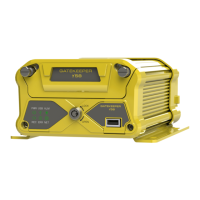
Restarts NiTRO 400 series or NiTRO-X 400 series digital video recorder.
This process will take approximately one minute and maybe required after
certain system configurations have been changed. Once O/S Reboot is
highlighted, press the Menu key once and a confirmation dialog window will
appear.
Network.
Network.Network.
Network.
There are eight user definable options within the Network menu. Please Note that
this feature is currently reserved for future development.
Port
PortPort
Port
Allows the user to specify which port will be used for access to the N400
series. To access press the Menu key on the remote control. A Port dialog
window will appear, use the keys on the remote control to enter the required
port number. Once completed highlight the OK button and then press OK on
the remote control.
Network
Network Network
Network
Type
TypeType
Type
Determines whether the NiTRO 400 series or NiTRO-X 400 series will
act as a DHCP server for connection to a notebook, etc., or, be connected via
a LAN.
Options DHCP / LAN
Default Value:
Default Value:Default Value:
Default Value: DHCP
DHCP DHCP
DHCP
IP Address
IP AddressIP Address
IP Address
If Network Type is set to LAN, allows the user to manually enter the relevant
information, see Figure 15. To access highlight the IP Address option and
press the Menu key on the remote control. Use the keys on the remote
- 35 -
control to manually enter the required information.
Figure 15 : IP Address Configuration.
Sub Net Sets the IP Address of the Sub Net, see Figure 15.
Gateway Sets the IP Address of the Gateway, see Figure 15.
DNS Server Sets the IP Address of the DNS Server, see Figure 15.
Host Name 111
DHCP
Refresh
Sets communication rate (in seconds) with which the NiTRO400 or NiTRO-
X polls the DHCP Server. Reserved for future development
Storage.
Storage.Storage.
Storage.
There are six user options within the Storage menu.
Overwrite
OverwriteOverwrite
Overwrite
Determines if the NiTRO 400 series or NiTRO-X 400 series will stop
recording once the disk is full to capacity. If Overwrite is set to On, the oldest
file will be overwritten first.
Options On / Off
Default Value:
Default Value:Default Value:
Default Value: On
On On
On
Form
FormForm
Format
at at
at
Formats the selected disk. Highlight Format Selected Disk, (this refers to
Storage Device menu item), and press the Menu key, this will open a
confirmation window. It is highly recommended that when a disk is formatted
the system is restarted. This will ensure that recording will automatically begin
and not depend upon a User manually pressing the record button on the
remote control.
NOTE:
NOTE:NOTE:
NOTE: HC SD cards can be used in NiTRO-X 400 series or NiTRO 400
series systems. A NiTRO 400 can only utilize HC SD cards. Failure to follow
these guidelines may result in voiding the warranty.
Options Yes / No
Default Value:
Default Value:Default Value:
Default Value: Format Selected Disk
Format Selected Disk Format Selected Disk
Format Selected Disk
Storage
Storage Storage
Storage
Device
DeviceDevice
Device
On a SD card system only, there will be one Disk available in the drop down
menu.



 To Previous Page