52
232001240G(08)
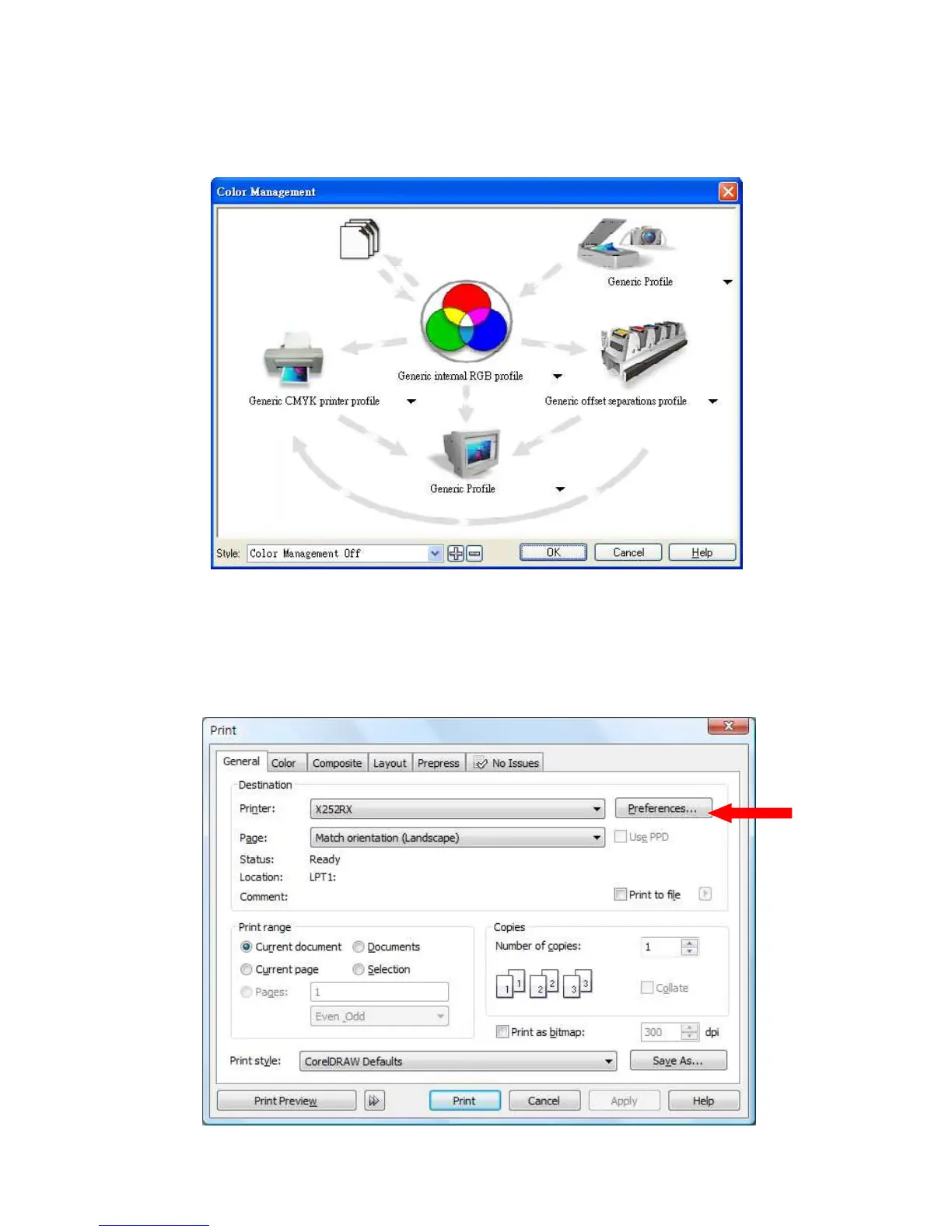
1) From the primary menu, click TOOLS COLOR MANAGEMENT and CorelDraw’s Color
Management will appear.
2) Under the Style pull down menu, select COLOR MANAGEMENT OFF.
3) Click OK to complete the color management adjustments.
5.2.3 Using the LaserPro X252RX & X380RX Print Driver
Now after you have properly set the Page and Layout and Color Management of your graphics software, you
are ready to configure the details of your actual job through the LaserPro X252RX & X380RX Print Driver.
The LaserPro X252RX & X380RX print driver allows you to adjust your cutting options. After you have setup
your image, design, or text to be processed in your software application, you can access the LaserPro
X252RX & X380RX print driver by going to FILE PRINT PROPERTIES.


 To Next Page