3.10 Record
Use this menu to:
ecord Quality
vent Settings
Timelapse Record Rate
Event Record Rate
Activity Record Rate
Alarm Record Rate
Record Mode
Disk Maintenance
Record Lock
Auto Delete Mode
Record Timer
• Specify the record quality: High, Medium, or Standard.
• Specify if a camera is to be used for event recording,
time-lapse recording, or both.
• Specify the time-lapse record rate per camera.
• Specify the event record rate per camera.
• Specify the activity record rate per camera.
• Specify the alarm record rate.
• Set the Record Lock feature.
• Perform disk maintenance by performing a Disk Test,
Deleting, Un-deleting, or Destroying previously recorded
video.
• Specify how the unit will handle data overwrite issues
once the hard disk becomes full.
Main Menu → Record → Record Timer
Use this menu to setup Preset Record Timer Events.
Day Start Stop Macro ON/OFF
22:59 01:59 NONE ON
MON-FRI 05:56 04:06 10 ON
-- --:-- --:-- -- --
7
[OK]
Hit ‘ENTER’ to toggle EDIT Mode
1. Rotate the Shuttle to select a timed event from the list.
2. Press the ENTER button to enter the Edit mode.
3. Rotate the Shuttle to navigate to the desired field.
4. Rotate the Jog to change the values of the selected field.
5. Press the Enter button to exit the Edit mode.
6. Rotate the Jog to highlight the [OK] field and press the
ENTER button to save the changes.
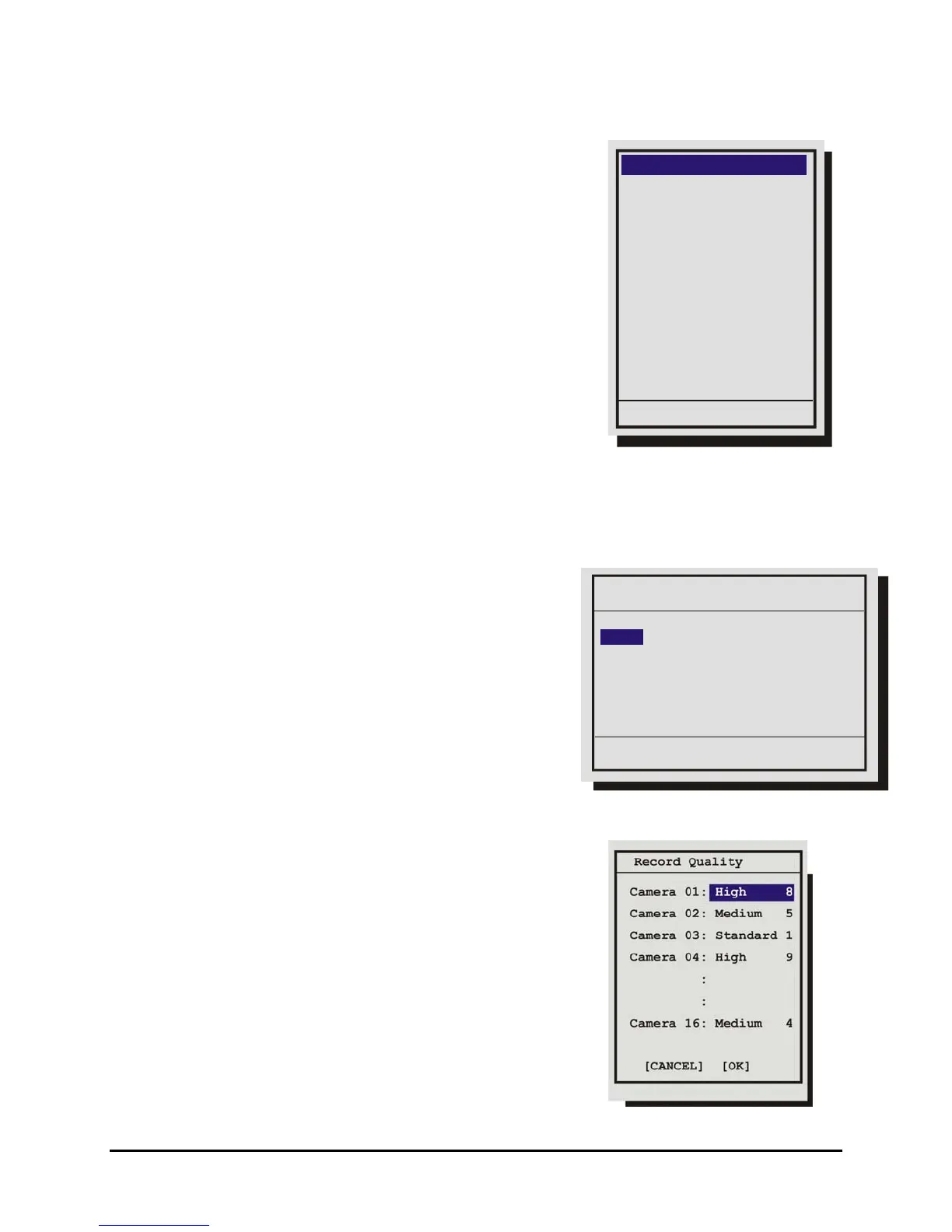
Main Menu → Record → Record Quality
Use this menu to specify the record quality for each camera.
Decreasing the record quality decreases the amount of disk
space required to store the images, due to a higher compression
scheme. There are 3 levels for each quality level. Standard 1
being the lowest and High 9 the highest.
0150-0313B 34 DVMRe CT II



 To Next Page