,
6.
Select the channel (or line input) to be recorded.
Set the Reception: STEREO/MONO/SAP feature to select the
type of audio you want to record. See Other
Features section.
AUDIO
I Reception: STEREO
2 Tape PLayback: HI-FI
0 Exit
7. Press RECORD to start recording.
8. Press STOP when you are finished.
Recording Audio Only
You can record audio only from another audio source connected
to the AUDIO LINE IN1 R and L jacks of the VCR.
1. Press the INPUT button on the remote to select the line
input (L).
The VCR will record audio from the audio equipment
connected to the AUDIO LINE 1 IN jacks.
2. Use SPEED on the remote to select the recording speed.
3. Start audio source playing and press RECORD to begin
recording.
4. Press STOP when you are finished.
Playing Back Audio Only
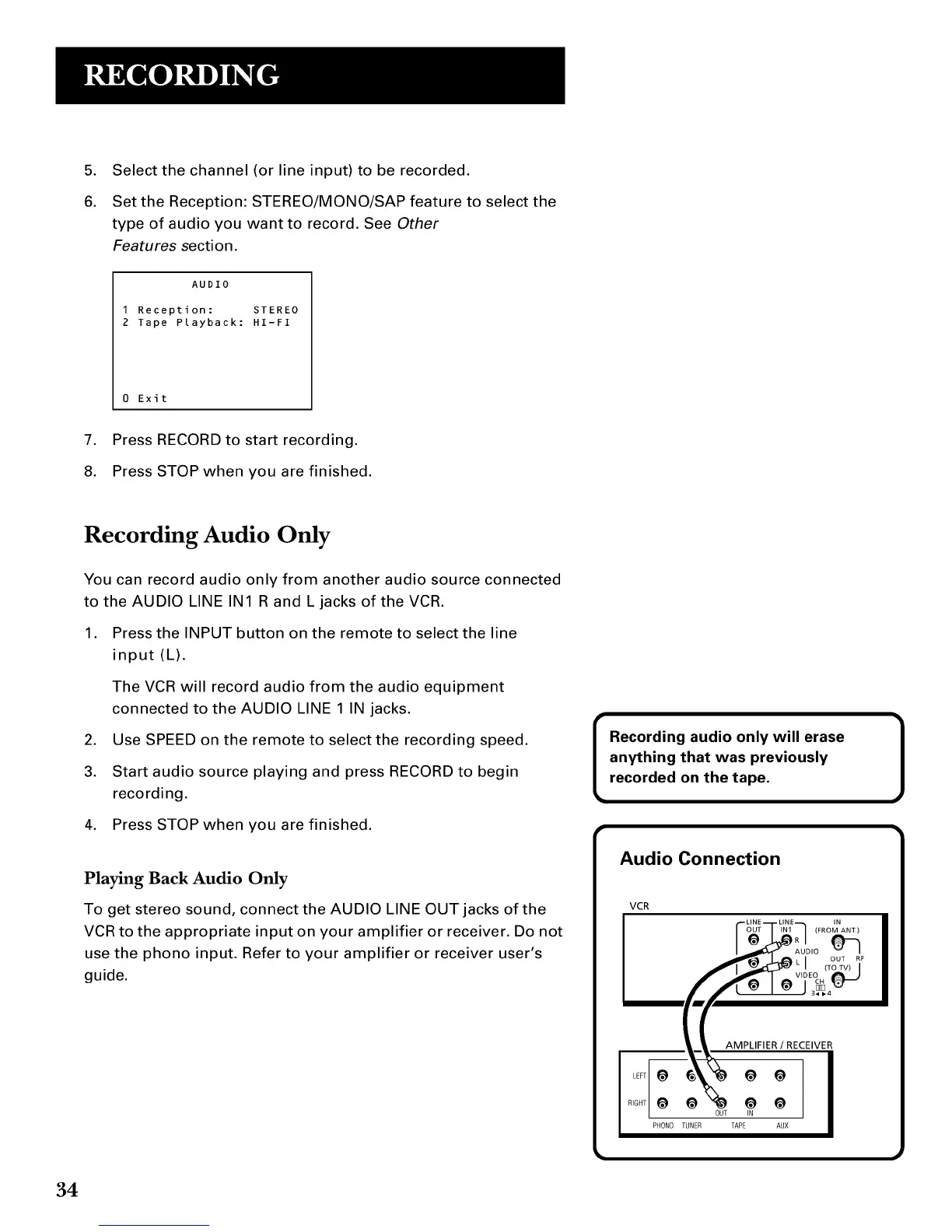
To get stereo sound, connect the AUDIO LINE OUT jacks of the
VCR to the appropriate input on your amplifier or receiver. Do not
use the phono input. Refer to your amplifier or receiver user's
guide.
Recording audio only will erase
anything that was previously
recorded on the tape.
Audio Connection
VCR
IN
(FROM ANT.)
PHON0 TUNER
AMPLIFIER / RECEIVER
@ @
@ @
TAPE AUX
]
34


 To Next Page