On-Screen Displays
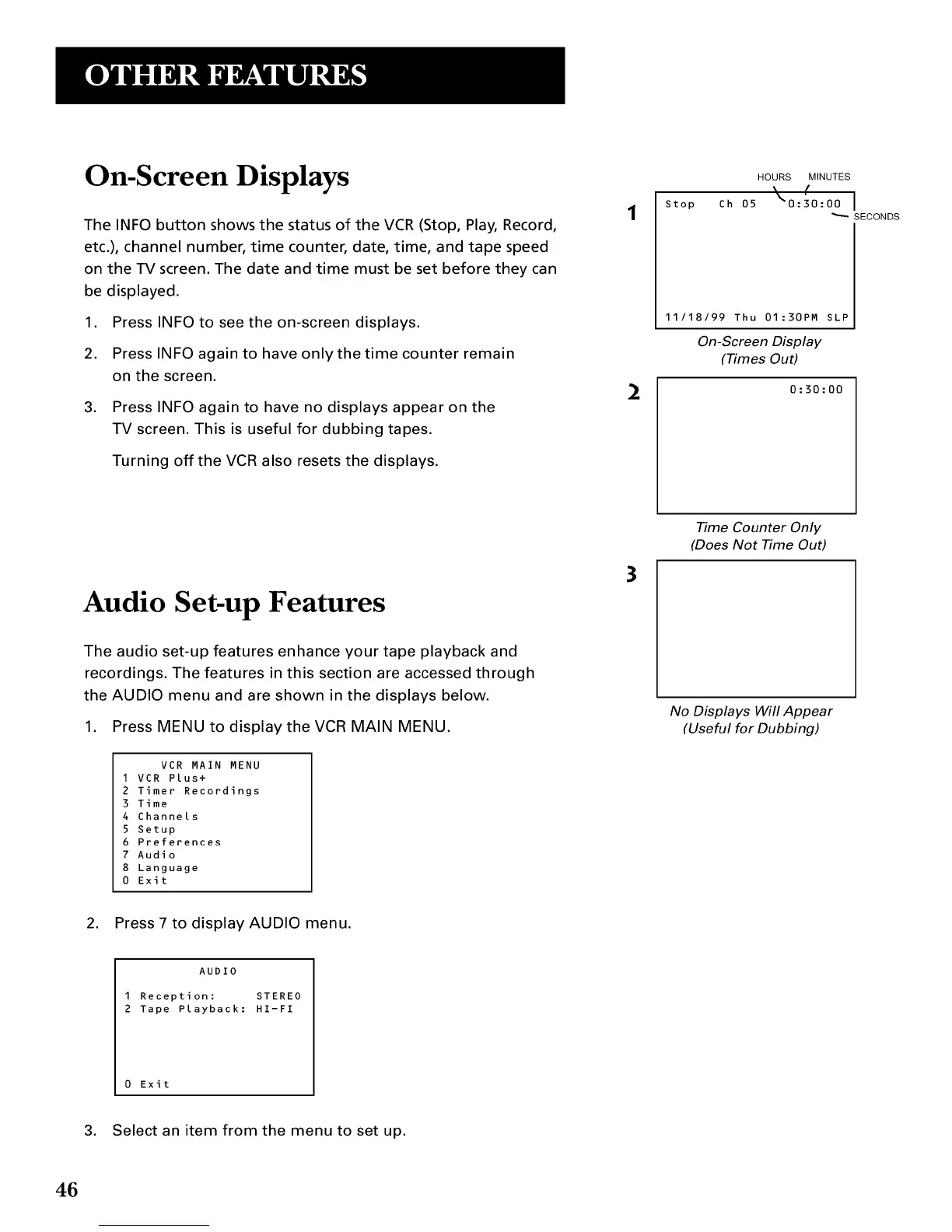
The INFO button shows the status of the VCR (Stop, Play, Record,
etc.), channel number, time counter, date, time, and tape speed
on the TV screen. The date and time must be set before they can
be displayed.
1. Press INFO to see the on-screen displays.
2. Press INFO again to have only the time counter remain
on the screen.
,
Press INFO again to have no displays appear on the
TV screen. This is useful for dubbing tapes.
Turning off the VCR also resets the displays.
Audio Set-up Features
The audio set-up features enhance your tape playback and
recordings. The features in this section are accessed through
the AUDIO menu and are shown in the displays below.
1. Press MENU to display the VCR MAIN MENU.
VCR MAIN MENU
I VCR Plus+
2 Timer Recordings
3 Time
4 Channels
5 Setup
6 Preferences
7 Audio
8 Language
0 Exit
2. Press 7 to display AUDIO menu.
AUDIO
I Reception: STEREO
2 Tape Playback: HI-FI
0 Exit
3. Select an item from the menu to set up.
46
2
3
Stop
HOURS MINUTES
(
Ch 05 _"0:30:00 I
SECONDS
11/18/99 Thu 01:30PM SLP
On-ScreenDNplay
(_mes OuO
0:30:00
Time Counter Only
(Does Not Time Out)
No Displays Will Appear
(Useful for Dubbing)


 To Next Page