7
RESETTING THE EXT-DSC TO ITS FACTORY DEFAULTS
Resetting the EXT-DSC to its factory default settings
WARNING: The following procedure will delete all the content and confi gurations
on the EXT-DSC unit.
To reinitialize the EXT-DSC unit to its factory default settings do the following:
1. Unplug the power connector from the unit.
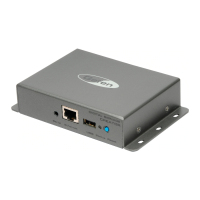
2. Push and hold the blue button on the front panel.
3. While continuing to hold the blue button, reconnect the power cable.
4. Continue to hold the push button for at least 8 seconds.
5. Release the push button.
6. The EXT-DSC unit will now boot in the factory default mode and will have
the default IP setting (DHCP).
Accessing the EXT-DSC HTTP Server (PC)
This tutorial explains how to access, for the fi rst time, the EXT-DSC unit from a
PC using the Ethernet interface. This procedure is required to access the EXT-
DSC administration HTTP server or to publish content on a EXT-DSC unit.
NOTE: This procedure applies only if you have not modifi ed the default network
confi guration of the EXT-DSC unit. See Reset to Factory default to make sure
that your EXT-DSC has the default network confi guration.
Requirements:
► One of the following confi gurations
• PC with 10/100/1000 Ethernet interface and an Ethernet cable.
• PC with 10/100 Ethernet interface and an Ethernet crossover cable.
• PC with 10/100 Ethernet interface, a switch and 2 Ethernet cables.
► One EXT-DSC unit
Guide:
1. Connect the PC, through the switch depending on the chosen setup, to the
EXT-DSC unit following one of the above schemes.
2. Power up the PC and switch (if applicable).
3. Power up the EXT-DSC unit. (Note that the EXT-DSC unit does not need to


 To Next Page