46
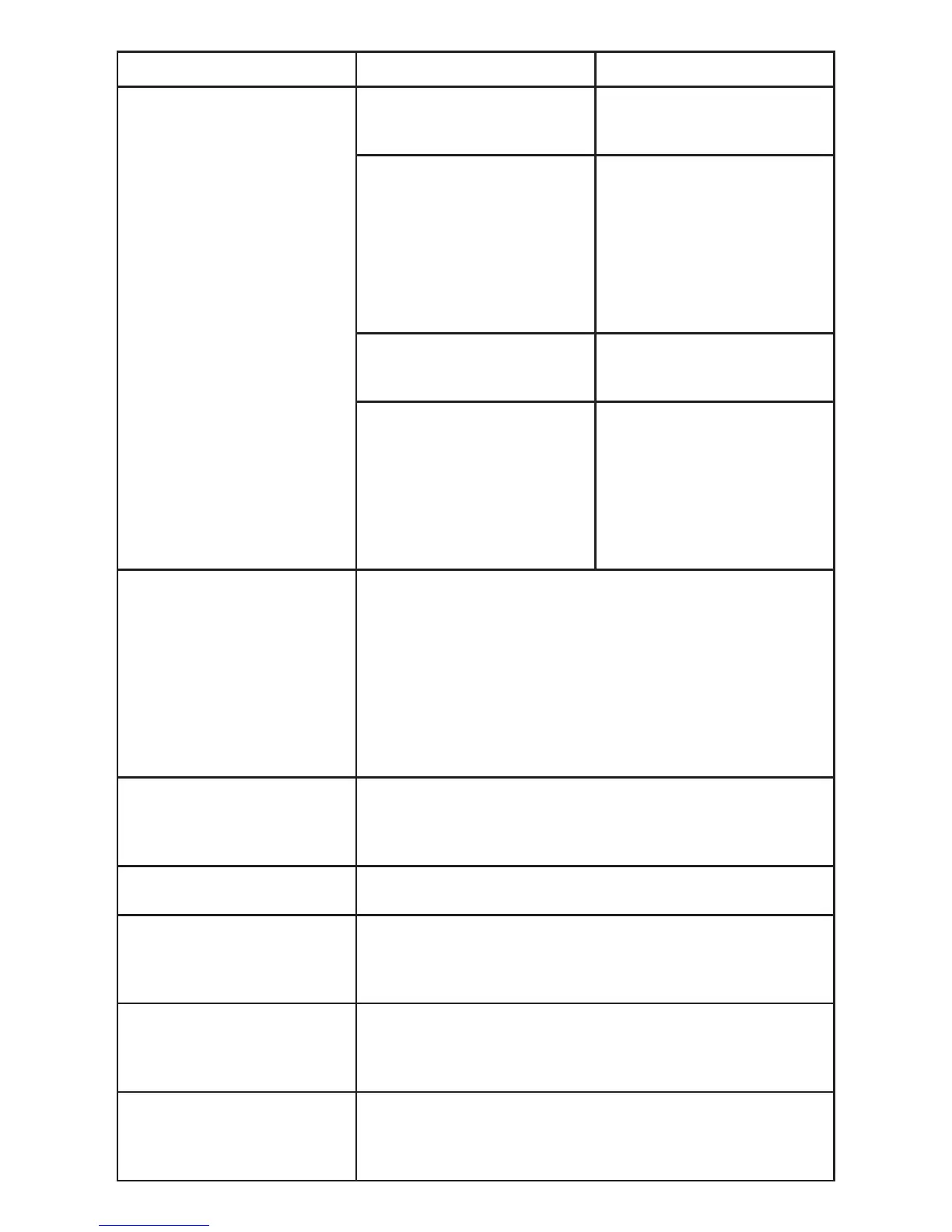
Failure
Possible cause Solution
Unable to write The color of strokes is same as
or similar to the background
colour.
Change the colour of strokes
You hand or other objects are
put on the display when writing
Use the pen rather than a nger
to write. Grasp the pen as far to
the nib as possible. The angle
between the pen and display
should be larger than 60
degrees. Do not let
sleeve or wrist touch the writing
surface
Strong light or infrared
interference
Remove the interference
source or change the using
environment
Wrong writing method Use the pen rather than a nger
to write. Grasp the pen as far to
the nib as possible. The angle
between the pen and display
should be larger than 60
degrees. Do not let
sleeve or wrist touch the writing
surface
Not sound and image
1. Check if the power cable is connected to the power socket
and if the panel is connected to power
2. Check if the rocker switch on the interactive panel is switched
on
3. Check if the Standby button on the panel is pressed.
4. Check if the video and audio input cables are connected
correctly
5. Check if the panel is switched to the right signal source.
6. Check settings including image brightness and contrast.
7. Check
Image is normal, but no sound 1. Check the volume.
2. Check if the Mute button on the remote controller is pressed
3. Check if the audio cable between the PC and interactive
panel is connected correctly
No image or the image is black
and white
1. Adjust colour settings
2. Check the colour system
Image or sound is interrupted
1. Find out the electric appliance that causes the interference
and move it away from the interactive panel
2. Do not connect the panel to a power socket that a disrupting
electric appliance is connected to.
The remote controller fails 1. Change the batteries
2. Clean the launch window at the top of the remote controller.
(Check if it is blocked)
3. Check contacts of the batteries
Computer cannot be started
(applicable for models with
computers)
1. Check if the computer adapter is correctly connected and is
connected to power
2. Check if the computer is connected correctly to the
interactive panel


 To Next Page