English
-24-
recording is displayed on the LCD monitor. (The time format is Minutes: Seconds)
2. To start recording a video clip press (and release) the shutter button.
The elapsed time is displayed and the recording indicator ( ) blinks on the LCD
monitor while recording.
To stop recording, press the shutter button again.
NOTE
y Resolution is always 320 x 240 and image quality cannot be specified.
y The self-timer cannot be adjusted used.
y The flash mode is disabled.
Viewing Video Clips
To view the recorded video clips, follow the steps below.
1. Power on the camera, and toggle the
button to the mode.
2. Select the video clip you wish to view using the
/ button.
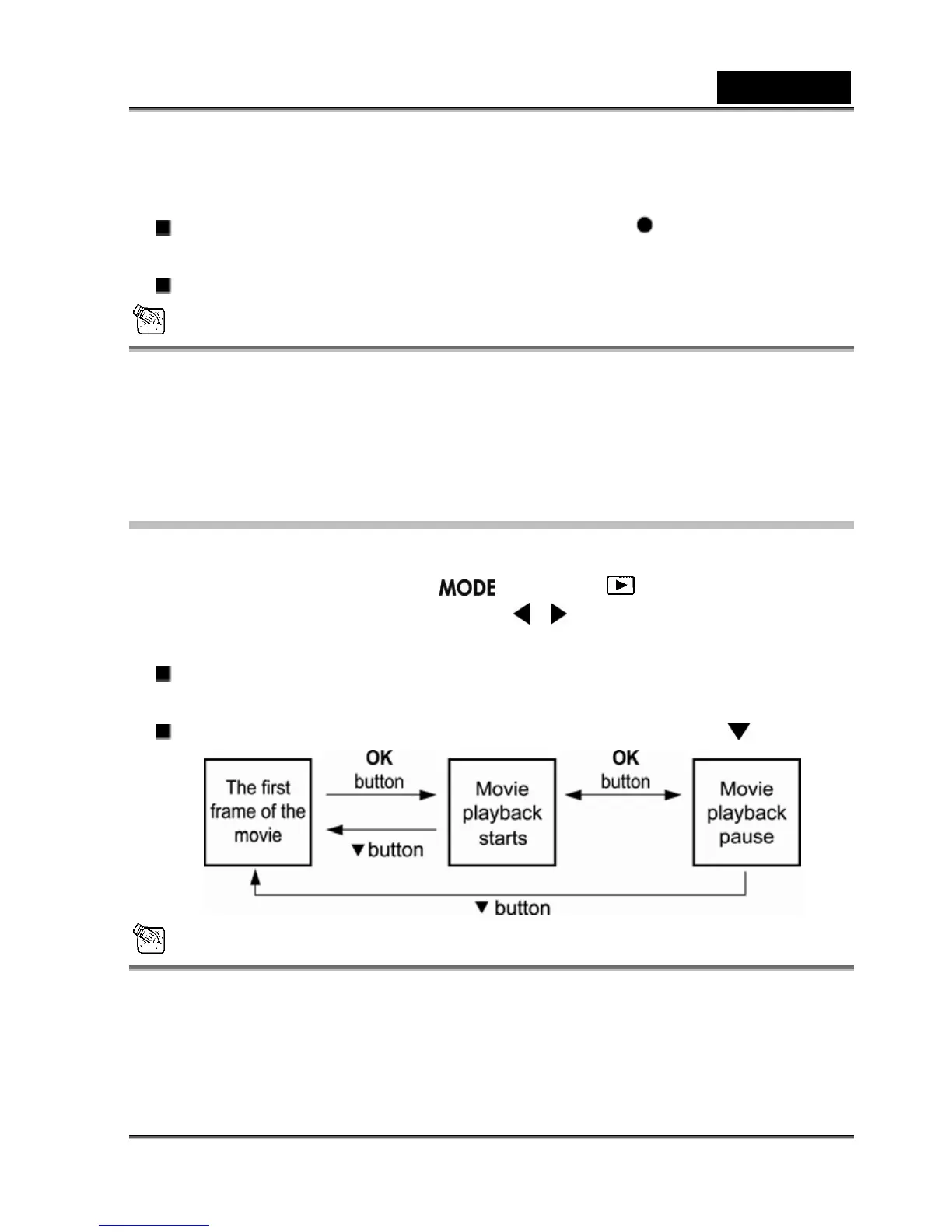
3. Press the OK button to start.
To pause playback at any time, press the OK button.
Press the OK button again to resume playback.
To exit this movie playback and return to the playback mode, press the button.
NOTE
y The zoom function cannot be activated during movie playback.
y To play the video clip back on your computer, you may use either Windows Media Player or
Apple "QuickTime Player".
y QuickTime basic player is available free of charge, compatible with both Mac- and Windows



 To Next Page