English
-26-
The USB driver on the CD-ROM is exclusively for Windows 98 computers. Installing the USB
driver on computers running Windows 2000/ME/XP is not necessary.
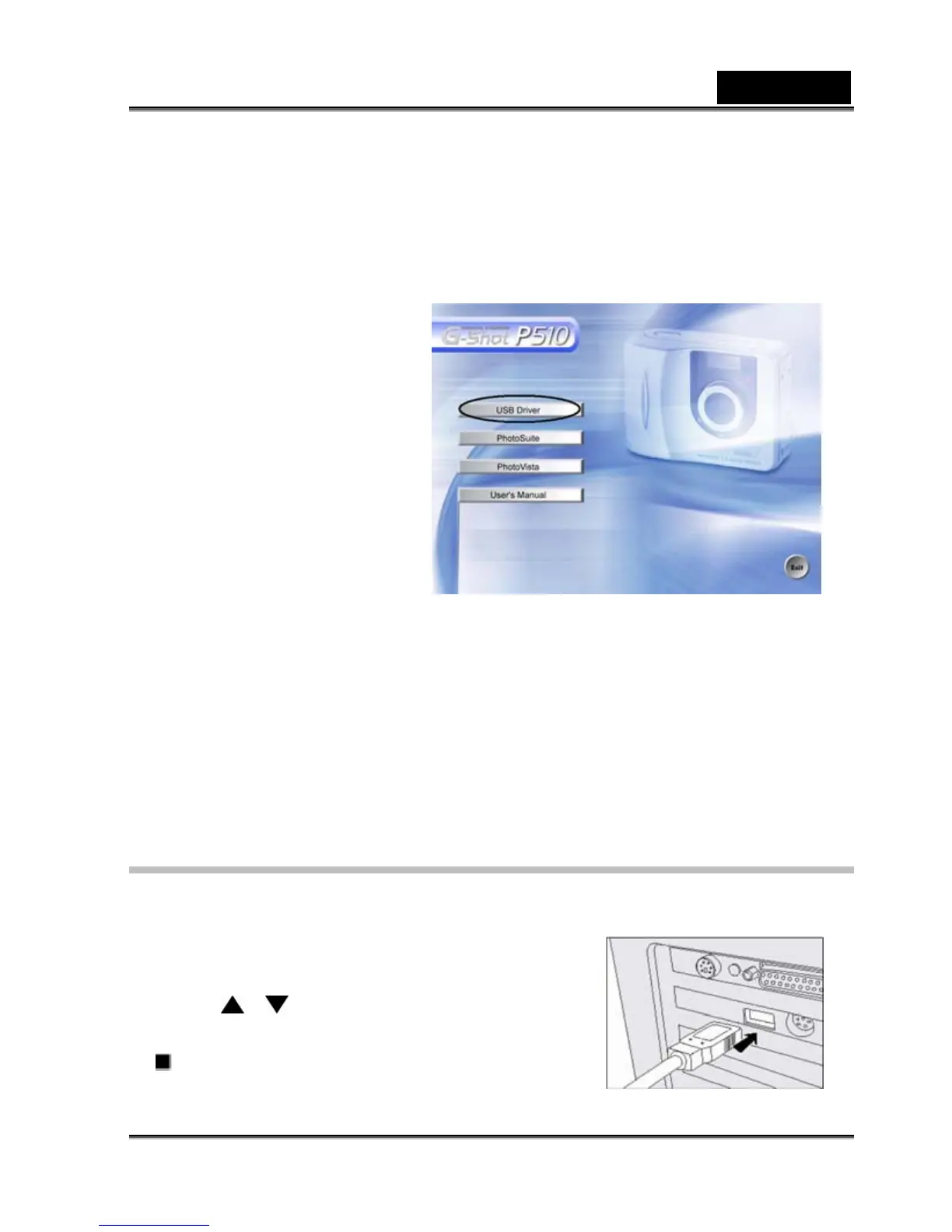
1. Insert the CD-ROM that came with the camera into your CD-ROM drive. The welcome screen
appears.
2. Click "USB DRIVER". Follow
the on-screen instructions to
complete the installation. After
the USB driver has been
installed, restart your computer.
Macintosh OS 8.6
computers
Mac OS 8.6 users must install a
USB driver. For Mac OS 9.0 or
higher, the computer will
automatically recognize the camera and load its own USB drivers.
1. Insert the CD-ROM that came with the camera into the CD-ROM drive.
2. Select and double-click "Digital Camera Driver Installer ".
3. Select "Install Location" and click "Install".
4. Follow the on-screen instructions to complete the installation and restart your computer.
Step 2: Connecting the camera to your computer
1. Connect one end of the USB cable to an available USB port on your computer.
2. Connect the other end of the USB cable to the USB
connector on the camera.
3. The USB MODE menu appears on the screen.
4. Use the
/ button to select DISK DRIVE, and
press the OK button.
DISK DRIVE is displayed on the LCD monitor.
5. From the Windows desktop, double click on "My



 To Next Page