9
Gigaset Maxwell basic / LUG IE-UK en / A31088-N4002-R101-3-7619 / operating.fm / 6/9/16
Template Go, Version 1, 01.07.2014 / ModuleVersion 1.0
Getting to know your telephone
Menu navigation
The functions of the telephone are displayed in a menu that consists of several levels.
Menu overview p. 44
Main menu
In idle status: Press the centre of the Control key .
Submenus
If not all the functions can be displayed, arrows are shown below.
Displaying more list entries: . . . scroll in the direction of the arrow with the Control key
Returning to the previous menu level
¤ Press the Display key Back
or
¤ press the End key briefly
Returning to idle status
¤ Press and hold the End key
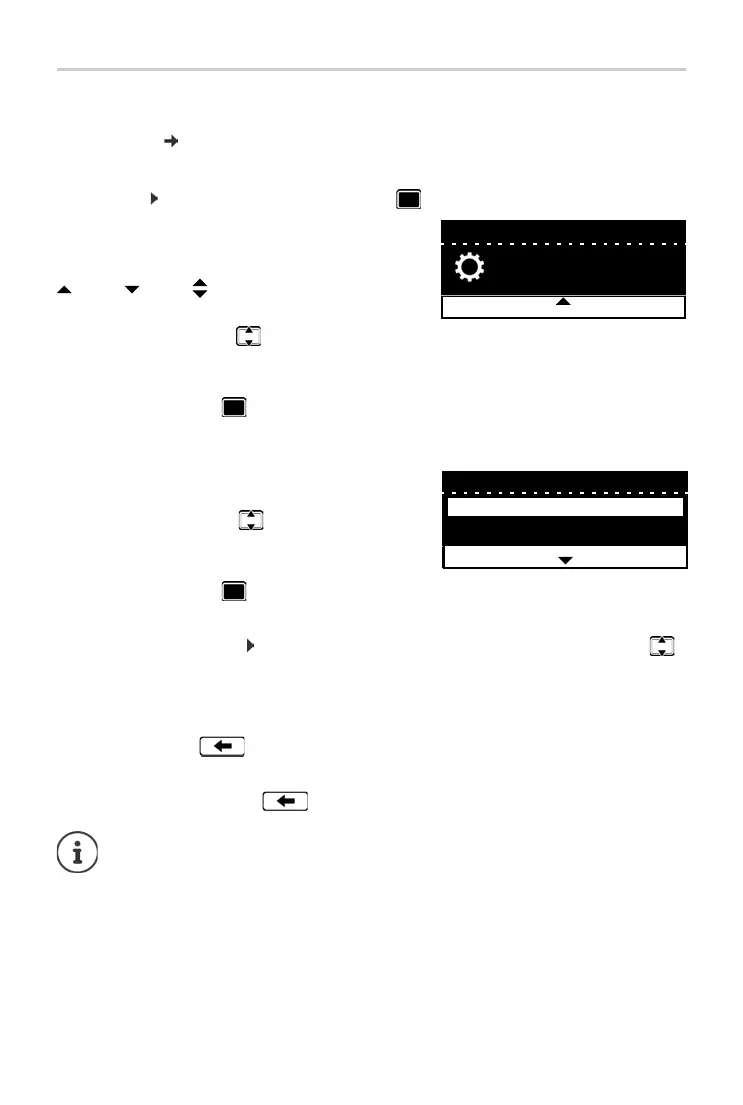
The function selected from the display menu is
displayed
with an icon.
Arrows indicate whether there are more menu entries:
above, below, above and below
¤ . . . Use the Control key to select a submenu
¤ Press the Display key OK
or
¤ Press the Control key
The functions in the submenus are displayed as lists. The
selected function is highlighted.
¤ . . . Use the Control key to select a function
¤ Press the Display key OK
or
¤ Press the Control key
If a key is not pressed, after 3 minutes the display will automatically change to idle
status.
Settings which have not been saved or confirmed are rejected.
Settings
Date + Time
Audio Settings
OKBack



 To Next Page