20
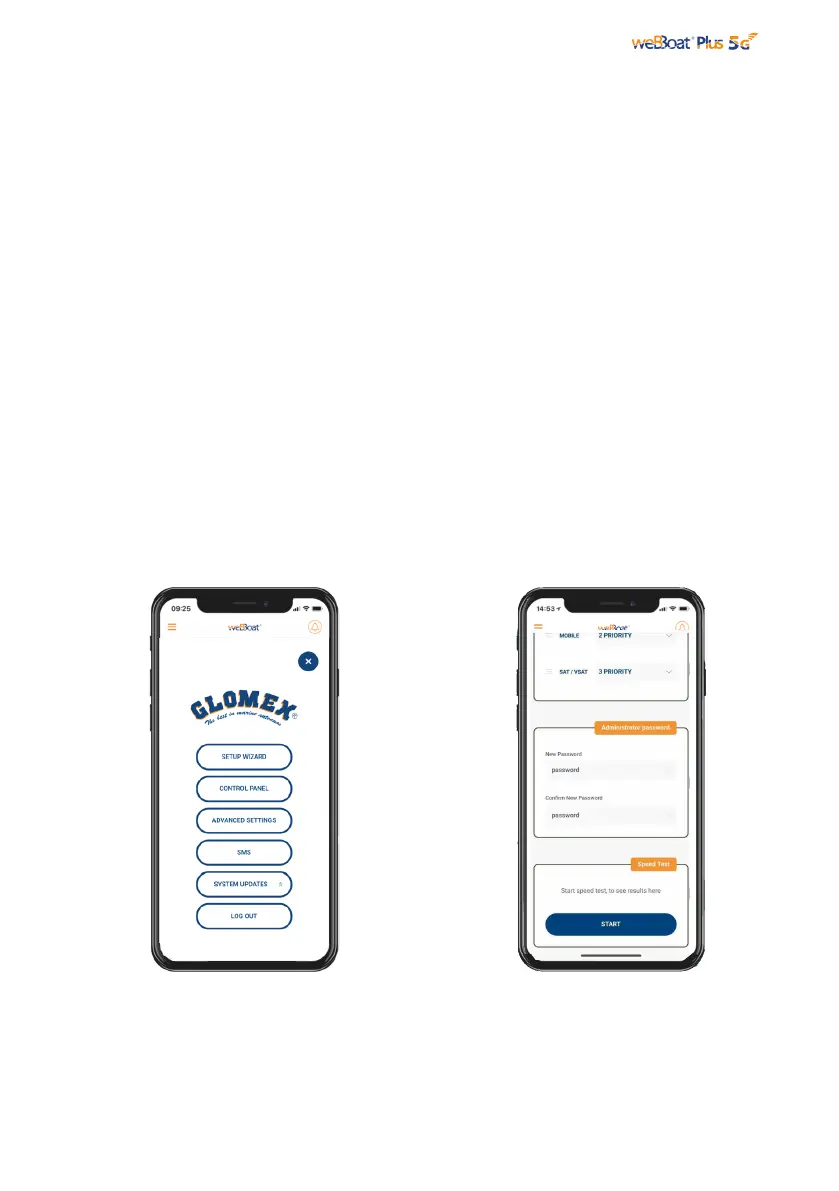
Fig. 21 Fig. 22
To customize the name of the Wi-Fi network generated by weBBoat® Plus 5G (SSID)
and its password, tap the Menu button (Fig. 21) and select “Advanced settings”. Go to
“Access point” section. Change the SSID in the related field and select the encryption
type. Type the password and tap "Save" button (Fig. 20).
SUGGESTION: Choose WPA2-PSK encryption for better security.
NOTE: Do not use spaces or special characters in the name of the Wi-Fi network
(SSID) and password.
After changing the name of the Wi-Fi network (SSID) and the password, weBBoat®
Plus 5G will be rebooted automatically. Close the weBBoat App, reconnect your
mobile device (e.g. smartphone) to the new Wi-Fi network of the weBBoat® Plus 5G
and then reopen the App.
6. CHANGE SSID AND PASSWORD



 To Next Page