21
8. RESTORE weBBoat® Plus 5G
7. CHANGE ADMINISTRATOR PASSWORD
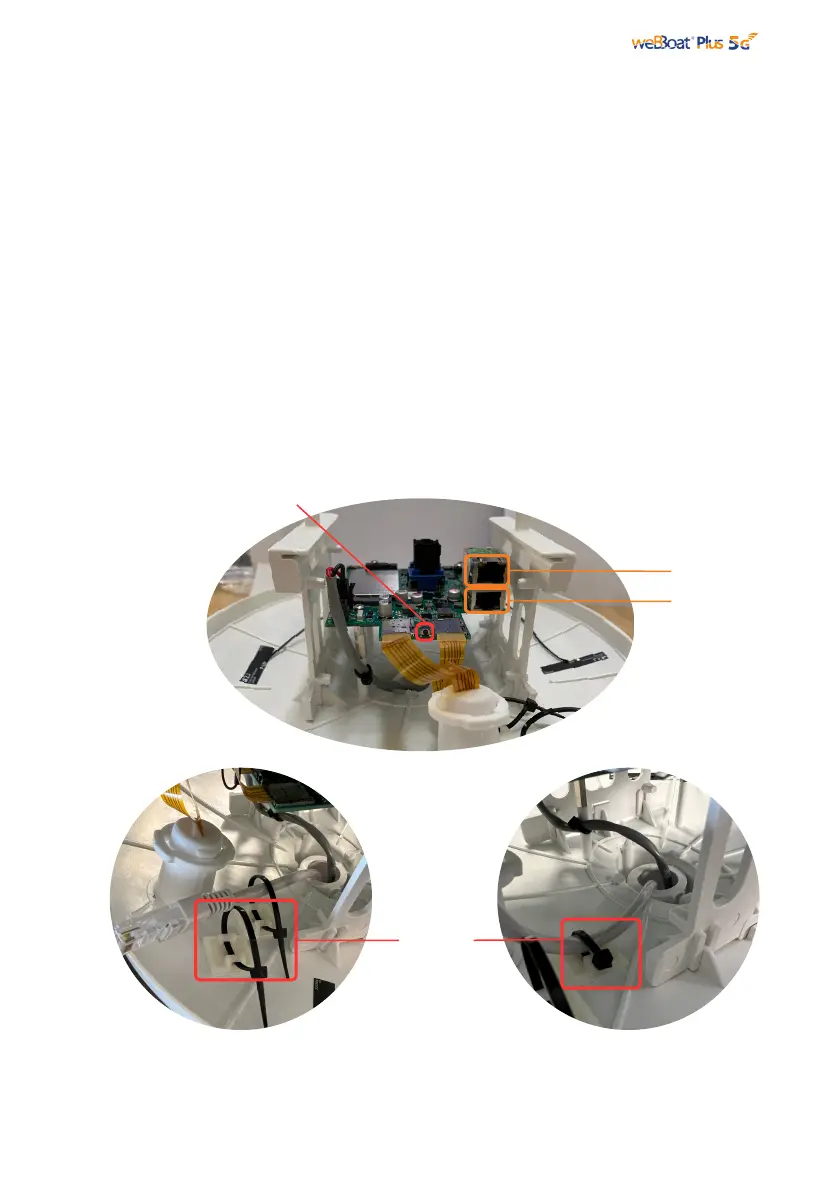
Fig. 23
Fig. 24.1
To restore weBBoat® Plus 5G to the default factory settings, push and hold the
"reset" button, placed in the front of the router (Fig. 23), for at least 5 seconds.
The "reset" button can be released after 5 seconds. When the weBBoat® Plus 5G
reboots, it will reset all custom changes to factory defaults. Close the weBBoat
App, reconnect your mobile device (e.g. smartphone) to the weBBoat® Plus 5G Wi-
Fi network and then reopen the App.
To change the Administrator password, tap the "Menu" button (Fig. 21) and tap
“Advanced settings”. In the “Administrator Password” section (Fig. 22) enter the new
administrator password in both fields and tap "Save" button.
IMPORTANT: Keep the new password in a safe place and do not forget it. If the
administrator password is lost, you must restore the device to the default factory
settings (see paragraph 8)
Reset button
LAN
WAN/SAT
It's possible to use two cable tie clips to block the ethernet cables (Fig .24.1 and 24.2)
Fig. 24.2
Cable tie
clips



 To Next Page