CGA navigation controls
Use the push/rotary control and
two cursor buttons to navigate
on the CGA.
Right function buttons
Lock the panel, call the camera
operator.
File management shortcut
Push to slide out the Files
management menu on the CGA
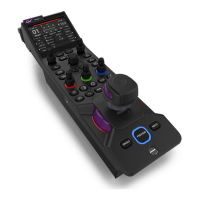
Stick
- Move stick up and down to
change Iris opening.
- Turn the upper (purple) ring to
vary RGB Gain levels.
- Turn the middle (black) ring to
vary RGB Black levels.
- Turn the lower (purple) ring to
vary RGB Black levels.
- Push the top of the stick to
view the camera signal on the
preview monitor.
Assignable controls
Assignable operational controls
(or local CGP menu navigation).
RGB grading rotaries
Controls for RGB Gain levels
(upper rings) and RGB Black
levels or RGB Flare (lower rings)
CGA view mode buttons
The Multi and Single buttons
toggle between multi and single
camera operation on the CGA.
Left function buttons
Change CGP Settings, switch
on test signals or do a
Standard Recall.
CGP local display
Shows important operational
and status information such as
camera number, iris value and
assignments of panel buttons.
Doubles as setup menu for local
CGP panel settings.
Preview button
Push to view the camera signal
on the preview monitor.
Tally light ring
This ring normally lights blue or,
when tally is active, it lights red
for On Air or yellow for ISO.
Free button
Push to reposition stick position
w/o changing the iris opening.
Tally light ring
This ring normally lights blue or,
when tally is active, it lights red
for On Air or yellow for ISO.
CGA menu shortcut buttons
Push one of these 8 buttons to
open a menu on the CGA.
Snapshot button
Push this button to make a
snapshot of the scene settings.


 To Next Page
