Creative Grading Camera Control System User’s Guide (v1.4) 25
Chapter 4 - CGA Operation
4.3 Multi camera view
In multi camera view mode, cameras can be operated simultaneously which is easier for initial
setups and matching or checking values between cameras.
To switch to multiple camera view mode, tap Multi view in the bottom-left corner of the
screen:
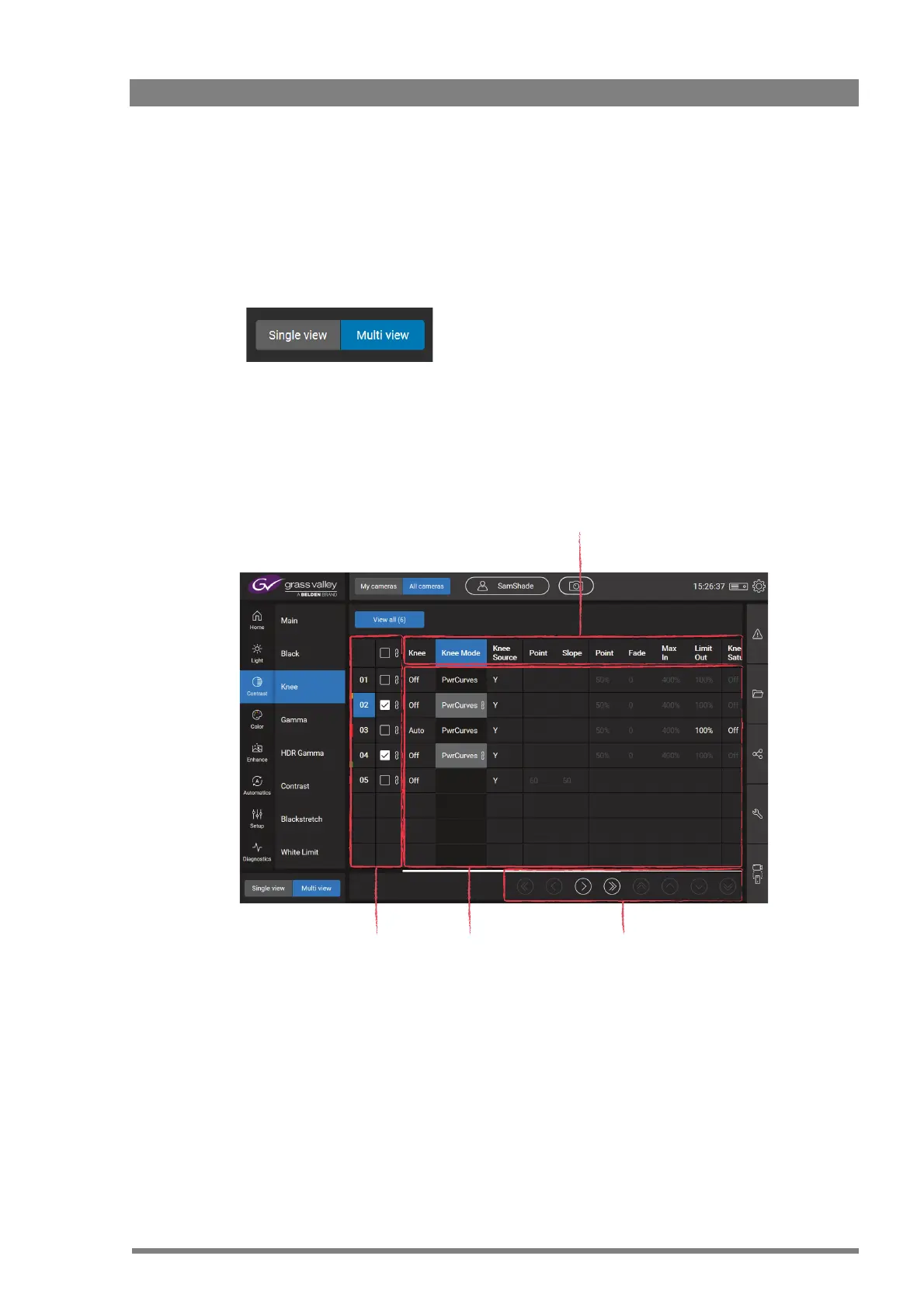
In the multiview mode, the cameras appear in the function/value grid as horizontal rows while
the functions are stacked in columns. The value grid in the center shows the current values of
the respective functions:
To change a function value tap a value in the value grid; both its corresponding function (in the
top row) and the camera (in the camera selection area) are selected.
4.3.1 Grouping cameras
To operate one or more cameras simultaneously, tap the camera number(s) on the vertical
camera selection bar at the left side of the function area.
Function area
This area contains all video functions in
the selected (sub) menu.
Camera selection area
Select one or more
cameras or make a group
of cameras.
Values grid
Shows values for
all video functions.
Navigation area
Use bar and/or buttons
to scroll through the
value grid.


 To Next Page