15
APP Download Method
(Scan the QR code on the back of the manual to download the APP)
Android Device:Official website QR code, Google Play, Huawei Store, etc.
iOS Device:App Store
Device-adding
1.Before adding a device, please make
sure you have turned on your phone’s
Bluetooth and network data, accessibility
to Bluetooth and network data, then
reset the lighting device’s Bluetooth.
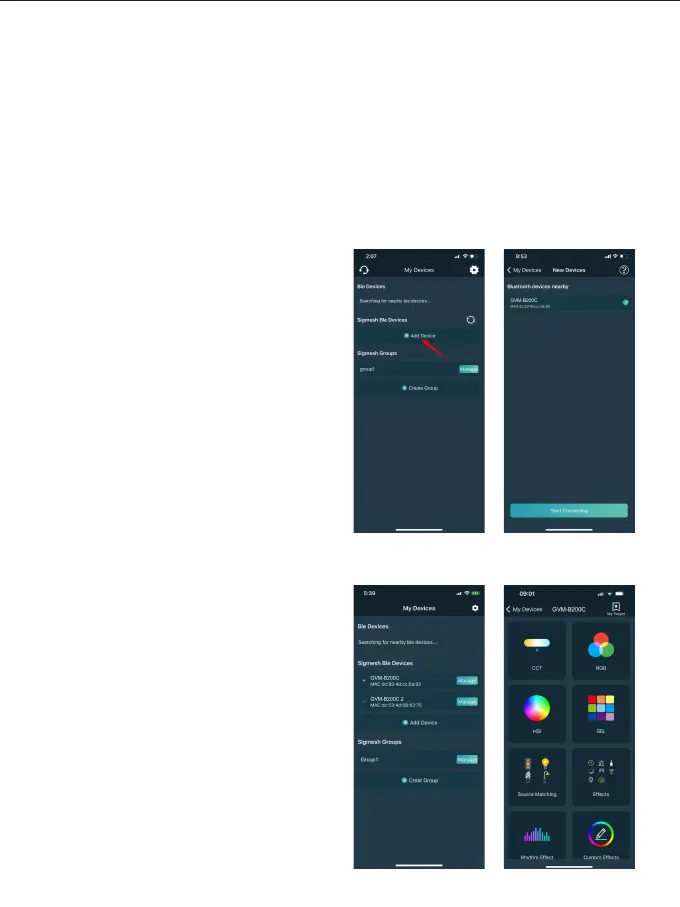
2.Click the "Add Device" button on the
"My Devices" page to find the Bluetooth
light devices that have been turned on
nearby. (Figure 1)
3.Select the device to be connected for
pairing. (Figure 2)
* Android requires location permissions to
be turned on in order to connect your
device using mesh technology, and we
do not collect any of your location
information during this process.
Device Management
1.After successfully adding your lighting
device, your device will be displayed in
the "My Devices" list. (Figure 3)
2.Click on the Device to access the device
control. (Figure 4)
Figure 1 Figure 2
Figure 3 Figure 4
APP CONTROL


 To Next Page