-18-
TV OPERATION
Multimedia Center (MyFun)
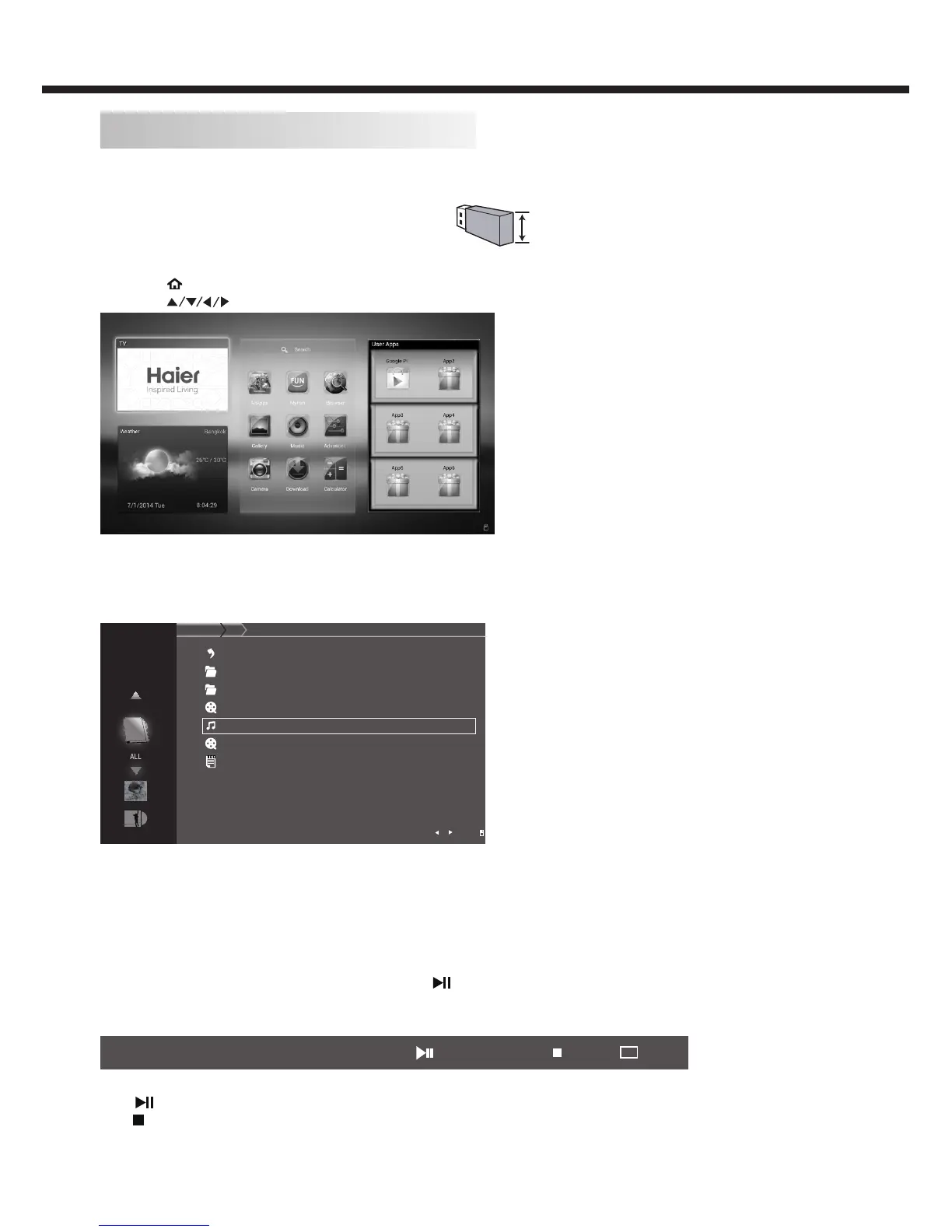
USB port and SD port can be used to view photos, play music and video les in USB device and SD card.
Note: The recommended width of USB device is ≤ 17 mm.
Entering to USB Media
1. Press
key on remote to enter smart TV screen.
2. Press keys to select Myfun icon to enter multimedia menu.
3. Select the Media type (All/Picture/Music/Video) to be viewed and press OK key to enter into USB Media and when USB
drive is detected by the TV, USB drive is displayed as a folder on the screen as shown below.
4. Press OK key to view subfolder or les in the USB driver.
5. Press BACK key to return last layer item.
CHRIS
DEIBS
AFGS
AFGS
MISBCDH
BROAM
ALL
back
mp3 3MB
7MB
Taipei_2014.mp4
Hi.avi
I’m yours.mp3
avi
db 6KB
folderfamily
thumb.db
folderpictures
1/1
928MB
multimedia
ALL local disk device
mp4
Note: Files of selected Media type can only be viewed through USB. Media type can be any one amoung Picture/Music/Video.
Viewing Photos
1. Thumbnail of the available images will be displayed on the screen. If no images are displayed then select the folder
containing the Photos.
2. When a photo is displaying, press OK or navigation key to show infomation bar which lists photo information and help bar.
3. Once information bar displays on the bottom, press key to start or pause photo slideshow.
Multimedia settings for Photo Slide show
current picture is 0045.jpg 1920x1080 677KB Start slide show Zoom in
OK
Exit
Following Menu setup shown above.
1. : Play/Pause photo play.
2. : Press to exit.
≤ 17 mm



 To Next Page