Tethered to a computer
When tethered to a computer, you can control many camera functions using the FlexColor
soware. Even if you never shoot while connected, you will probably connect the cam-
era to your computer each time you want to download your images, though you might
instead use a compact-ash card reader and/or connect your ImageBank-II or FireWire
disk directly.
Connecting to a computer
To connect to a computer, simply attach a FireWire cable from the FireWire port on
your computer to the port on the side of the sensor unit. e port is protected behind a
sliding cover.
Shooting with FlexColor running
When you are connected to a computer, the following rules apply:
• The destination medium and location are controlled from FlexColor.
• All exposure settings, including ISO, aperture and exposure time, are controlled
from FlexColor if you choose to expose from FlexColor.
• Focus is controlled only from the camera . You must therefore set the focus (manu-
ally or automatically) before making an exposure from FlexColor.
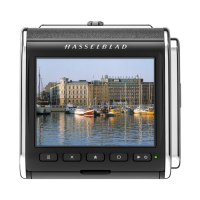
• The screen and menu system on the sensor unit are disabled.
• The sensor unit will take power from the FireWire cable if it is available (not all
computers supply power here, notably laptops). This will help conserve the battery
power of the H3D. However, you must still have a charged battery connected as
the camera body requires this battery in order to operate.
When initiating a shot from FlexColor, the computer sends a signal to the sensor unit,
which triggers the shutter and strobe/ash (if any). e sensor unit then sends the image
back over the FireWire connection to the computer, where it is displayed on the computer
screen and saved as a 16-bit 3F le in the currently selected folder of the computer hard
disk.
3FR is a proprietary Hasselblad format for storing raw captures. It contains the complete raw
image exactly as it was captured by the camera, plus technical details that enable FlexColor
to process and display the image correctly, amongst other things. is 3FR le is converted
into a 3F le (denoted by each le now bearing the sux “.f”) that furthermore stores a
complete history of the FlexColor settings that you have applied to each image and stores
meta-data such as camera settings, image name, photographer, copyright, etc. If you prefer
not to correct and adjust your captures in FlexColor, then you can export converted 3F les
from FlexColor directly to DNG, TIFF or PSD and use Adobe Photoshop, for example.
Please refer to the FlexColor Soware Reference manual for further instructions about
using FlexColor.
38


 To Next Page
 Loading...