Browsing by approval status
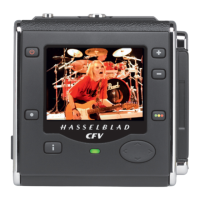
You can set the camera to browse by approval status, which means, for example, that you
will see only green-status images as you browse a batch (or both green and yellow, or only
red, etc.). e current lter setting is indicated on-screen, as illustrated. Filtered images
are still there, but they will not be shown until you change the lter setting. Also, if you
change the status of an image, the image may ‘disappear’ if it no longer passes the lter.
For example, if you have set the camera to browse only green-status images and then
change an image to yellow status, that image will not be shown again until you change
the browse lter.
ere are many ways to make use of this feature. For example:
• Set the lter to show only yellow images. Then step through each image and decide
whether any of them should be promoted to green or demoted red.
• If you are running out of space, set the lter to show only red images and then step
through to nd shots you can delete.
• Set the lter to show only green images. Then step through to make sure you have
at least one ‘good’ example of each shot that you need.
ere are two ways to set the browse lter:
• Press and hold
until the lter you want to use is shown by the indicator.
• Choose MAIN MENU > Browse. See Setting the Browse Filter for a detailed
procedure.
Deleting by approval status
ere are many ways to delete images, including one-at-a-time and multiple delete by
batch, media and/or approval status. When deleting several images, you rst pick the me-
dium or batch from which you want to delete and then choose MAIN MENU > STORAGE
> Delete to specify the status of the images to delete. You can choose to delete:
• All red-status images from the selected batch or medium
• All red- and yellow-status images from the selected batch or medium
• All images from the selected batch or medium
See MAIN MENU > Delete for detailed procedures describing each of the delete op-
tions.
Setting the default status
As outlined in Standard Instant Approval Workow, the camera normally works by
assigning a green status to all images that pass a basic exposure test and a yellow status
to all images that fail the test. However, you can change this behaviour if you prefer an
alternative workow. You have the following options:
•
Auto: works as described in Standard Instant Approval Workow .
•
Green: gives all new images a green status, regardless of the exposure warning.
•
Yellow: gives all new images a yellow status, regardless of the exposure warning.
Regardless of this setting, audio feedback will still be provided if an image is judged to
be badly exposed.
Choose MAIN MENU > Browse to make this setting. See also Setting the Default
Approval Status for a detailed procedure.
44



 To Next Page
 Loading...