5.1 NAVIGATING THE MENUS
DESCRIPTION OF THE SENSOR UNIT MENU ITEMS
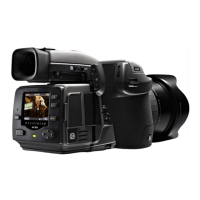
The H6D Sensor Unit Screen is Touch Sensitive and you can
swipe with one nger in different directions to move up, down,
forward and backward through the user interface.
Button Screen function
1 MENU / (EXIT) button Back to Main Menu
2 Soft button Up
3 Image rating button Select
4 Soft button Down
5 Browse button Go to image browse
1 MENU / (EXIT) button
This button opens the Main Menu. It is also used for other
tasks (for example EXIT button) as you issue commands
navigating the menu system.
2 Soft button
Function depends on screen information. Also acts as Delete
Image button in Browse Mode.
3 Select button
Works as soft button. Also toggles between 1-view and
9-view in Browse Mode.
4 Soft button
Function depends on screen information
5 Browse button
Starts display and shows the last image. The user can
review images, browse and zoom. Preview images and zoom
in to view close-ups of previews for focus checking. Zoom
out to view several at once and nally to view and select
folders and media.
By using the buttons on the control panel and the scroll wheels
on the grip you can navigate through the various levels in the
menu. Here is an overview of the setting options available.
H6D www.hasselblad.com
USER GUIDE
To Use
65
Control Screen
Main Menu
1 2 3
4 5
Storage
Storage
Wi-Fi
Exposure Focus Self Timer
Live View Display Storage
MAIN MENU
Wi-Fi
Exposure Focus Self Timer
Live View Display Storage
MAIN MENU



 To Next Page
 Loading...