AF Point in the center
AF Point moved
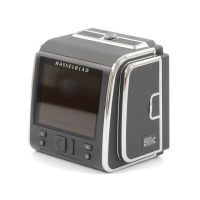
Slide the nger on the rear display to move AF point
X1D www.hasselblad.com
USER GUIDE
70
Functions
3.22 MOVE AUTOFOCUS POINT USING TOUCHPAD
The position of the Autofocus point can be
changed while viewing through the EVF by sliding a
nger on the rear display.
Make sure that the setting “Touchpad for EVF” in
the Autofocus menu is set to the desired option.
See details on page 119.
Possible settings are:
- Right
- Left
- Top-Right
- Top-Left
- Bottom-Left
- Bottom-Right
Which setting you should use, mainly depends on
which eye you use when looking through the EVF.
If the right eye is used, a good starting point is
to set “Right”. This will use the right half of the
screen as a touchpad for moving the AF point.
Moving the AF point
In this example, the “Touchpad for EVF” is set to
“Right”.
While looking through the EVF, place your nger
on the right part of the rear display and slide
upwards and slightly to the left. In the EVF you
will see the AF point moving, and when you have
the desired position, you can release the nger
from the rear display. However, it is not necessary
to release the nger before the exposure. The
AF point will stay in its position until changed. If
the option “Reset Focus Point” is set to “After
Exposure” (See page 103), the Focus Point will
return to center after the exposure.
Note!
The movement of the AF point is relative, similar
to a touchpad on a laptop computer. This means
that if you cannot move the AF point far enough
in one movement, lift the nger and return to the
starting point and repeat the movement.
Table of Content


 To Next Page
 Loading...