USE ONLY HAYWARD GENUINE REPLACEMENT PARTS
31
Display
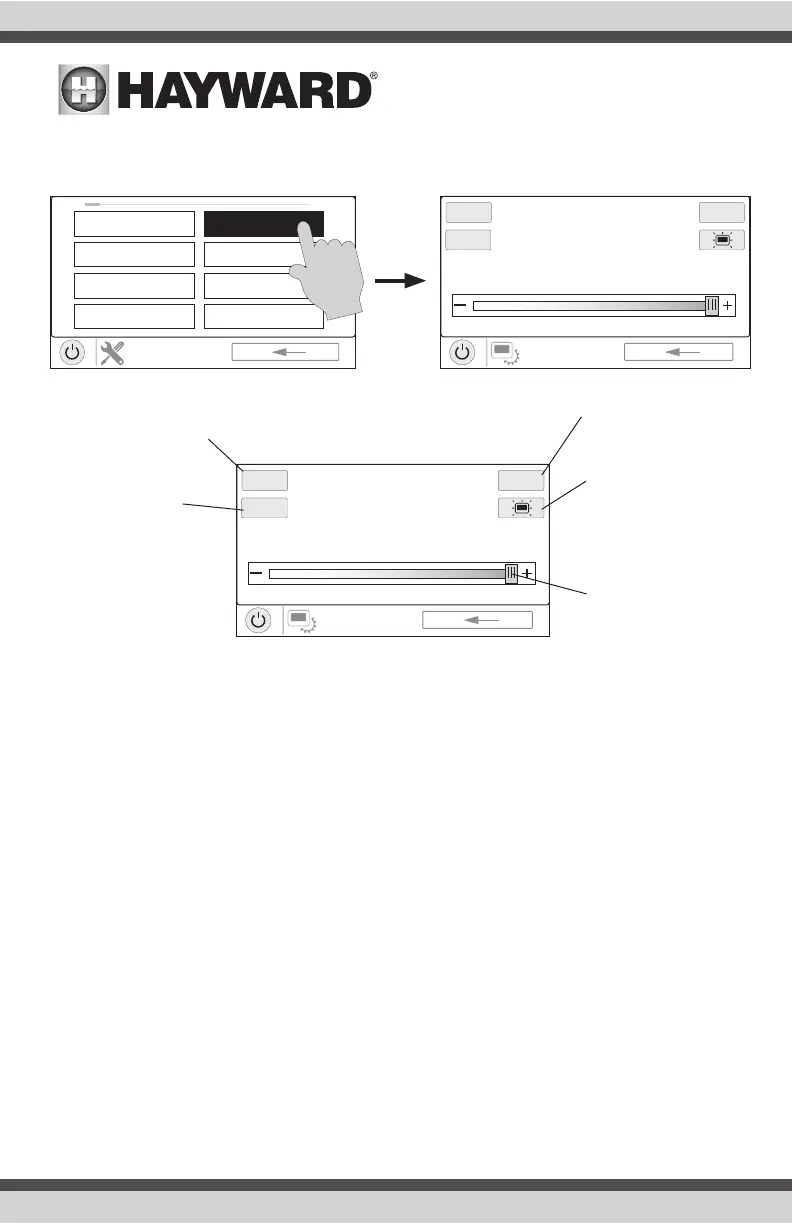
The Display Settings screen offers options to customize the way the OmniHub displays information.
Network
You can view the OmniHub ip address at this screen. This is the address that the router will use to
connect the OmniHub to the home network. You can also turn the connection to the router on and
off using the On/Off toggle.
Date/Time
Although the Date/Time can be set manually, it is recommended that you select to have it updated
automatically online. This method is required to receive firmware upgrades through the internet.
Language
Select a language. If a desired language is not shown, it may be available from Hayward through
their website at www.hayward.com/firmware. Refer to page 37 for information on installing new
languages.
Data Log (requires a thumb drive, page 29)
Use this feature if instructed by Hayward Technical Service. The data log shows a log of daily
operations and can help Hayward Technical Service diagnose or troubleshoot problems. The data
log options are:
Clear Log File - this will delete all data in the log file.
Show Log File - this will display the log file.
Restore Defaults - this will return the data log settings to the factory default.
SYSTEM
conguration
1 / 2
cong wizard
system info
backup cong
restore cong
display
network
date/time
language
DISPLAY
settings
100%
12h
F
º
vs%
DISPLAY
settings
100%
12h
F
º
vs%
12/24 hour format - Toggles between
12 hour and 24 hour time display.
o
F/
o
C - Toggles
between
o
F and
o
C.
VSP Speed Display
- Display VSP pump
speed in % or RPM.
Display Settings
- Set display idle
duration and default
on settings.
Display Brightness -
Set display bright-
ness.







 To Next Page