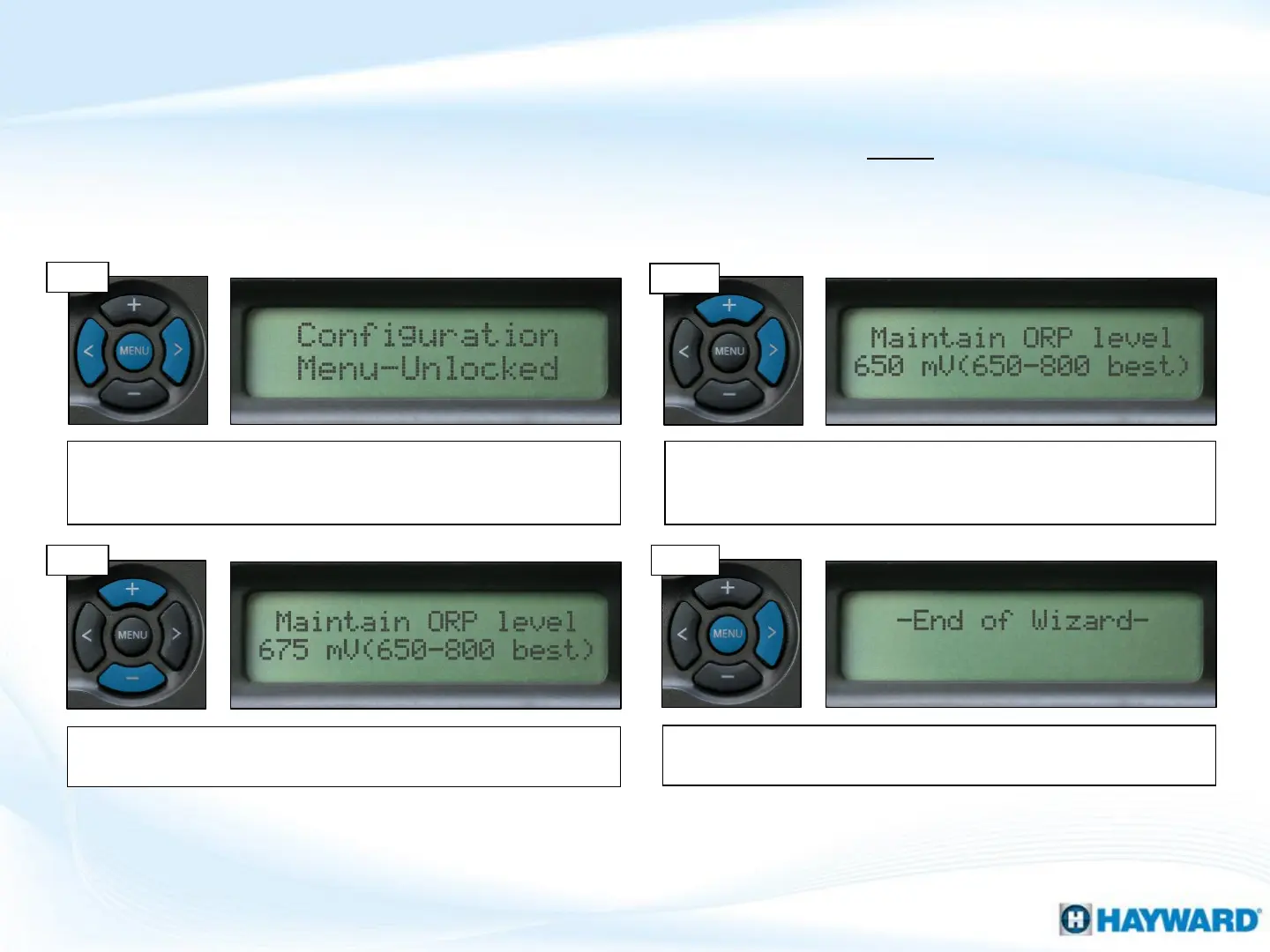
Once the value is set, press the (>) key until ‘-End of Wizard-’
appears on the display, then press ‘Menu’ to exit config.
How To: Adjust ORP Set Point (S&D)
10
Follow these steps to adjust the Chlorinator’s ORP Set Point, ONLY if Salt Chlorination
is Enabled AND the system is configured for ‘ORP Auto Sensing’.
Step 3
Step 4
Step 1
Press the ‘Menu’ until, ‘Configuration Menu-Locked’ appears. To
unlock, press and hold the (<) & (>) until the text, on the display,
changes from ‘Locked’ to ‘Unlocked’ (unit will beep).
Press the (>) repeatedly, until ‘Chemistry Config. Wizard’ appears
on the display. Press the (+) key to enter, then (>) until ‘Maintain
ORP level’ appears on the display.
Note: ONLY increase or decrease the ORP Set Point in increments of 25 mV. Once free chlorine reaches
3.0, verify and/or balance the water chemistry. Once balanced, note the reported ORP reading, this
represents the value for maintaining adequate free chlorine levels.
Step 2
Use the plus (+) key to increase, or the minus (-) key to decrease
the ORP set point.






 To Next Page