24
9. PHONE SETTINGS
9.1. Handset Settings
9.1.1. Set Ringer melody and volume
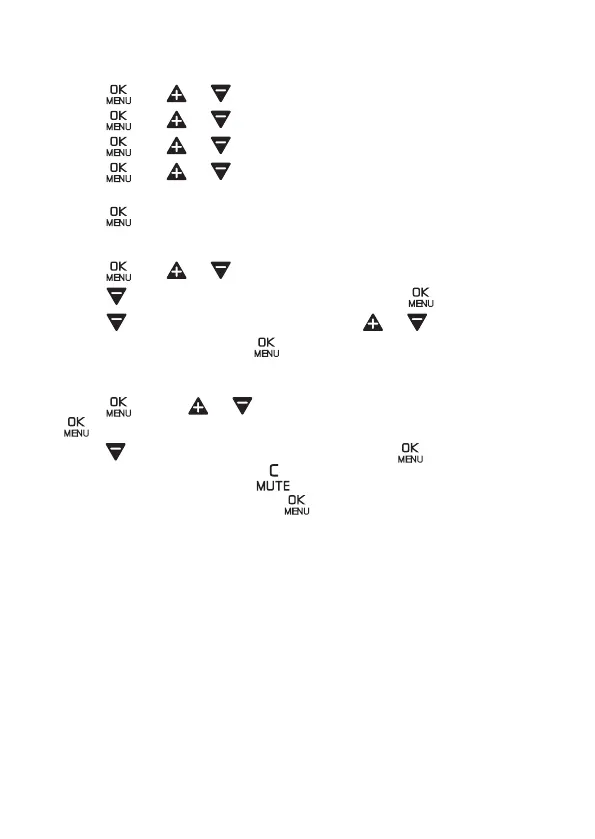
1. Press and or to select HS SETTINGS.
2. Press and or to select RING SETUP.
3. Press and or to select RING VOLUME.
4. Press and or to select the desired ringer volume. There are
6 ringer volume levels including RINGER OFF.
5. Press toconrm.
9.1.2. Turn the handset tones on or o
1. Press and or to select HS SETTINGS.
2. Press to select TONE SETUP and then press .
3. Press to select KEY TONE, then press or to select ON or
OFF for KEY TONE, press toconrm.
9.1.3. Rename the Handset
1. Press , press or to select HS SETTINGS, and then press
.
2. Press to select RENAME HS and then press .
3. Edit the name by selecting to delete the characters, then enter
the new name, and then press toconrm.
10. CALLER ID (NETWORK DEPENDENT)
This feature is available if you have subscribed the caller ID service with
your telephone service provider.
If your caller’s name is stored in your contacts list and it matches the
number calling, you’ll see the caller’s name and where they are calling from
on the display instead.
If you receive a call from a number you have stored in your Blocked calls
list, BLOCKED CALL will be displayed with the number. (In the Call Blocker
ON Status)
The caller ID log can store up to 50 incoming (missed and answered) calls.
If you haven’t subscribed to a caller ID service, no number will be displayed
in the caller ID log for incoming calls but the time and date will be recorded.
Caller ID are listed in chronological order with the most recently received/
made call at the top of the caller ID log.


 To Next Page