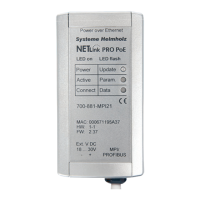
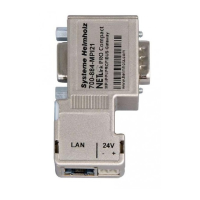
44 NETLink
®
Ethernet Products
Furthermore the WLAN connection in this example has to be
configurable via the Windows WLAN assistant or via another
producer.
3. Step: Now select the NETLink
®
WLAN, here ‘NL Andy’, that you wish to
connect to and click the ‘Connect’ button.
4. Step: Now enter the valid key for the respective NETLink
®
WLAN and
confirm by clicking the ‘Connect’ button. Windows does not
display the key, either, but keeps the characters hidden.
5. Step: The manager now indicates to obtain a network address. That is
not entirely correct, since NETLink
®
WLAN cannot allocate IP
addresses (see section 10.2). Therefore, the wireless network
connection needs to be given a fixed IP beforehand.

 To Next Page
 Loading...