Quick Start Guide REX 300 25
10. Setting up VCOM LAN for serial communications
In order to be able to use a remote connection to access serial participants, start
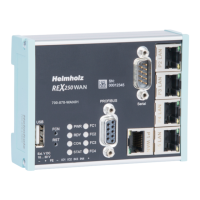
shDIALUPandactivatethecorrespondingsettingsforthevirtualCOMportonyour
computer. To do this, please click on the Tools button before logging in.
Deactivatethe"inactive"checkboxinthe"virtualCOMportsettings"tab.Thesystem
will automatically suggest a network port and the COM port to be used, neither of
whichneedtobechanged.Closethewindowbyclickingon"OK."
Youcanthenuseyourlogininformationtologintotheportalserver(seepage
5, chapter 3.2) and establish a connection to an REX router that has already been
congured(seepage20,chapter6).
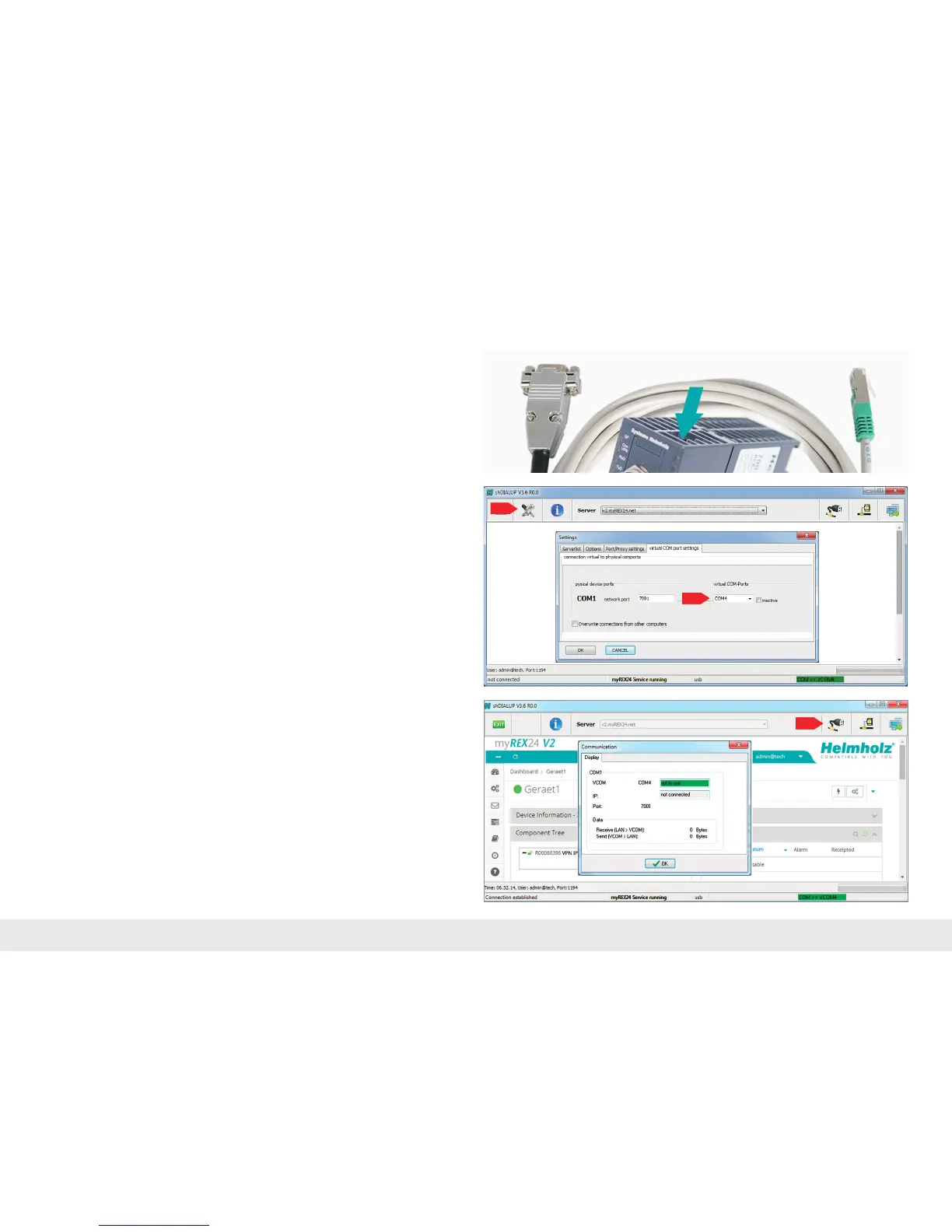
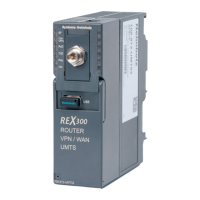
Depending on the model, the REX 300 may feature an additional serial RJ45 inter-
face. This socket is found on the top of the housing. The transition to a 9-pin SUB-D
connectiontakesplacewiththeadaptercablesavailableasaccessories:
- Order no. 700-879-1VK11 (RS232)
- Order no. 700-879-1VK21 (RS485)
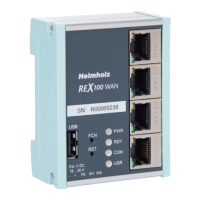
YoureceivefurtherinformationbyactivatingtheVCOM-LANstatusbutton.
Inthisexample,theCOM4connectionisnowalsoavailableinthesysteminaddition
to the standard remote maintenance connection. The possibility for serial communi-
cationisstillindicatedinthetaskbarbyagreensymbol(anactiveconnectionwitha
yellow symbol).



 To Next Page