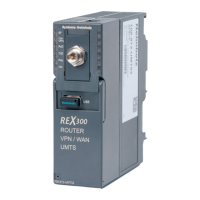
Quick Start Guide REX 30020
6. Establishing a VPN connection to your REX 300
Note: The following steps presume that the REX 300 has already been con gured and
that you have successfully logged into your account at myREX24 V2 with shDIALUP.
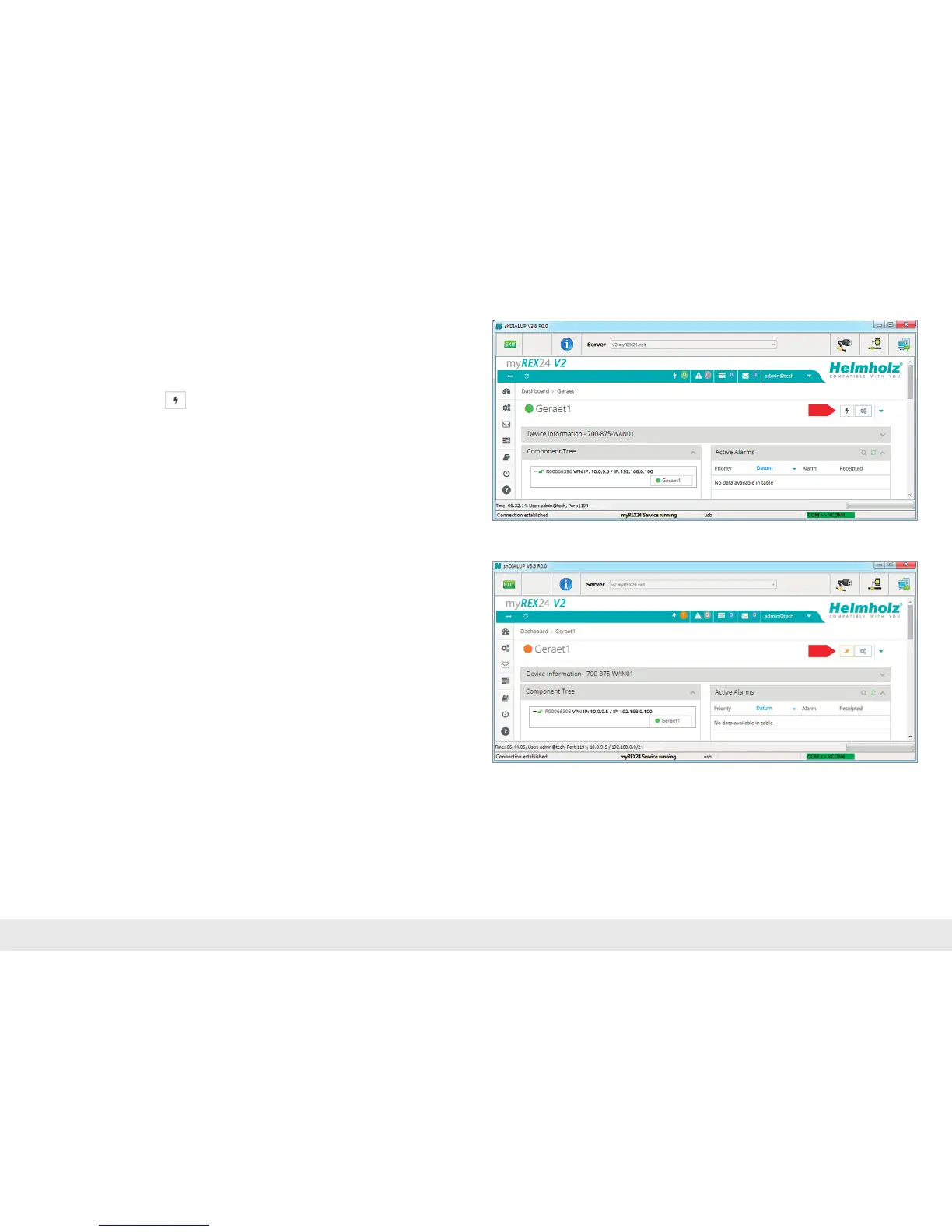
LoggedinREXroutersareshownidentiedwithagreencircleinthedashboard
view.Byclickingonthe
button, you establish the connection between your
(remote) PC and the REX 300.
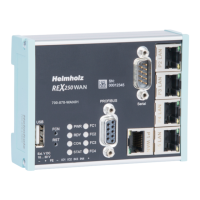
Thenumberofactiveconnectionsisshowninthemenubar.
TheactiveconnectionstatuswiththeREX300isrepresentedwithanorangeLED.
In order to end the connection of a remote access, please click the in the meantime
yellowandanimatedconnectionbuttonandthenconrmthedisconnectionofthe
remote connection.
Once a connection to the REX 300 has been established, all the IP packets that are
validfortheapplicableLANnetworkonthesystemsidewillbeforwarded.Further
parameters for the VPN-IP/IP subnet are also shown in the lower status bar for infor-
mational purposes.



 To Next Page