Quick Start Guide REX 300 5
3.1 Registering
Ifyoudon'tyethaveamyREX24-V2portalaccount,youcanregisterunderwww.my-
REX24.net.Fillouttherequiredeldsthere.Afteryourdataischeckedbyourservice
team(Mon.-Fri.8a.m.to5p.m.CET),youwillreceivetwoseparatee-mailswiththe
access data. One e-mail contains the user name, the second the password.
ThesoftwarerequiredforestablishingtheconnectionwiththemyREX24-V2portal
(shDIALUP and shCHECK) can be found in the download area under www.helmholz.
de. There you can also download further documents with additional example appli-
cations at any time.
3.2 Log in to the myREX24 portal
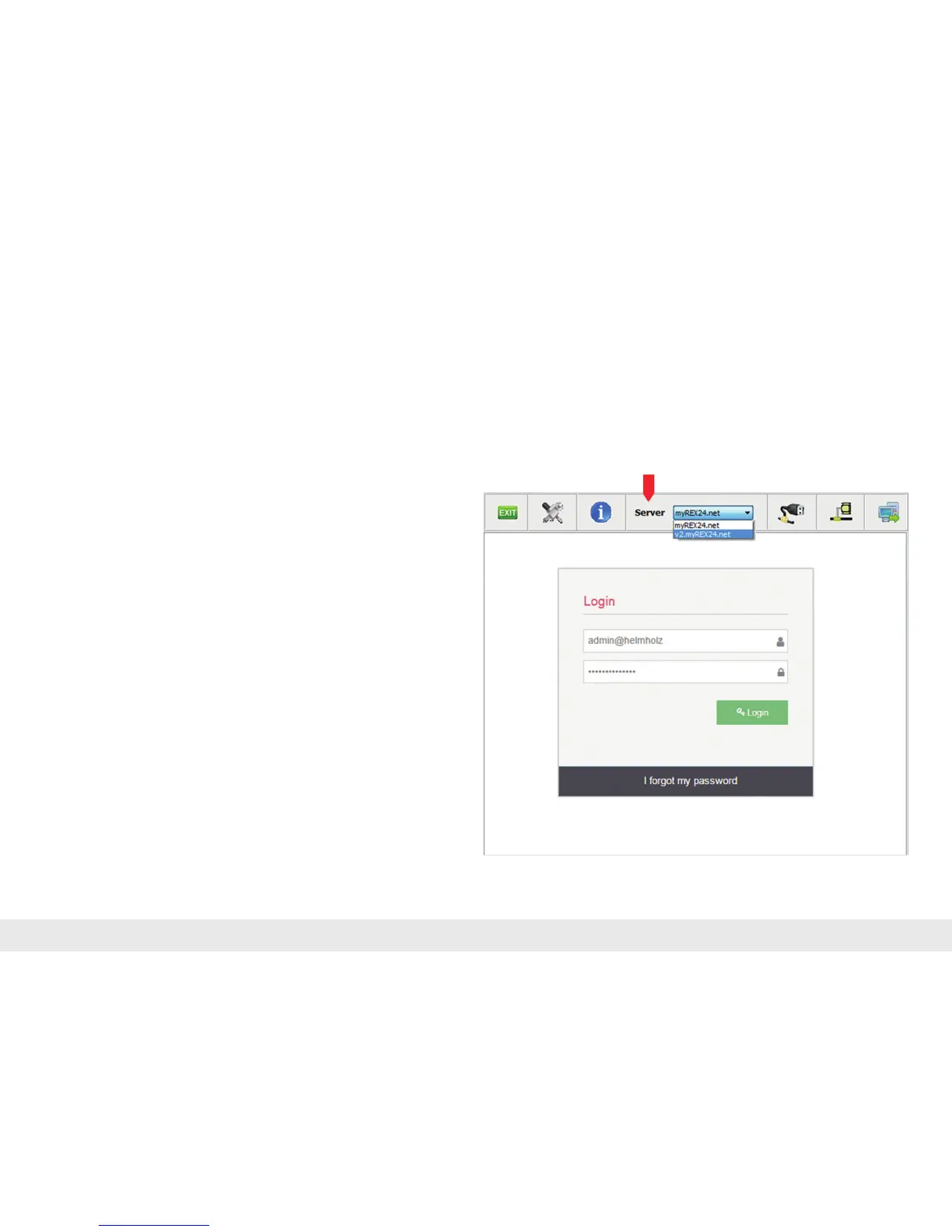
Once you install and start the shDIALUP software, you can use your login data to log
intothemyREX24portal.Select"V2.myrex24.net"intheserverselectioneld.
Notes:
- Alternatively, the login page can also be reached under: https://v2.myrex24.net.
Any up-to-date browser can be used for this purpose. Chrome and Firefox have been
successfully tested.
- Your login name is composed of a user name preceding the @ character and the name
of your company. Example: admin@helmholz
- Following the initial login, you will be prompted to register a new, individual password
for your account.
- If necessary, you can also create and administer additional users after logging into the
myREX24-V2 portal.



 To Next Page