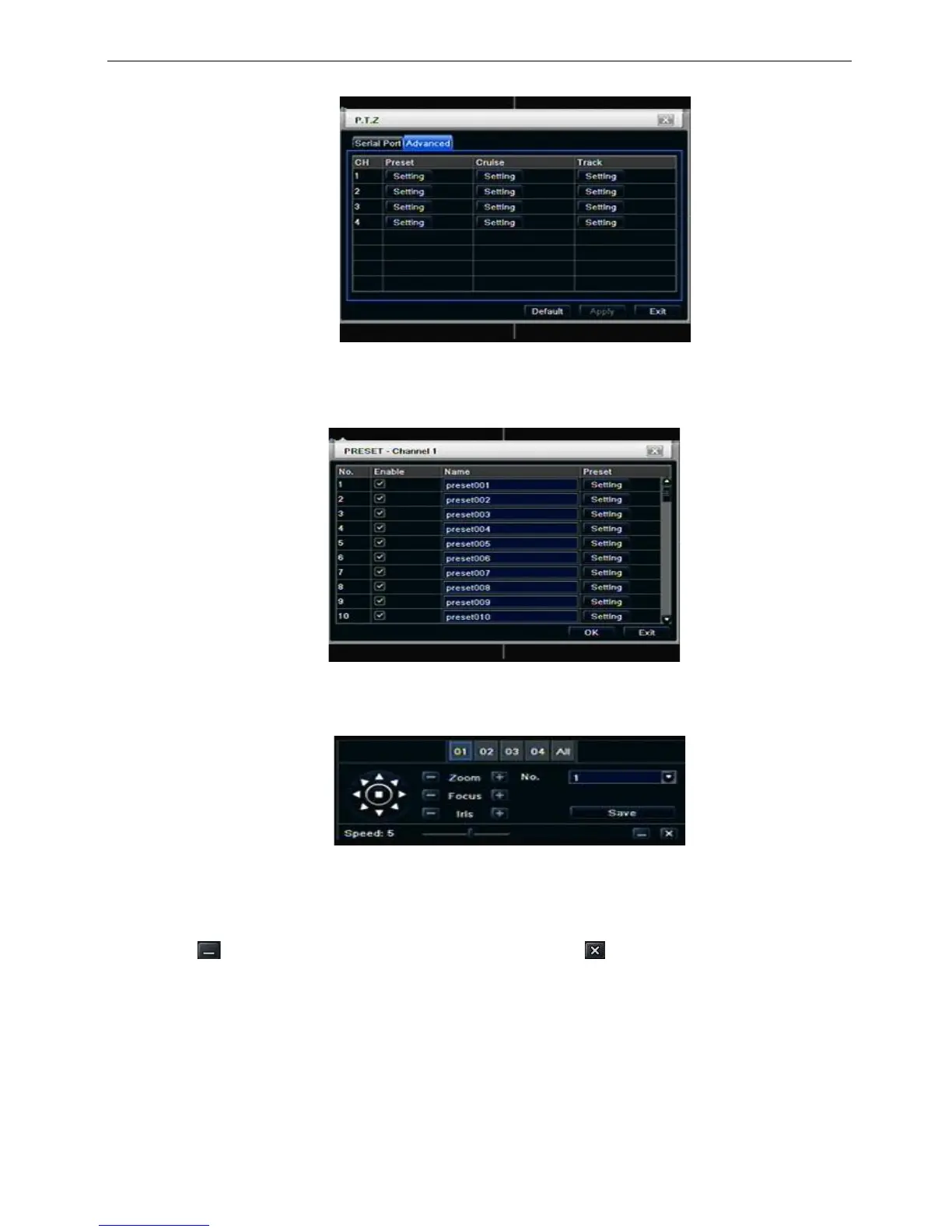
Step1: enter into system configuration P.T.Z configurationadvance; refer to Fig 4-37:
Fig 4-37 P.T.Z configuration-advance
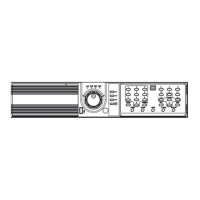
Step2: in the Advance interface, click preset “Setting” button, a dialog box will pop-up as Fig 4-38:
Fig 4-38 advance-preset setting
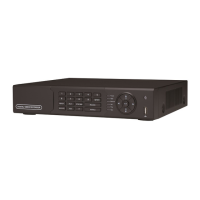
a. in the preset set interface, click Setting button, a dialog will pop-up as Fig 3-39:
Fig 3-39 preset set-setting
b. user can control the dome rotates up, up left, down, right down, left , left down, right and up right and
stop rotating; adjust the rotate speed and the value of zoom, focus and iris of the dome;
c. select the serial number of the preset point, set the preset name. Click Save button to save the settings,
click icon to hide the tool bar, right-key can remerge it; click icon to exit the current interface.
d. in the preset interface, click OK button to save the setting; click Exit button to exit current interface.
Step3: in the Advance interface, click cruise “Setting” button, a dialog box will pop-up as Fig 4-40:


 To Next Page