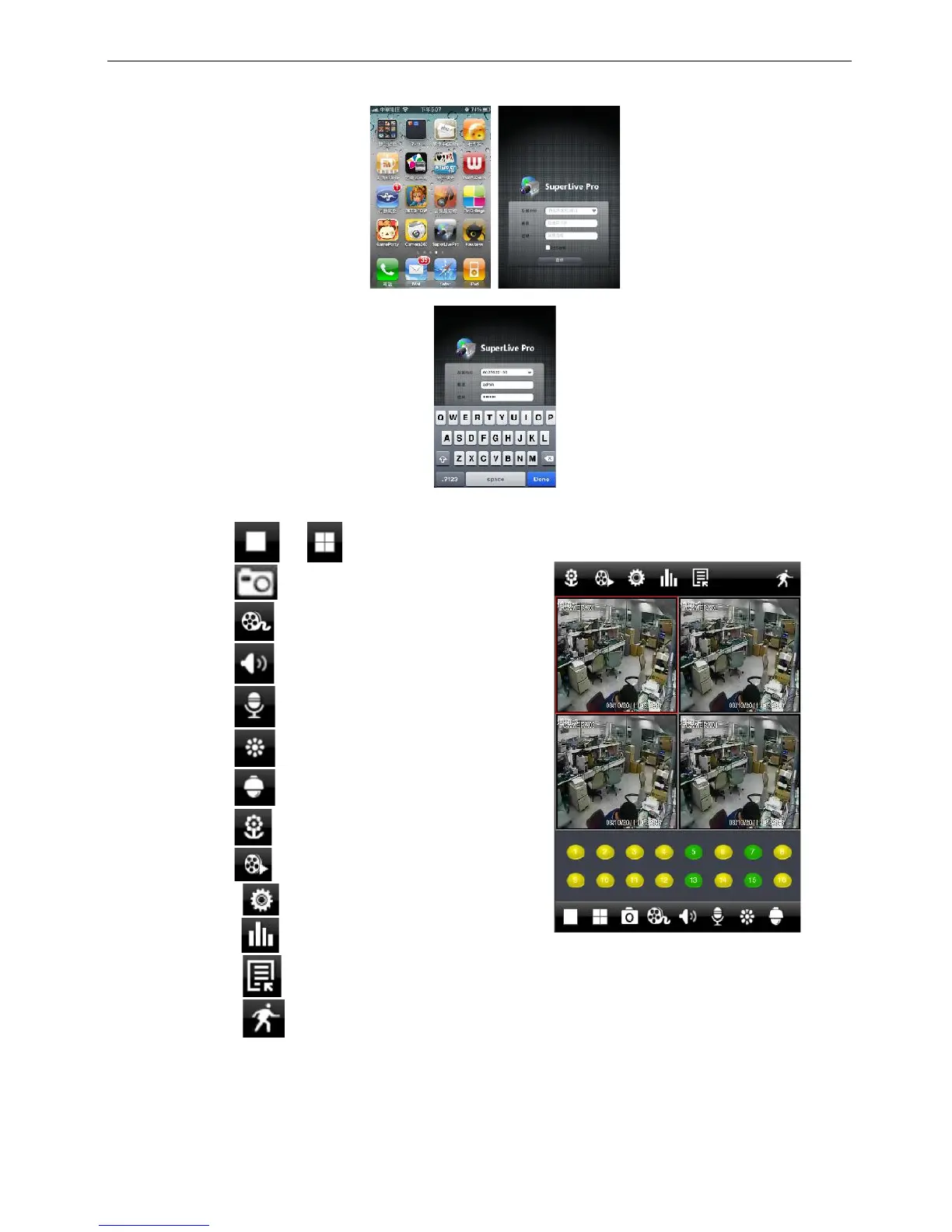
Step 5: Just be patient to download and install. After installed,“SuperLivePro”, icon will display. Click this icon,
a function interface will appear
Step 6: Key in server’s IP address (or domain name), user’s ID and password. Click Login to process.
Step 7: The default quad view window will be displayed. The functions descriptions as following,
7.1 Click or to view different channel.
7.2 Click then click “OK” to capture picture.
7.3 Click to do local record.
7.4 Click to get audio from DVR.
7.5 Click to send voice to DVR
7.6 Click to do camera color adjustment.
7.7 Click to do PTZ operation.
7.8 Click to view picture.
7.9 Click to do local & remote playback.
7.10 Click to do DVR remote setting.
7.11 Click to view DVR information.
7.12 Click to edit DVR list.
7.13 Click to setup motion area.


 To Next Page