12
How to Login to the rDrive Manager
You can reach the rDrive Manager log in page either by:
Double clicking on the rDrive Manager icon created on your desktop
Opening your preferred web browser and typing http://localhost:7406 in the address bar
Note: You can set the password under the Setting tab
Remote Login
A user connected to a local network can remotely access the rDrive Manager using the IP address of the
host device.
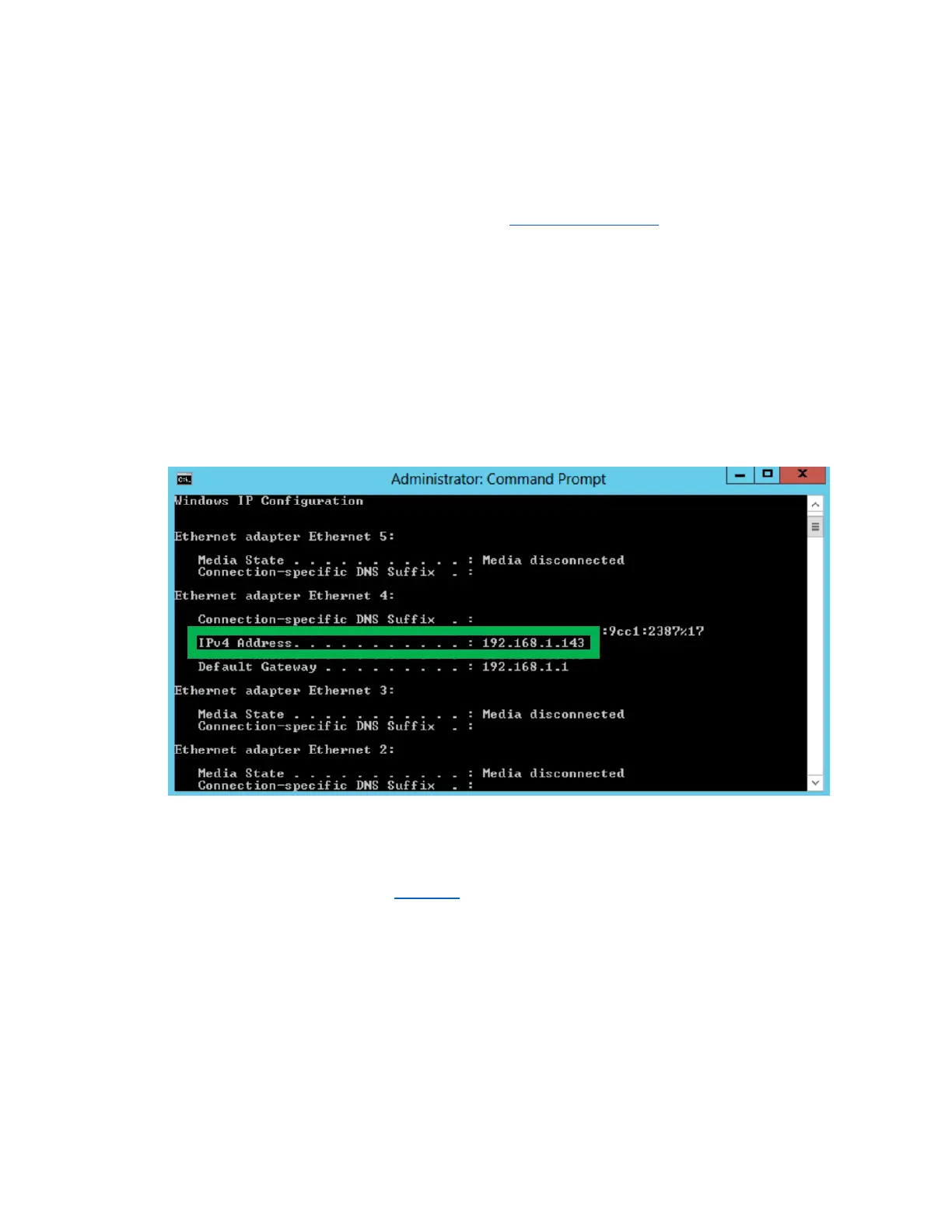
To obtain your IP address
1. Open a command prompt window on the host computer
2. Type ipconfig
3. Look for the section that contains your network adapter information
4. Look at the IP address section
Note: Make sure the Restrict to localhost access is disabled in the rDrive Manager Setting tab
You can then remotely access the rDrive Manager using any other computer that is in your local network
by opening any web browser and typing http://{IP address of host compute}:7404 (default port is 7404)
Formatting the RAID Volumes
After creating a RAID array, your operating system will recognize that array as a logical disk. However,
the array will not be accessible until it is formatted by the operating system.
Format the volume when you have finished the following procedures
1. Set up the Enclosure
2. Set up the RAID Controller
3. Installed Drivers
4. Create an Array


 To Next Page