Steps
1.
Go to → Event → Smart Event → Intrusion .
2.
Check Enable.
3.
Select a Region. For the region refer to Draw Area .
4.
Set rules.
stands for the percentage of the body part of an acceptable target
that enters the region. = 100 - S1/ST × 100. S1 stands for
the target body part that goes across the region. ST stands for the
complete target body. The higher the value of is, the more easily the
alarm can be triggered.
Threshold Threshold stands for the threshold for the of the object loitering in the
region. If the that one object stays exceeds the threshold, the alarm is
triggered. The larger the value of the threshold is, the longer the alarm triggering
is.
Figure 6-4 Set Rule
5.
You can set the parameters of areas by the above steps.
6.
For the arming schedule refer to Set Arming Schedule . For the linkage method
refer to Linkage Method .
7.
Click Save.
6.2.5 Set Line Crossing
It is used to detect objects crossing a virtual line. If it occurs, the device can take
linkage
Steps
1.
Go to → Event → Smart Event → Line Crossing .
2.
Check Enable.
3.
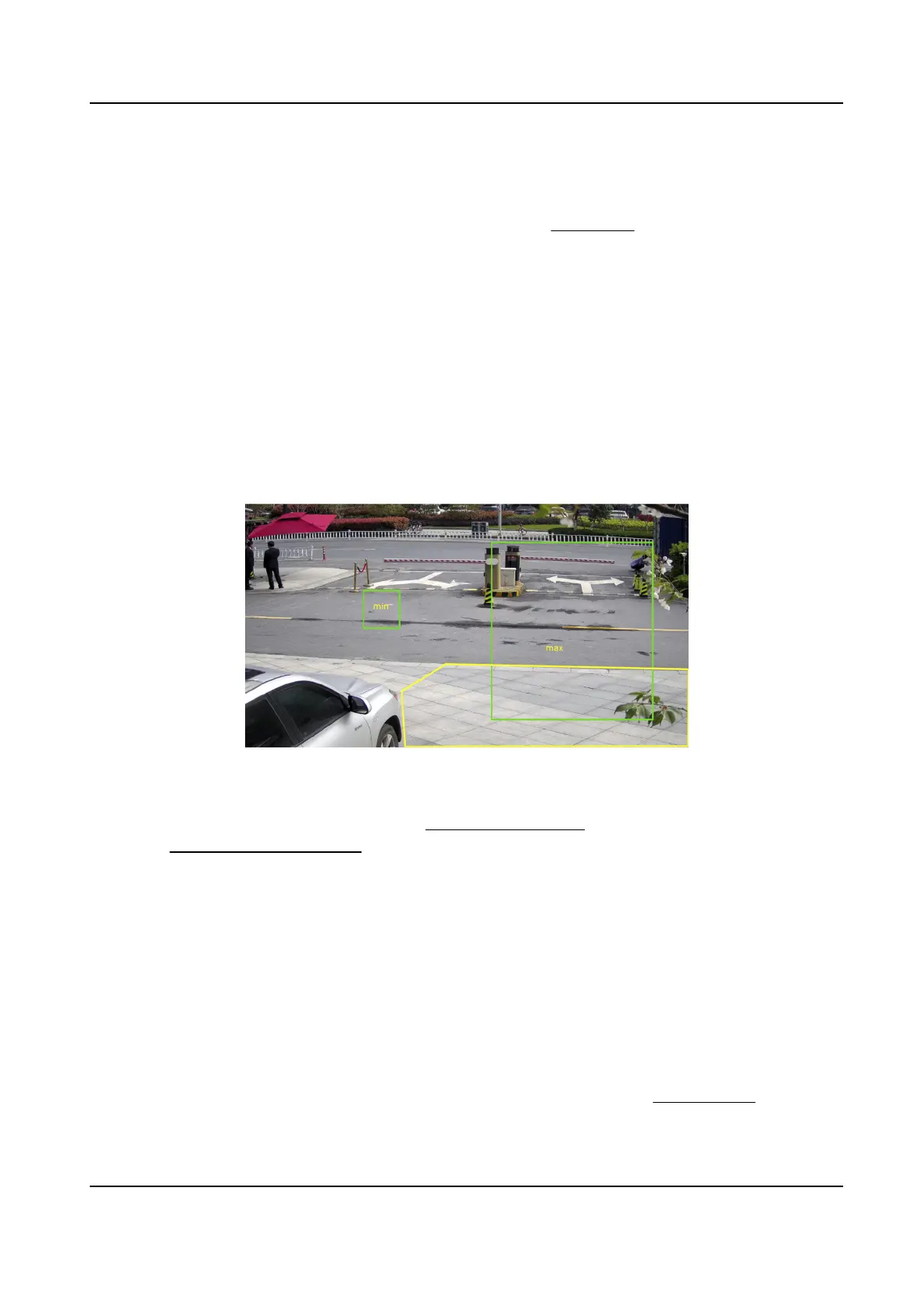
Select one Line and set the size For the size refer to Set Size Filter .
Network Camera User Manual
35



 To Next Page
 Loading...