
 Need help?
Do you have a question about the HIKVISION DS-3E1526P-EI and is the answer not in the manual?
This document outlines the functionalities and management of Hikvision Smart Managed Switches, providing a comprehensive guide for users to configure, monitor, and maintain their network infrastructure. The switches are designed to offer robust network management through a web interface, supporting a range of features from basic setup to advanced system maintenance.
Smart Managed Switches facilitate network management via a web interface, encompassing activation, login, device overview, network configuration, device configuration, and system maintenance. Upon initial use, the switch requires activation and password configuration. Users must ensure their computer and the switch are on the same network segment for successful activation. The default administrator account is "admin," and the super IP address is 10.180.190.200, which cannot be modified. The default IP address of the switch is dynamically assigned and can be obtained using the SADP tool. After setting a password (8 to 16 characters, including at least two types of uppercase letters, lowercase letters, digits, and special characters), users can optionally enable Cloud Management for Hik-Connect service. Following activation, network configurations can be modified, including IPv4 address, subnet mask, default gateway, and DNS addresses, or DHCP can be enabled for automatic IP assignment. It is recommended to modify network configurations for better switch management.
The web interface provides detailed device information, including an overview, port status, and network status. The Device Overview page displays basic device information such as model, software version, serial number, IP address, and MAC address. Users can also customize the device name and view its running time. The number of added VLANs can be quickly viewed, with a direct link to the VLAN Management page for configuration. The Cloud Platform Connection Status module indicates whether the device is connected to Hik-Connect. If connected, a QR code is available for adding the device to the Hik-Partner Pro app for remote management. If disconnected, users can refresh the connection or use the Diagnose function to troubleshoot.
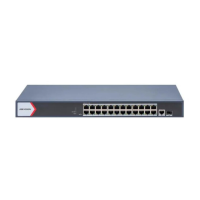
The Port Status section offers a visual representation of physical ports, showing their connection and power supply status. The Port Panel module displays port name, connection status, rate/duplex, flow control status, and packet receiving/sending rates. For PoE ports, the PoE power is also displayed. The Port Details module lists these parameters and allows configuration of port status (enable/disable), rate/duplex, and flow control. Flow control, enabled by default, helps reduce the impact of large data volumes on the network. PoE Power display is available for switches supporting PoE, showing whole device PoE power and peak PoE power over the last seven days, with a link to the PoE Management page for configuration.
Network Monitoring features allow users to view same-LAN network device information, MAC addresses learned by ports, port statistics, and cable status. The Network Device Discovery function automatically detects and displays information (IP address, type, model, serial number) of transmission devices in the same LAN. Users can query MAC addresses learned by each port by selecting a port and clicking Search. Port Statistics provides monitoring and collection of transmitted data, showing current connection status and data transmitted by each port. Users can clear all statistics, manually refresh them, or set an auto-refresh interval (30 or 60 seconds). Cable Detection helps detect Ethernet port cable statuses, such as short circuits or open circuits, and locate faulty cables by selecting a port and clicking Detect.
The web interface allows for comprehensive network configuration. Users can access network configuration, cloud platform configuration, and SADP configuration via the System → Network Configuration menu. Network Configuration allows setting IPv4 address, subnet mask, default gateway, preferred DNS address, and alternate DNS address, or enabling DHCP. Cloud Platform Configuration is crucial if the device appears offline in Hik-Partner Pro. Users can ensure Hik-Connect is enabled, check the operation code, and bind the device to their cloud account. SADP Configuration allows enabling SADP Server for device discovery and information display, or SADP Agent for periodic query requests (every minute) for network topology drawing.
Port Configuration Port Attributes can be configured to influence a port's working status. Users can select desired ports, enable/disable them, set rate/duplex modes (which vary by device model), and enable/disable flow control. Link Aggregation combines multiple physical links into a logical high-bandwidth data path for stronger and faster network connections. Users can add 2 to 4 selectable ports to an aggregation group. It's important that ports in one aggregation group have the same rate, duplex mode, flow control, and long-range mode configurations. Long-Range Mode, when enabled for a port, extends its transmission distance up to 300 meters at a rate of 10 Mbps. Users can select ports and enable/disable this mode. Port Isolation allows adding multiple ports to an isolation group, preventing communication between them. This is useful for segmenting PCs without configuring VLANs. Port Mirroring enables administrators to monitor traffic on a mirrored port by replicating data to a monitoring port for analysis. Only one port can be set as the monitoring port. Users can configure the mirroring direction (Ingress, Egress, or both). High-Priority Port configuration is supported on switches with high-priority ports, identified by a red area on the device front panel. Data from these ports is preferentially transmitted during uplink congestion.
STP Configuration Spanning Tree Protocol (STP) is a layer-2 link management protocol that provides path redundancy and prevents loops in a network topology. STP uses a spanning-tree algorithm to select a root switch and determine the network topology by transmitting Bridge Protocol Data Unit (BPDU) packets. Users can enable STP and configure parameters such as Bridge Priority (0 to 61440, in increments of 4096, default 32768), Hello Time (1 to 10 seconds, default 2 seconds), Max. Aging Time (6 to 40 seconds, default 20 seconds), and Forwarding Delay (4 to 30 seconds, default 15 seconds). The Max. aging time must meet specific conditions related to Hello Time and Forwarding Delay. Users can also view port status (port name, path cost, port role, port status) and STP status (bridge ID, root bridge ID, hello time, Max. aging time, forwarding delay of the root bridge).
LLDP Configuration Link Layer Discovery Protocol (LLDP) is a layer 2 neighbor discovery protocol that allows devices to advertise device information to directly connected peers/neighbors. Enabling LLDP allows network devices to send LLDP data units (LLDPDUs) to inform other devices of their status, aiding in network topology drawing and detecting improper configurations. Users can enable/disable LLDP and view local port(s), MAC address(es) of peer device(s), and peer port(s) in the Neighbor Information list.
VLAN Configuration Virtual Local Area Networks (VLANs) logically divide a physical network into multiple logical networks, creating separate broadcast domains. This isolates users in different VLANs, enhancing network security. Users can add VLANs individually or in batches, specifying VLAN IDs (1 to 4094). The default VLAN 1 cannot be deleted. Port VLANs can be configured as ACCESS or TRUNK. An ACCESS port carries traffic for only one VLAN (usually VLAN 1) and has a single PVID. A TRUNK port can carry traffic for multiple VLANs simultaneously, requiring a PVID and accessible VLANs to be set. VLAN configuration is not allowed for ports in an aggregation group.
PoE Management PoE Management allows users to enable PoE watchdog, which auto-detects and restarts unresponsive IP cameras. Users can select desired ports and enable PoE to supply power to connected powered devices. The PoE Status list displays the PoE enabling status and output power of PoE ports.
Time Synchronization Time Synchronization allows users to set the device time. Users can choose between Manual synchronization (setting date and time manually or syncing with the computer time) or Hik-Connect Server Time Sync for automatic time calibration and synchronization.
System Maintenance System Maintenance functions include restarting, upgrading, backing up, or resetting the device. Restart Device allows remotely restarting the switch, after which the device automatically returns to the login page. Upgrade Device enables uploading an upgrade file to update the switch's firmware. The upgrading process takes 1 to 10 minutes, and the device restarts automatically upon completion. If upgrading fails or the device malfunctions, users are advised to contact technical support. Back Up Device allows exporting the configuration file for local backup. Users can set a password for file encryption, which is required for importing device parameters. Reset Device offers two options: Restore to Defaults (restoring all parameters except network and user parameters to factory defaults) and Restore All to Defaults (restoring all parameters to factory defaults). Device parameters cannot be recovered after a factory reset, and the device restarts automatically. Users can also import device parameters from a previously backed-up configuration file for fast device configuration. The device restarts automatically after importing the configuration file.
 General
| PoE Standard | IEEE 802.3af/at |
|---|---|
| MAC Address Table | 16K |
| Jumbo Frame | 9 KB |
| Storage Temperature | -40°C to 70°C |
| Relative Humidity | 5% to 95% (non-condensing) |
| Power Supply | AC 100-240V, 50/60Hz |
| Dimensions | 440mm x 220mm x 44mm |
| Weight | 3.5kg |
| Operating Temperature | 0°C to 45°C |


 To Next Page