Digital Video Recorder User Manual
64
or VCA detection events occur.
Steps
1. Go to Linkage Action interface of the alarm input or VCA detection.
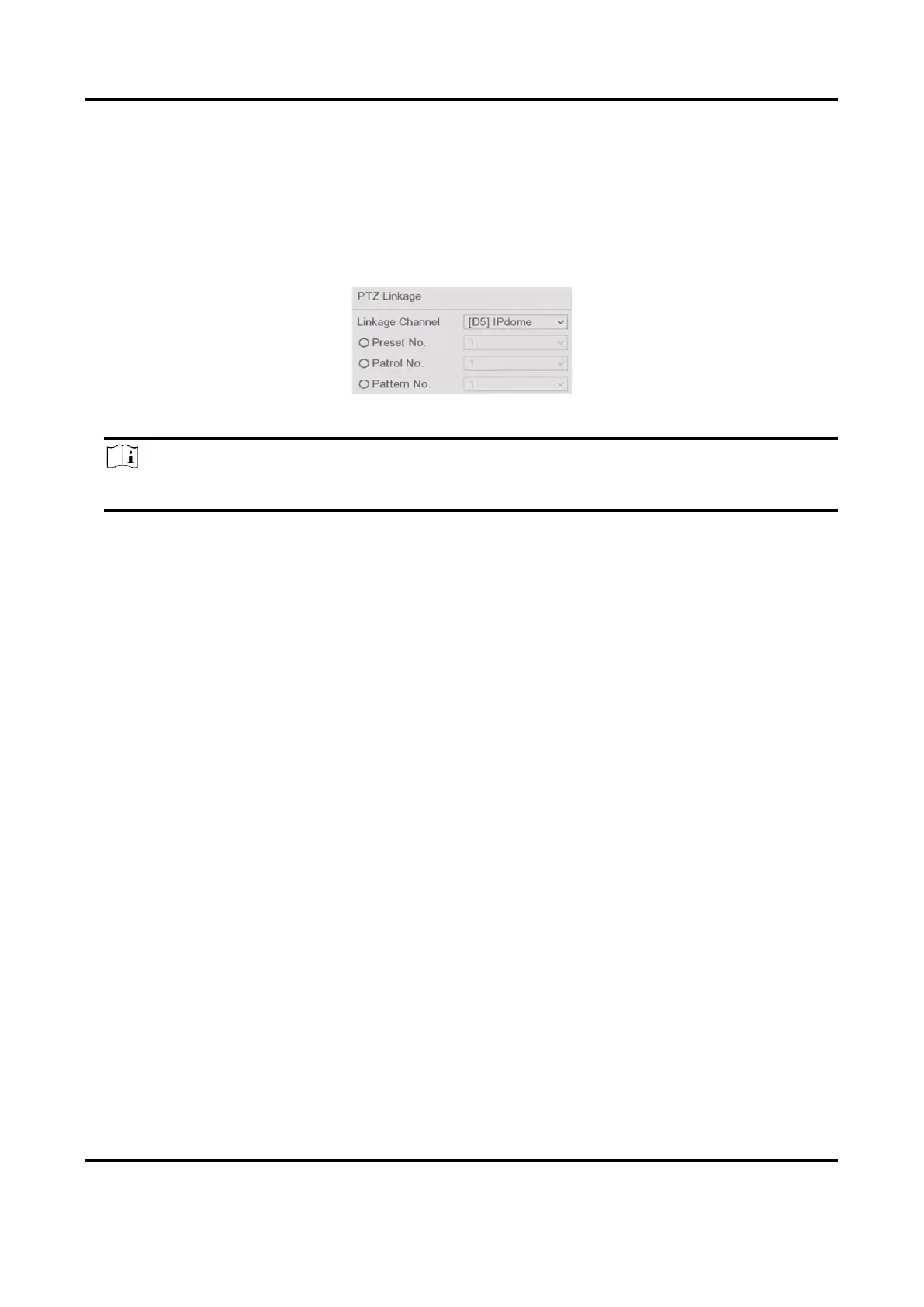
2. Select PTZ Linkage.
3. Select the camera to perform the PTZ actions.
4. Select the preset/patrol/pattern No. to call when the alarm events occur.
Figure 6-22 PTZ Linkage
Note
You can set one PTZ type only for the linkage action each time.
6.5 Recording Management
6.5.1 Configure Recording Schedule
Video recorder will automatically start/stop recording according to the configured schedule.
Configure Continuous Recording
Steps
1. Go to Configuration → Record → Parameter.
2. Set the continuous main stream/sub-stream recording parameters for the camera.
3. Go to Configuration → Record → Schedule.
4. Select recording type as Continuous.
Configure Event Recording
You can configure the recording triggered by the normal event or smart event.
Steps
1. Go to Configuration → Event.
2. Configure the event detection and select the cameras to trigger the recording when event
occurs.
3. Go to Configuration → Record → Parameter.


 To Next Page