EasyManua.ls Logo

Hisense VIDAA U5 - User Manual

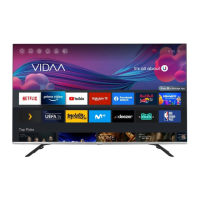
Hisense VIDAA U5
72 pages
Print Icon
To Next Page IconTo Next Page
Loading...
Hisense User Manual
VIDAA U5

Questions and Answers

  • A
    Alexis MasonSep 23, 2025
    Why Schedule Recording cannot be used on my Hisense VIDAA U5?
    • D
      Daniel SmithSep 23, 2025
      To use Schedule Recording on your Hisense TV, check if a storage device is connected to the TV and ensure it has sufficient free space. The function will not work if there isn't enough storage space. Also, verify that your storage device is not damaged; if it is, consider formatting it. Recording will automatically stop if the signal becomes too weak. The recording or timeshift function may not work because of the slow speed of read-write for USB flash drive or if the storage format of your device is unsupported.
  • J
    Julie CookAug 23, 2025
    What to do if the remote control does not work with my Hisense VIDAA U5 TV?
    • A
      april47Aug 23, 2025
      If your Hisense TV remote control isn't working, first, confirm that the TV still has power and is operational. Then, replace the batteries in the remote with new ones, ensuring they are correctly installed. If some buttons don't work, but the volume buttons work normally, it might indicate a problem with the application.
  • K
    Katherine RichardsAug 25, 2025
    What to do if I have connected an external source to my Hisense TV but I get no picture and/or sound?
    • L
      Lori JohnstonAug 26, 2025
      If you've connected an external device to your Hisense TV but are not getting any picture or sound, check whether the connection between the external device and your TV is correct. Also, make sure you have selected the correct input source.
  • K
    Katherine AlexanderAug 27, 2025
    Why is the wireless network signal too weak on my Hisense TV?
    • S
      Susan PerezAug 27, 2025
      If the wireless network signal on your Hisense TV is too weak, try positioning your wireless router, modem router, or access point in a central location and avoid placing it in a corner.
  • L
    Lisa KennedyAug 27, 2025
    How to fix blurry or flickering picture on Hisense VIDAA U5 TV?
    • A
      albertfreemanAug 28, 2025
      To address a blurry or flickering picture on your Hisense TV, you can try the following: * Navigate to / > Settings > Picture > Picture Mode Settings > Sharpness and adjust the sharpness level. * If you're using an external antenna, check its direction, position, and connection. * Adjust the direction of your antenna, or reset or fine-tune the channel.
  • J
    Jillian DavisSep 17, 2025
    When I turn on my Hisense TV, why is there a delay for a few seconds before the picture appears? Is this normal?
    • C
      Christopher TateSep 17, 2025
      Yes, this is normal. When you turn on your Hisense TV, the delay before the picture appears is due to the TV initializing and searching for previous setting information.
  • E
    Elizabeth CoxSep 14, 2025
    Why is my Hisense VIDAA U5 hot?
    • S
      Susan RyanSep 14, 2025
      Watching your Hisense TV for an extended period causes the panel to generate heat. After extended use, it is normal to feel heat when touching it.
  • H
    hwallaceSep 15, 2025
    Why can't some files be played on my Hisense VIDAA U5 TV?
    • L
      Lindsey BrownSep 16, 2025
      Most files can be played back on your Hisense TV, but you might experience problems with corrupted files or files with high-bitrate, unsupported resolution, unsupported container, or codec formats.
  • P
    pricekayleeSep 6, 2025
    Why is the sound blurry or cutting out on my Hisense TV?
    • B
      Bradley BaileySep 6, 2025
      If the sound on your Hisense TV is blurry or cutting out, check the direction, position, and connection of your external antenna, if you are using one. You can also try adjusting the direction of your antenna or resetting or fine-tuning the channel.
  • T
    Terri RoySep 3, 2025
    What to do if the picture is distorted on my Hisense VIDAA U5?
    • H
      harrisrussellSep 3, 2025
      Picture distortions on your Hisense TV can occur due to several reasons: * The compression of video content, especially during fast-moving scenes in sports or action movies, may cause distortions. * Weak or poor signal reception can also lead to visible screen distortion. * Mobile phones used close to the TV (within 1m) may cause noise on analogue and digital channels.

Summary

Live TV

Channel Scan

Scan for channels automatically or manually.

Auto Scan

Automatically scan for channels to view programmes from TV source.

Manual Scan

Manually scan for channels through DTV or ATV sources.

Channel List

View and manage the list of available TV channels.

Channel Edit

Manually edit the Live TV channel list to your preference.

Favourite

Manage and view your preferred favourite channel lists.

Guide (EPG)

View TV programme schedules and set reminders or recordings.

PVR

Schedule Recording

Record digital TV content for later viewing.

Recording List

View, sort, and delete recorded programmes and schedules.

Timeshift

Pause and rewind Live TV content.

Connection

Wired Internet Connection

Connect the TV to the internet using an Ethernet cable.

Wireless Internet Connection

Connect the TV to a wireless network using Wi-Fi.

Connecting Bluetooth Devices

Pair Bluetooth devices like headphones, speakers, or remotes.

Connecting Headphones

Connect wired or wireless headphones to the TV.

Connecting USB Devices

Connect USB devices like hard drives and sticks for media.

Connecting an Antenna

Connect an antenna cable to receive TV channels.

Connecting Audio Visual (AV) Devices

Connect AV devices using composite or HDMI cables.

Connecting Speakers or Other Audio Receivers

Connect external speakers or audio receivers to the TV.

Connecting a Digital Audio System to Use ARC;eARC

Connect a digital audio system using ARC/eARC feature.

Using HDMI & CEC

Control connected HDMI devices with the TV remote.

Connecting a PC or a Game Console

Connect a PC or game console to the TV via HDMI.

Multi-screen

Screen Sharing

Mirror your mobile device screen to the TV.

Content Sharing

View media content from Android/iOS/PC devices on the TV.

Smart Functions

Getting Familiar with the Home Screen

Navigate and understand the TV's Home screen layout.

Settings

Access TV settings for configuration and customization.

VIDAA Account

Sign in or create a VIDAA account for full features.

Using Voice Service

Access and use voice control features like Alexa or Google.

Using the Shortcuts

Add quick access items like inputs or channels to the Home screen.

Using a VIDAA Account

Sign in or create a VIDAA account for smart TV features.

Alexa

Interact with Alexa for TV control and information.

Hands-free Wake-up

Activate and use hands-free voice control for the TV.

Google Assistant

Set up and use Google Assistant for voice control.

Google Smart Home Service

Control your TV with Google Home devices or app.

Yandex Smart Home Service

Control your TV with Yandex Alice devices or app.

Media

View and play media files like pictures, videos, and music.

App

Install, manage, and remove applications on the TV.

Installing Mobile App to Control your TV

Install and use a mobile app to control the TV.

Picture and Sound

Adjusting the Picture Quality

Optimize picture settings for the best viewing experience.

Low Blue Light

Reduce blue light for eye comfort, especially in Cinema modes.

Changing the aspect ratio

Adjust picture aspect ratio to fit the screen.

Enabling Smart Scene function

Enhance picture quality by automatically recognizing scenes.

Configuring advanced picture settings

Personalize picture quality with advanced settings.

Panel Refresh

Reduce image retention effects on OLED panels.

Game Mode Settings

Optimize TV settings for an enhanced gaming experience.

Adjusting the Sound Quality

Optimize sound settings for various content types.

Dolby Atmos

Enhance sound richness and experience with Dolby Atmos.

Audio Enhancement

Apply audio enhancements like Dolby Atmos or DTS Virtual X.

Configuring advanced sound settings

Tune audio settings for personalized sound quality.

Speakers Settings

Select and configure speaker outputs for audio.

Using Headphones

Set up and adjust audio output for headphones.

Accessibility and System

Accessibility

Access features for visually or hearing impaired users.

Setting Time

Set the current date and time manually or sync automatically.

Using Timer

Set sleep timers, power on/off timers, and menu timeouts.

Using Parental Control

Block content and usage for children.

Setting Language and Location

Set TV menu language and select your location.

Using Power Indicator

Configure the standby power indicator light.

Enhanced Viewing

Enable features to improve viewing experience.

Setting Usage Mode

Choose between Home Mode or Store Mode for TV usage.

Using Remote Control Service

Enable remote service for efficient troubleshooting.

Upgrade

Update TV firmware and system applications.

Reset to Factory Default

Restore TV settings to factory default.

Troubleshooting

Picture Issues

Resolve common problems with picture quality.

Sound Issues

Resolve common problems with sound output.

Network Issues

Resolve problems connecting to the internet or network.

External Device Connection Issues

Resolve issues with connecting external devices.

Apps

Troubleshoot issues with app functionality.

Media Files

Troubleshoot issues with unplayable media files.

Voice Service Issues

Troubleshoot issues with voice assistant services.

TV Status Diagnosis

Perform self-diagnosis for sound, picture, and connections.

Recording;Timeshift Issues

Troubleshoot problems with recording and timeshift functions.

Other Issues

Resolve common operational issues like heat or sounds.

Using the E-Manual

Launching the E-Manual

Access the embedded electronic manual on the TV.

How are TV channels sorted and why?

Understand how TV channels are sorted by operator or standard.

How are apps sorted and why?

Understand the sorting criteria for applications.

How can TV channels and apps be customized?

Learn how to customize TV channels and apps.

Hisense VIDAA U5 Specifications

General IconGeneral
BrandHisense
ModelVIDAA U5
CategoryTV
LanguageEnglish

Related product manuals