EasyManua.ls Logo

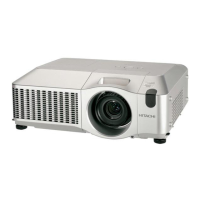
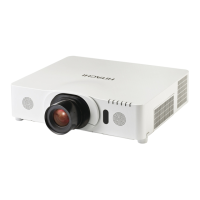
Hitachi CP-X8800 - User Manual

Hitachi CP-X8800
129 pages
Print Icon
To Next Page IconTo Next Page
Loading...
1
Projector
CP-WU8700/CP-WX8750/CP-X8800
CP-WU8600/CP-WX8650
User's Manual (detailed)
Operating Guide
Thank you for purchasing this projector.
►Before using this product, please read all manuals for this
product. Be sure to read Safety Guide rst. After reading them, store them in a
safe place for future reference.
WARNING
NOTE
Trademark acknowledgment
Various symbols are used in this manual. The meanings of these symbols are
described below.
About this manual
WARNING
CAUTION
This symbol indicates information that, if ignored, could possibly
result in personal injury or even death due to incorrect handling.
This symbol indicates information that, if ignored, could possibly
result in personal injury or physical damage due to incorrect handling.
Please refer to the pages written following this symbol.
Mac
®
is a registered trademark of Apple Inc.
Windows
®
, DirectDraw
®
and Direct3D
®
are registered trademarks of Microsoft Corporation
in the U.S. and/or other countries.
VESA and DDC are trademarks of the Video Electronics Standard Association.
HDMI
TM
, the HDMI logo, and High-Denition Multimedia Interface are trademarks or registered
trademarks of HDMI Licensing LLC in the United States and other countries.
Trademark PJLink is a trademark applied for trademark rights in
Japan, the United States of America and other countries and areas.
• Blu-ray Disc
TM
and Blu-ray
TM
are trademarks of Blu-ray Disc Association.
DICOM
®
is the registered trademark of the National Electrical Manufacturers Association
for its standards publications relating to digital communications of medical information.
• HDBaseT
TM
and the HDBaseT Alliance logo are trademarks of the HDBaseT Alliance.
DisplayPort is a trademark or registered trademark of Video Electronics Standards Association.
All other trademarks are the properties of their respective owners.
NOTICE This entry notices of fear of causing trouble.
• The information in this manual is subject to change without notice.
• The illustrations in this manual are for illustrative purposes. They may differ
slightly from your projector.
• The manufacturer assumes no responsibility for any errors that may appear in
this manual.
• The reproduction, transfer or copy of all or any part of this document is not
permitted without express written consent.


Table of Contents

Questions and Answers

  • H
    Heather SmithAug 17, 2025
    Why can't I connect to the Hitachi Projector via wired network?
    • G
      George SalasAug 17, 2025
      There could be several reasons why you can't connect to the projector via a wired network. First, ensure the projector and the network device are turned on. If you intend to use the network function in standby mode, make sure it is set to NORMAL. Verify that the LAN cable is securely connected. If the MAC address on the projector's label doesn't match the one displayed in the NETWORK INFORMATION – WIRED menu, contact your dealer. Check the network settings in the NETWORK INFORMATION – WIRED menu, consulting your network administrator if needed. Ensure that wireless LAN and wired LAN use different network addresses. Finally, refer to your computer's user manual to enable the wired network adapter.
  • D
    Daniel SandovalAug 22, 2025
    What to do if Hitachi CP-X8800 cannot communicate via wireless network with multiple devices?
    • D
      Donald OrtizAug 23, 2025
      If you're experiencing communication issues with multiple devices connected wirelessly to the projector, confirm the number of connected devices. In Simple Access Point mode, the projector supports up to 11 devices. If the maximum number is reached, disconnect a currently connected device before adding another. Ensure that the DHCP setting is enabled on your computer. Also, consider changing the channel setting. If IP address overlaps, turn off your WiFi device and turn it on again.
  • J
    Justin LeeAug 26, 2025
    Why is my Hitachi CP-X8800 not displaying Web(Projector Web Control) correctly?
    • J
      Jessica PierceAug 26, 2025
      If the Projector Web Control is not displaying correctly, first, make sure you're entering the projector's IP address into the web browser. Enable JavaScript in your web browser's settings. Note that the recommended web browsers are Internet Explorer 8/9/10/11, and the Projector Web Control may not display correctly in other browsers. Also, try clearing your browser's cache.
  • J
    Jessica EdwardsAug 28, 2025
    How to fix time settings on Hitachi CP-X8800?
    • U
      urogersAug 28, 2025
      If the time settings on your projector are incorrect, consider these steps: Ensure the battery is properly set; if the time is lost soon after setting it, the battery may be exhausted and need replacement. Verify the settings in the Date/Time Settings menu of the Projector Web Control or the DATE AND TIME menu of the projector itself. Connect the projector to the network. Check the settings of the SNTP server, consulting with your network administrator if needed. When obtaining the time via the network, set the correct time difference if the displayed time is inaccurate.
  • S
    Samantha TannerAug 31, 2025
    How to fix Crestron e-Control not displaying on Hitachi CP-X8800?
    • K
      Kristin EvansAug 31, 2025
      If Crestron e-Control® is not displaying, first, install Adobe® Flash® Player. Ensure you are using a web browser that supports Adobe® Flash® Player. Enable Crestron e-Control® settings on the Network Settings – Other Setup screen of the Projector Web Control. Finally, set Crestron in Projector Web Control - Network Settings - Common Setup to ON.
  • K
    Kendra GouldSep 2, 2025
    Why can't I use wireless and wired LAN at the same time on my Hitachi CP-X8800?
    • C
      Cody HessSep 2, 2025
      You cannot use wireless LAN and wired LAN at the same time if they have the same network address. Set different network addresses for each. Also, either wired LAN or wireless LAN can access different networks by setting the default gateway of either wired LAN or wireless LAN to 0.0.0.0.
  • M
    Michael OlsenSep 5, 2025
    How to troubleshoot schedule not executed correctly on Hitachi CP-X8800 Projector?
    • R
      Richard StevensSep 5, 2025
      If the schedule is not executing correctly, ensure the projector is turned on. If you want to use the schedule function in standby mode, set the projector to NORMAL. Check the date and time settings. Also, register the image and message data to be displayed using the exclusive application software. Finally, set the program of the schedule function so that the event of MyImage, Messenger and Blank can be executed when the lamp is lighting.
  • P
    Philip RobinsonSep 8, 2025
    What to do if Hitachi CP-X8800 Projector cannot send an e-mail correctly?
    • R
      Robert GardnerSep 8, 2025
      If the projector cannot send an e-mail correctly, verify that a test e-mail is sent successfully by pressing the [Send Test Mail] button on the Mail Settings screen of the Projector Web Control. Check the settings on the Mail Settings screen. Ensure a valid e-mail address is set. Confirm that the specific Error/Warning is set to be sent on the Mail Settings screen.
  • G
    gomezrobinSep 12, 2025
    How to troubleshoot external device control via Network Bridge on Hitachi CP-X8800 Projector?
    • M
      michael52Sep 12, 2025
      To troubleshoot external device control via Network Bridge, check the settings in OPTION – SERVICE – COMMUNICATION – COMMUNICATION TYPE menu. Set STANDBY MODE to NORMAL, and set NETWORK BRIDGE (WIRELESS/WIRED) in the COMMUNICATION TYPE menu. Also, verify the serial settings of both the projector and the external device.
  • N
    Natasha AguirreSep 13, 2025
    What to do if e-mail from Hitachi Projector does not reach a specific address?
    • J
      Jennifer TaylorSep 14, 2025
      If an e-mail from the projector doesn't reach a specific address, check the settings on the Mail Settings screen of the Projector Web Control and consult with your network administrator.

Summary

Initial Setup Procedures

Basic Operations

Power On;Off Procedures

Step-by-step guide to power on and properly power down the projector.

Advanced Operating Features

Lens Adjustments

Controls zoom, focus, position, centering, and lens memory settings.

Menu System Navigation

Using the Menu Function

Navigates and operates projector settings via OSD menus (EASY, ADVANCED).

Status Monitor

Maintenance Procedures

Lamp Replacement

Step-by-step guide for safely replacing the projector lamp unit.

Air Filter Maintenance

Procedures for cleaning or replacing the projector's air filter to maintain optimal performance.

Troubleshooting

Warnings and Error Messages

Explains how warnings appear on the status monitor and addresses error messages.

Hitachi CP-X8800 Specifications

General IconGeneral
Matrix size0.79 \
Native aspect ratio3:4
Projection distance- m
Projection technology3LCD
Contrast ratio (typical)10000:1
Screen size compatibility- \
Projector native resolutionXGA (1024x768)
FocusAuto/Manual
Zoom capabilityYes
Focal length range- mm
Lamp power430 W
Lamps quantity1 lamp(s)
Light source typeLamp
Service life of light source3000 h
Full HDNo
Supported video modes480i, 480p, 576i, 720p, 1080i, 1080p
Analog signal format systemNTSC, NTSC 4.43, PAL, PAL M, PAL N, SECAM
HDMI connector typeFull-size
Serial interface typeRS-232
USB 2.0 ports quantity1
S-Video inputs quantity0
Wi-Fi-
Noise level37 dB
Noise level (economic mode)31 dB
RMS rated power16 W
PlacementDesktop, Ceiling
Product typeLarge venue projector
Product colorWhite
Power sourceAC
AC input voltage110 - 240 V
AC input frequency50 - 60 Hz
Power consumption (standby)- W
Power consumption (typical)600 W
Weight and Dimensions IconWeight and Dimensions
Depth456 mm
Width498 mm
Height170 mm
Weight11100 g

Related product manuals