Need help?
Do you have a question about the Hitron CODA-551x and is the answer not in the manual?
Specifies the target audience for this manual, focusing on users configuring the device via its GUI.
Provides guidance on navigating and utilizing the content within the user manual effectively.
Lists supplementary documents like the Quick Installation Guide and Online Help for further assistance.
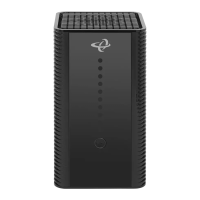
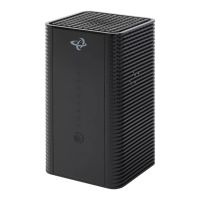
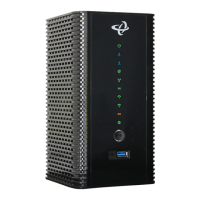
Provides a general overview of the CODA-551x, its functions as a modem, router, and access point.
Describes the physical ports and buttons of the CODA-551x device.
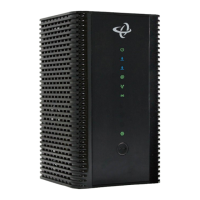
Explains the function and meaning of the various LEDs on the CODA-551x.
Details the necessary steps for configuring your computer's IP address to connect to the CODA-551x.
Guides users through the process of accessing the CODA-551x's Graphical User Interface (GUI).
Provides an overview of the CODA-551x's Graphical User Interface (GUI) elements and layout.
Explains how to perform a factory reset on the CODA-551x, returning it to its default settings.
Introduces EasyConnect as a wizard for rapid configuration of Internet and wireless settings.
Describes the initial welcome screen presented during the EasyConnect setup process.
Details the steps for testing and establishing the CODA-551x's connection to the Internet.
Guides users on configuring wireless network settings and the admin password during setup.
Explains how to save changes made during the EasyConnect configuration process.
Provides an overview of concepts related to the various status screens of the CODA-551x.
Displays general information about the CODA-551x's hardware, software, and Internet connection status.
Shows the steps for connecting to the Internet and helps troubleshoot connection failures.
Provides information about upstream/downstream connections and WAN IP details.
Allows viewing of local WAN activity events and DOCSIS event logs.
Displays detailed status information for the CODA-551x's wireless network.
Provides general information about the CODA-551x's MoCA-related settings and status.
Explains fundamental concepts related to the Basic configuration screens of the CODA-551x.
Allows configuration of the CODA-551x's LAN connection, DHCP server, and connected devices.
Enables or disables residential gateway, UPnP, and SIP ALG functions for the CODA-551x.
Configures port forwarding rules to allow specific WAN traffic to reach LAN devices.
Automates port forwarding by scanning outgoing traffic and opening incoming ports.
Configures the Demilitarized Zone (DMZ) to isolate specific LAN devices from the main network.
Sets up the CODA-551x's LAN DNS settings, including proxy and domain suffix.
Enables or disables the CODA-551x's Multimedia over Cable Alliance (MoCA) features.
Configures the CODA-551x to function as a Dynamic DNS client.
Describes the concepts related to the CODA-551x's wireless network, including basics and architecture.
Configures basic wireless settings for 2.4GHz, 5GHz, WPS, and guest networks.
Manages connected wireless devices by modifying SSIDs and controlling access.
Allows configuration of advanced wireless features like Band Steering.
Provides an overview of administrative tools like Ping and Traceroute for network diagnostics.
Allows changing login credentials (username/password) and inactivity idle time for the admin interface.
Enables performing ping and traceroute tests on IP addresses or URLs for network troubleshooting.
Facilitates backing up and restoring CODA-551x settings to or from a computer.
Configures the CODA-551x's SNTP client settings for obtaining the correct time.
Manages and shares data from devices connected to the CODA-551x's USB port.
Allows rebooting the CODA-551x or returning it to its factory default settings.
Introduces security concepts like firewalls, intrusion detection, and device filtering.
Configures firewall features, allowing or denying applications and protocols, and setting protection levels.
Configures the firewall rules for IPv6 inbound traffic to enhance network security.
Filters network access based on MAC addresses and IP addresses for connected devices.
Blocks access to websites and content based on specified keywords in URLs or page text.
Provides an overview of advanced configuration settings for the CODA-551x.
Displays information on LAN port data rates and flow, and allows port activation/deactivation.
Sets the device location to optimize network quality, especially with multiple extenders.
Addresses issues where the CODA-551x is not receiving power or has a device fault.
Guides users on understanding normal LED behavior and troubleshooting unexpected LED status.
Provides guidance on recovering forgotten admin credentials, including default values.
Troubleshoots connectivity issues, including IP address, subnet, and hardware connection problems.
Helps resolve problems with connecting wireless client devices to the CODA-551x network.
 General
| Ethernet Ports | 4 |
|---|---|
| Telephony Ports | 2 |
| Type | Gateway |
| DOCSIS Version | DOCSIS 3.1 |
| Wi-Fi Standard | Wi-Fi 6 (802.11ax) |
| USB Ports | 1 |
| Downstream Channels | 32 |
| Upstream Channels | 8 |
| Wi-Fi Bands | Dual-band (2.4 GHz & 5 GHz) |


 To Next Page