EasyManua.ls Logo

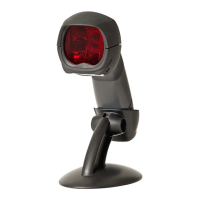
Honeywell MS3780 Fusion - User Manual

Honeywell MS3780 Fusion
52 pages
Print Icon
To Next Page IconTo Next Page
Loading...
MS3780 Fusion
®
Omni/Single Line Scanner
User’s Guide

Other manuals for Honeywell MS3780 Fusion

Questions and Answers

  • W
    William MillerAug 20, 2025
    Why does my Honeywell MS3780 Fusion scan but transmit incorrect data?
    • R
      Ryan BeltranAug 20, 2025
      If your Honeywell Barcode Reader scans a bar code but the data transmitted to the host is incorrect, verify that the scanner’s data format matches the format required by the host and that the scanner is connected to the proper host port. The scanner’s data format may not match the host system requirements.
  • E
    eparkAug 22, 2025
    Why is Honeywell MS3780 Fusion sending incorrect data to the host?
    • J
      Jennifer RodriguezAug 22, 2025
      If the host is receiving data but the data doesn't look correct, check that the Honeywell Barcode Reader and the host are configured for the same interface. The scanner and host may not be configured for the same interface.
  • W
    Wayne PatelAug 25, 2025
    What to do if Honeywell MS3780 Fusion Barcode Reader scans but the data is incorrect?
    • R
      Rachael TaylorAug 25, 2025
      If your Honeywell Barcode Reader scans but the data is not correct, make sure that the proper PC type (i.e. AT, PS2 or XT) is selected. Also, verify correct country code and data formatting are selected and adjust the intercharacter delay. The unit may not be configured correctly.
  • C
    Christopher AvilaAug 26, 2025
    What to do if Honeywell MS3780 Fusion Barcode Reader powers up but doesn't communicate properly?
    • T
      Tyler BellAug 27, 2025
      If your Honeywell Barcode Reader powers up OK and scans OK but does not communicate properly to the host, check to make sure that the baud rate and parity of the scanner and the communication port match and that the program is looking for RS232 data. The com port at the host may not be working or is not configured properly.
  • T
    Tyler WarrenAug 28, 2025
    How to fix a Honeywell MS3780 Fusion Barcode Reader that scans but shows no data?
    • K
      Kathleen IbarraAug 28, 2025
      If your Honeywell Barcode Reader scans the bar code but there is no data, make sure the scanner is configured for the appropriate mode. The unit may not be configured correctly.
  • C
    carnoldAug 29, 2025
    Why does my Honeywell MS3780 Fusion lock up after the first scan?
    • A
      Angela HillAug 30, 2025
      If your Honeywell Barcode Reader scans a bar code, but locks up after the first scan (the white LED stays on), verify that the host cable and host are supporting the handshaking properly, if the scanner is setup to support ACK/NAK, RTS/CTS, XON/XOFF or D/E. The scanner may be configured to support some form of host handshaking but is not receiving the signal.
  • S
    Steven SmithAug 31, 2025
    What to do if Honeywell Barcode Reader powers up but doesn't scan or beep?
    • S
      Shane MartinAug 31, 2025
      If your Honeywell Barcode Reader powers up but does not scan and/or beep, verify that the type of bar code being read has been selected. Also, verify that the bar code that is being scanned falls into the criteria, if the scanner has been configured for a character length lock, or a minimum length. The scanner defaults to a minimum of 4 character bar code, typical of Non-UPC/EAN codes.
  • S
    Scott BairdSep 2, 2025
    How to fix lower case alpha characters on Honeywell Barcode Reader?
    • M
      Maurice Gross MDSep 2, 2025
      If alpha characters show as lower case on your Honeywell Barcode Reader, enable caps lock detect setting of the scanner to detect whether the PC is operating in caps lock. The computer may be in caps lock mode.
  • H
    Hayden ThompsonSep 4, 2025
    Why does my Honeywell Barcode Reader have no LEDs, beeper or motor spin?
    • F
      fstevensSep 4, 2025
      If your Honeywell Barcode Reader has no LEDs, beeper or motor spin, check the transformer, outlet and power strip and make sure the cable is plugged into the scanner. No power may be supplied to the scanner.
  • D
    dylan08Sep 6, 2025
    Why does my Honeywell MS3780 Fusion Barcode Reader have no LEDs and/or beeper?
    • S
      Seth PowellSep 6, 2025
      If your Honeywell Barcode Reader has no LEDs and / or beeper, use the power supply included with the scanner. Some host systems cannot supply enough current to power the MS3780. No power may be supplied to the scanner from host.

Summary

MS3780 Fusion Omni;Single Line Scanner

Users Guide

Official guide detailing the operation, installation, and features of the MS3780 Fusion scanner.

Disclaimer

Trademarks

Introduction

Product Overview

Introduces the MS3780 Fusion as a hand-held, omnidirectional barcode scanner with optional single-line scanning.

Scanner and Accessories

Lists basic kit components and optional accessories available for the MS3780 Fusion scanner.

Scanner Components

Identifies and describes the various physical components and LEDs of the MS3780 Fusion scanner.

Caution and Serial Number Labels

Details the safety labels, including laser warnings, and the location of serial number information on the scanner.

Stand Specifications

Provides dimensions and mounting instructions for the MS3780 Fusion scanner stand.

Maintenance

Outlines procedures for cleaning the scanner window and case to ensure optimal performance.

Cable Removal

Step-by-step instructions on how to safely disconnect the PowerLink cable from the MS3780 Fusion scanner.

Cable Connection Warning

Important notice regarding the implications of an improperly latched PowerLink cable.

Installation

RS232 or Light Pen

Instructions for installing the scanner using RS232 or Light Pen interfaces.

RS485 or OCIA

Instructions for installing the scanner using RS485 or OCIA communication interfaces.

Keyboard Wedge

Instructions for installing the scanner using the Keyboard Wedge interface.

Stand-Alone Keyboard

Instructions for installing the scanner using the Stand-Alone Keyboard interface.

Full Speed or Low Speed USB (Integrated)

Instructions for installing the scanner using USB interfaces, both full and low speed.

EAS Deactivation

Details switch bank settings for EAS deactivation and shows the deactivation area on the scanner.

Scanner Operation

Scan Pattern Mode Select Button

Describes how to use the mode select button to switch between primary and secondary scan patterns.

CodeGate and Manual Activation Mode

Explains how to use CodeGate and the manual activation mode for scanning barcodes.

Audible Indicators

Details the various beeps and tones the scanner emits to indicate status and errors.

Visual Indicators

Describes the function of the LEDs on the scanner for indicating operational status and read results.

Failure Mode Indicators

Explains the combinations of LED flashes and tones that indicate scanner malfunctions.

Normal Scan Zone Depth of Field

Provides specifications for the normal scan zone depth of field based on barcode element width.

Reduced Scan Zone Depth of Field

Specifies the depth of field for the reduced scan zone, considering barcode element width.

Normal Scan Zone by Bar Code Element Width

Details how the scan zone depth varies with different minimum bar code element widths.

Reduced Scan Zone by Bar Code Element Width

Specifies the reduced scan zone depth based on varying minimum bar code element widths.

IR Activation Range

Describes the range of the Infrared (IR) sensor for activating the scanner and its power save modes.

Troubleshooting Guide

Interface Troubleshooting

Addresses problems related to power, LEDs, beepers, and general communication across different interfaces.

RS232 Troubleshooting

Provides solutions for issues specific to RS232 communication, including port configuration and data transfer.

Keyboard Wedge Troubleshooting

Offers solutions for problems encountered when using the scanner with a keyboard wedge interface.

Design Specifications

Operational Specifications

Details scan speed, decode capability, system interfaces, beeper, and indicator specifications.

Embedded Laser Specifications

Specifies the maximum optical power, wavelength, and beam divergence of the embedded laser.

Mechanical Specifications

Provides the physical dimensions and weight of the MS3780 Fusion scanner.

Electrical Specifications

Details voltage supply, operating and standby power, and current consumption of the scanner.

Environmental Specifications

Lists the operating and storage temperature, humidity, and shock resistance of the scanner.

Applications and Protocols

Scanner Interface Protocols

Lists the various communication protocols and their version identifiers supported by the MS3780 models.

Keyboard Wedge Options

Details keyboard types and country-specific settings relevant to the keyboard wedge interface.

Configuration Modes

Configuration Methods

Describes configuration using Bar Codes, MetroSet2 software, and Serial Programming.

Upgrading the Firmware

Firmware Upgrade Process

Step-by-step guide on using MetroSet2 software to perform a firmware upgrade on the scanner.

Scanner and Cable Terminations

Scanner Pinout Connections

Illustrates and lists pin assignments for different MS3780 scanner models and their interfaces.

Cable Connector Configurations

Shows host-end connector configurations for RS232, USB, and Stand Alone Keyboard PowerLink cables.

Regulatory Compliance

Safety Information

Provides critical safety warnings related to laser exposure and proper scanner usage.

EMC Compliance

Details Electromagnetic Compatibility (EMC) standards, including emissions and immunity for Class A devices.

Limited Warranty

Warranty Coverage and Exclusions

Specifies what the warranty covers, what it excludes, and limitations of liability.

Warranty Duration and Transferability

States the warranty period for the scanner and accessories, and its non-transferable nature.

Patents

Customer Support

Technical Assistance Contacts

Lists telephone numbers and email addresses for technical support in various global regions.

Product Service and Repair

Details how to obtain warranty or non-warranty service and repair for the scanner.

Online Assistance

Directs users to online resources for product service and repair assistance.

Honeywell MS3780 Fusion Specifications

General IconGeneral
Scan speed1333 sec/page
Wavelength650 nm
Decoding standards1D, GS1
Dimensions (WxDxH)189 x 65 x 73 mm
Standard interfacesKeyboard wedge
Input voltage5 V
CertificationFCC Part 15, ICES-003, EN55022 Class B
Product colorBlack
Storage temperature (T-T)-40 - 60 °C
Operating temperature (T-T)-20 - 40 °C
Operating relative humidity (H-H)5 - 95 %
Weight and Dimensions IconWeight and Dimensions
Weight195 g

Related product manuals