2-19
Using the ProCurve Web Browser Interface
Web Configuration
Using the ProCurve Web
Browser Interface
2. Click APPLY.
Note For the 8-port switch, you can only create up to a maximum of 4 trunks of up
to 8 ports each.
Field Attributes
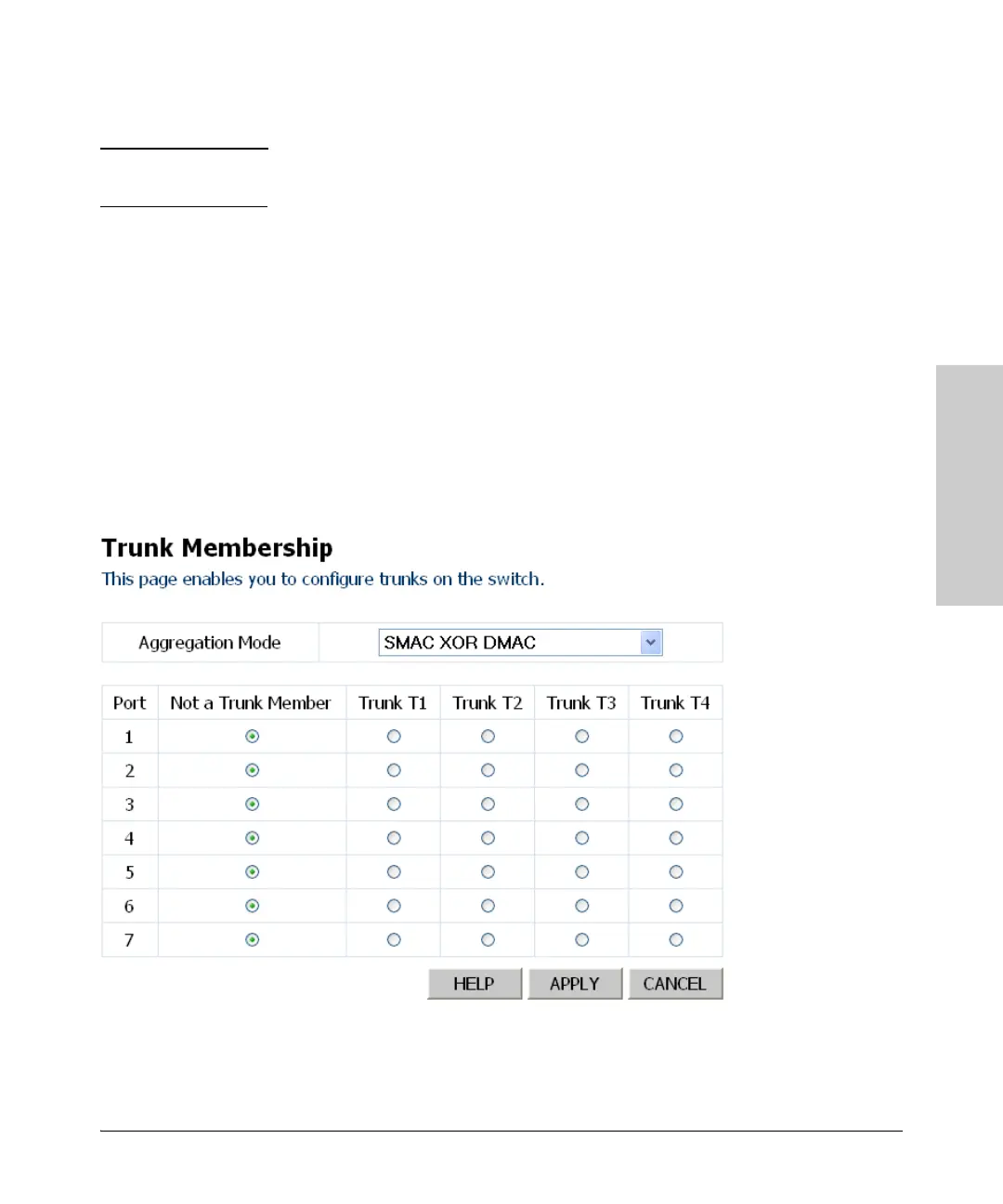
• Port – The port number.
• Not a Trunk Member – If the radio button in this column is selected,
the port is not a member of any trunks. This is the default state.
• Trunk T1-T12 – These columns correspond to the trunks that are
supported by the switch. To assign a port to a trunk, click on the radio
button in any one of these columns of the corresponding trunk and
then click APPLY.
Web – Click Trunks, Membership. To assign a port to a trunk, click the required
trunk number, then click APPLY.


 To Next Page
 Loading...