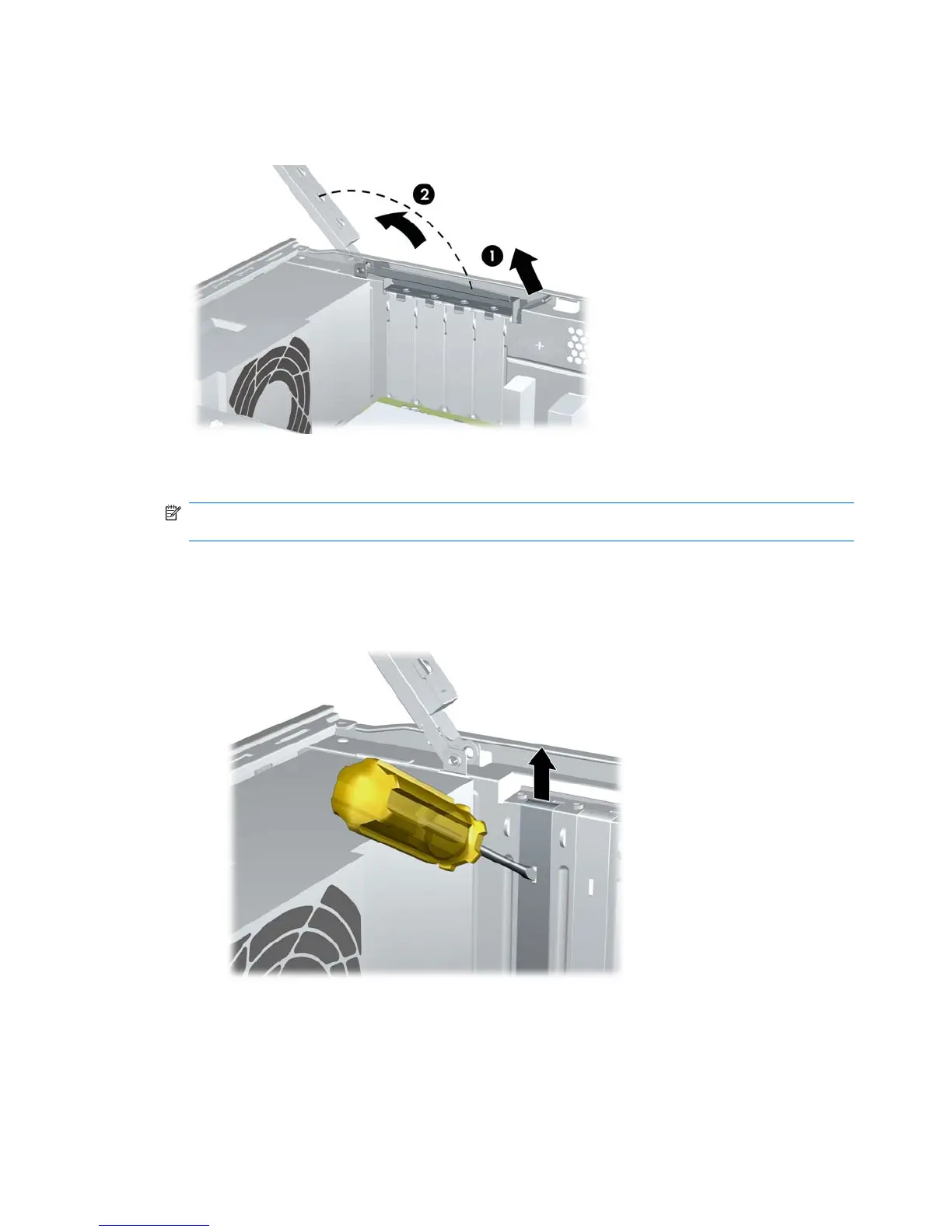
3. On the rear panel of the computer, lift the slot cover latch (1) and rotate slot cover up and away
from the slots (2).
Figure 8-33 Releasing the Slot Cover Lock
4. Before installing an expansion card, remove the expansion slot cover or the existing expansion
card.
NOTE: Before removing an installed expansion card, disconnect any cables that may be attached
to the expansion card.
a. If you are installing an expansion card in a vacant socket, you must use a flat-blade
screwdriver to pry out the metal shield on the rear panel that covers the expansion slot. Be
sure to remove the appropriate shield for the expansion card you are installing.
Figure 8-34 Removing an Expansion Slot Cover
110 Chapter 8 Removal and Replacement Procedures Small Form Factor (SFF) Chassis





 To Next Page