18
3.1.2 Emergency Recording
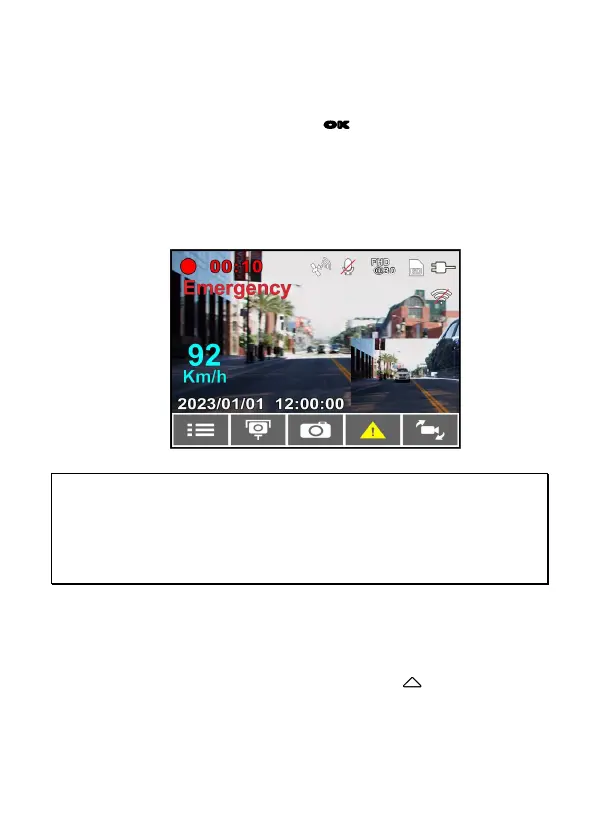
To Start the Emergency Recording, do the following:
1. During Video Recording, press the
OK
button to enter emergency
recording mode, the “Emergency” message will be shown
immediately on the upper left corner of the screen, and the
recorded file will be protected.
2. The emergency video recording length is same as the recording
interval setting. When the emergency recording length reaches the
setting, the system will return to the general recording mode.
Note:
If the
Collision Detection
function is enabled and a collision is detected, the camcorder will
automatically trigger the emergency recording. The emergency file is created as a new file and save in
Event folder, which will be protected to avoid being overwritten by normal loop recording. The
emergency video folder will occupy 20% of available memory card capacity. When the emergency
video folder is full, the oldest emergency file will be automatically deleted by the newest emergency
file.
3.2 Add Speed Point
You may customize speed cam positions in this product.
1. When the GPS positioning is completed , press to update speed
camera points.
2. This product features a capacity of 50 speed cam positions. In case
you are trying to add more than that the system prompts with
message "Speed Position is full".


 To Next Page