16
3.2 Photos
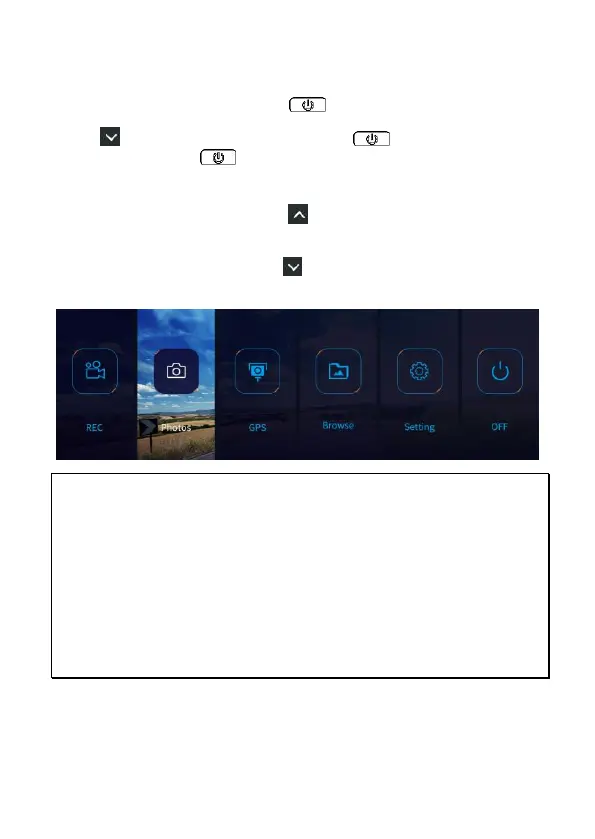
In the recording screen, long press button to enter the OSD menu.
Press to select [Photos] card, and press to enter. In current
preview mode, press again to take photo, you will hear “ka-za”
sound and the photo will be saved in the Photo folder. By this way to take
photo, it’s only available to take singe camera’s image, it cannot be taken
dual camera’s images. Short press button to switch front and rear
camera image.
In the recording mode, long press to take snapshot of current image.
The front and rear camera images can be taken at the same time.
Note:
1. The photo files will be saved in Photo folder which will not be overwritten by normal
loop recording.
2. The Lock folder and Photo folder will occupy 1/3 of available memory card capacity.
When the space is full, the reminder message will pop up to ask the user to format the
memory card or delete files.
3. The picture resolution is limited by the speed of the target object and changes in
ambient lighting. The photograph function is better used for taking still pictures in
accident scenes or when the car is stopped to wait for a traffic light.
4. The files taken by front main camcorder and rear camera will be saved separately in
the [FRONT] and [BACK] folder.


 To Next Page